KEJ AUP Compliance Portal
Complete User Guide
Every tab, every button, every option — documented with real screenshots from your live portal. Use this guide to train staff, answer questions, and understand exactly what each feature does.
The KEJ AUP Compliance Portal is a web application built specifically for Keith E. Johnson CPA PA to manage Agreed-Upon Procedures (AUP) engagements for Florida private schools participating in the Step Up For Students scholarship program. It replaces a fully manual process — physical binders, paper checklists, handwritten tracking — with a single organized system that the entire firm can access from anywhere.
Each school in your portfolio gets its own digital binder inside the portal. That binder mirrors Pam's 14-tab physical binder exactly: the same tabs, the same documents, the same compliance checks. What the portal adds is automation — AI reads bank statements and flags thresholds, documents coming in by email auto-route to the right tab, and the AUP report pre-fills from analyzed data.
🏢 Who Uses This Portal
Firm staff (Keith, Pam, Jessica) log in with the firm account. Schools never access this portal — it is firm-only. Schools interact separately through a school portal.
📁 What It Replaces
Physical binders, email-by-email document tracking, manual bank statement calculations, hand-typed status update emails, and paper AUP report drafts.
⚖️ Compliance Note
The AUP procedures are standardized by AICPA and Step Up For Students. This portal implements those rules — it does not change them. Keith still signs every report.
The words "audit" and "review" cannot appear in any client-facing communication from this portal. AICPA rules require a second CPA for those engagements. The correct term is always "Agreed-Upon Procedures" or "AUP."
Navigate to aup-portal-iota.vercel.app in any modern browser (Chrome recommended). You will see the login screen with the AUP Compliance Portal logo.
| Field | What to Enter |
|---|---|
| Email address | The firm login email (aup@jaxflacpa.com). This is the firm-level account — all firm staff share one login. |
| Password | The firm account password. Ask Keith if you don't have it. Never share it outside the firm. |
The portal uses a single firm-level login that all staff share. There is no per-user account. If you need to track who did what, use the Communication Log inside each school to leave a dated note.
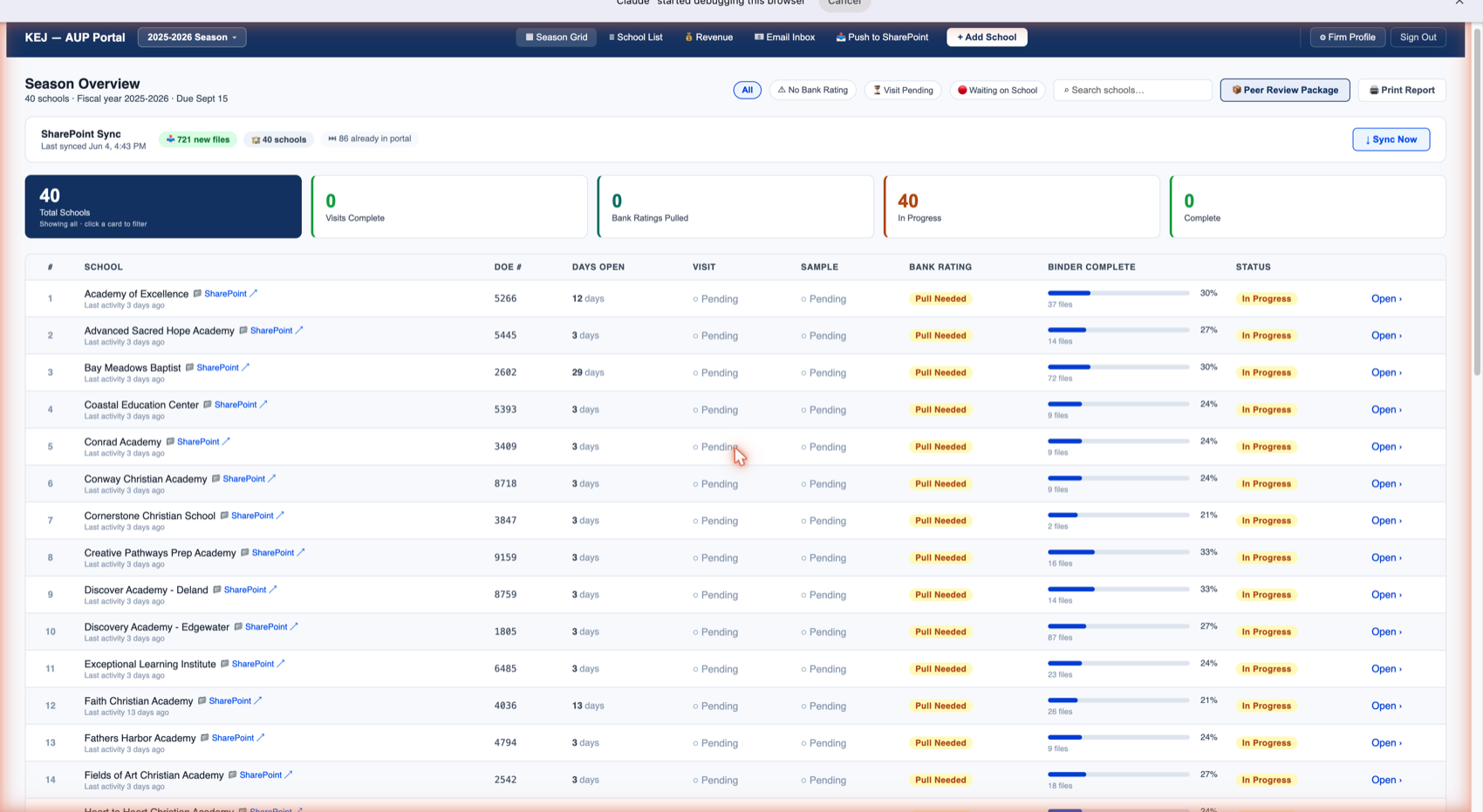
The navigation bar runs across the top of every page. On the left is the KEJ — AUP Portal logo with the current season dropdown. In the center are the five main firm-wide views. On the right are Firm Profile and Sign Out.
| Item | What It Does |
|---|---|
| 2025-2026 Season ▾ | The season selector dropdown (top-left). Click to switch between fiscal years if multiple seasons are stored. The current season governs which engagements appear in all views. |
| Season Grid | The main dashboard. Shows all 40 schools in a sortable table with status, days open, visit status, sample status, bank rating, binder completion %, and engagement status. This is where you start every session. |
| School List | All 40 schools displayed as cards — a visual alternative to the Season Grid table. Each card shows binder progress bar, file count, visit status, and bank rating status at a glance. |
| Revenue | Tracks fees, billing structure, payments collected, and amounts outstanding across all engagements for the season. |
| Email Inbox | Reads emails from pamela@jaxflacpa.com that have attachments. Auto-detects which school sent the email and lets you import the attached files directly into the right binder tab without leaving the portal. |
| Push to SharePoint | Identifies files uploaded or imported into the portal that have not yet been copied back to your SharePoint folder. Lets you sync them in one click so SharePoint stays as the archive of record. |
| + Add School | Opens the form to add a new school engagement to the current season. Only used when onboarding a new client or adding a school missed at season setup. |
| Firm Profile | Stores Keith's CPA credentials (name, license number, email, phone), the firm address, and the Email + Cloud integration settings. These credentials auto-populate every generated AUP report. |
| Sign Out | Logs out of the portal. Always sign out on shared computers. |
When you are inside a school's binder, a breadcrumb appears in the top bar: ‹ All Schools | Academy of Excellence. Click "‹ All Schools" to return to the Season Grid at any time.
SharePoint Sync Bar
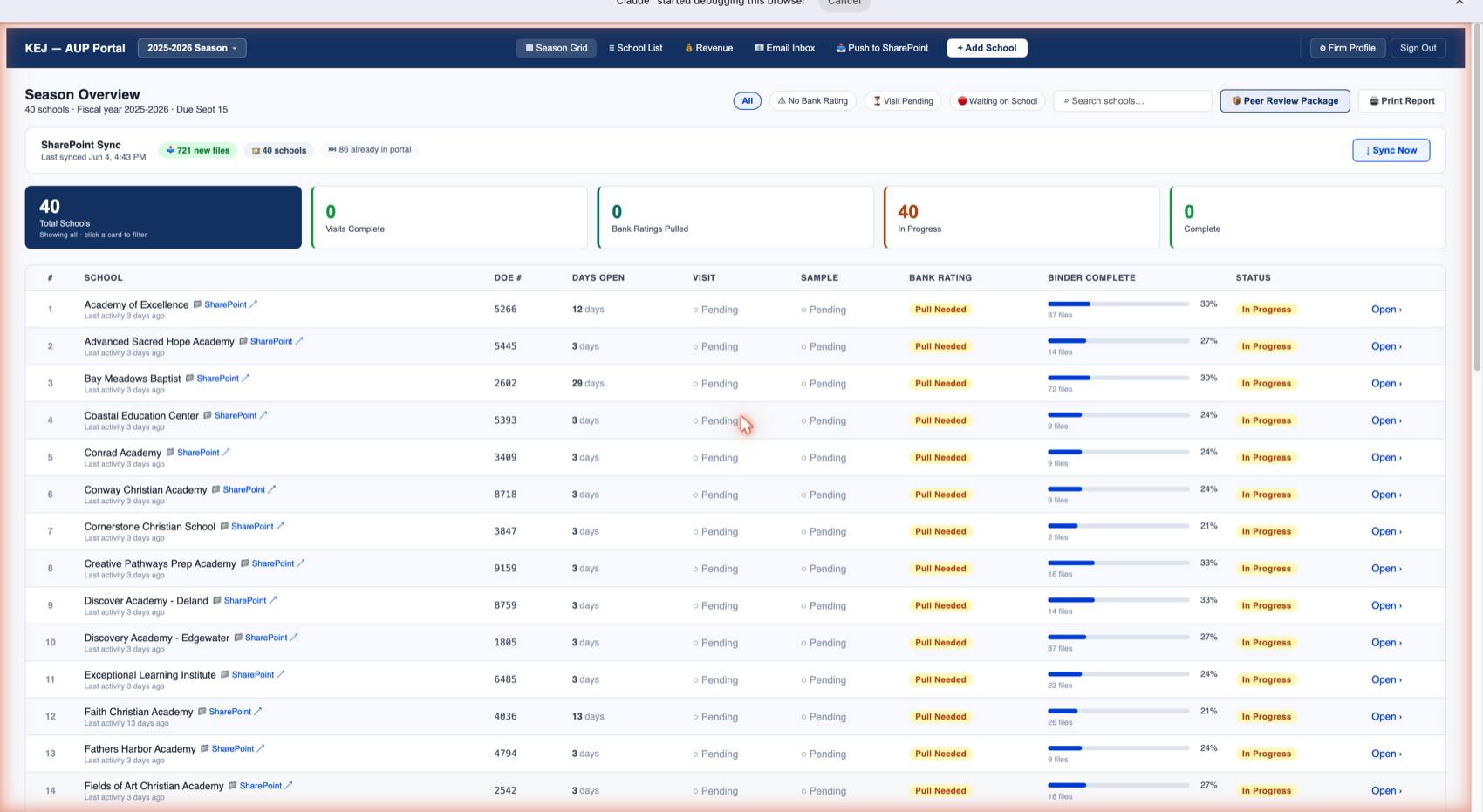
Directly below the page title is the SharePoint Sync bar. It tells you when the portal last pulled files from your SharePoint folder and summarizes what was found:
| Element | What It Means |
|---|---|
| ↑ 721 new files | Files found in SharePoint that were not yet in the portal — the portal imported them on the last sync. |
| ☰ 40 schools | Number of school folders detected in your SharePoint during the last sync. Should match your total school count. |
| ↔ 86 already in portal | Files that were already in the portal and matched files in SharePoint — no duplicate import. |
| Last synced [date/time] | When the most recent automatic sync ran. Syncs happen automatically when you open the portal and can be triggered manually. |
| ↓ Sync Now button | Forces an immediate sync with SharePoint right now. Use this after you or a school has added files to SharePoint and you want them to appear in the portal immediately without waiting. |
Stat Cards (Clickable Filters)
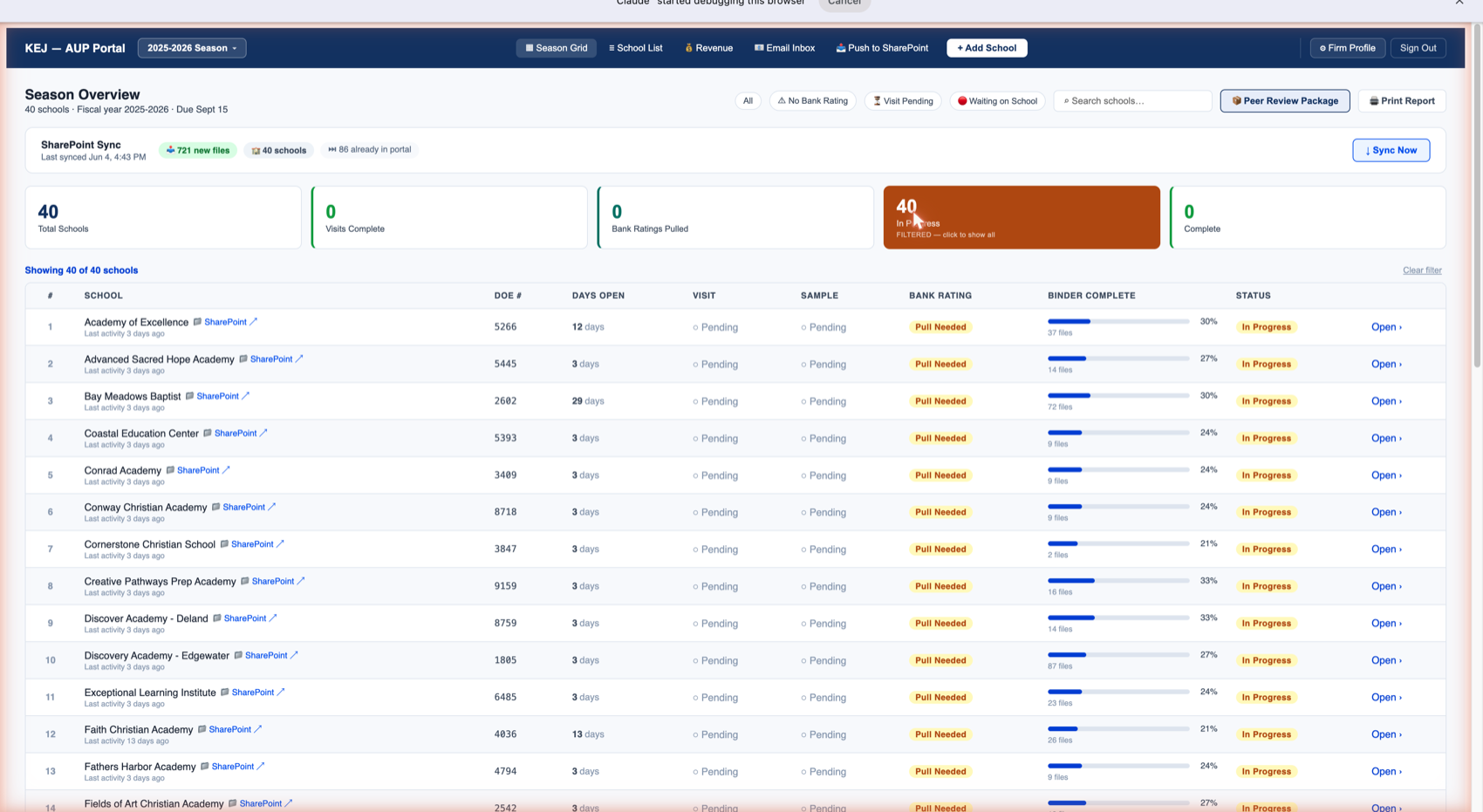
Below the sync bar are four large stat cards. Every number shown is clickable — clicking it filters the school table below to show only schools that match that status.
| Card | What It Counts | Click to See |
|---|---|---|
| Total Schools | All engagements in the current season (40 this year). Always shows all schools. | Resets any active filter to show all schools. |
| Visits Complete | Schools where the Visit Done header button has been clicked. Currently 0 — no visits marked complete yet. | Schools where student verification visits are done. |
| Bank Ratings Pulled | Schools where the Bank Rating button has been used to confirm a Bauer Financial rating. Currently 0. | Schools with bank ratings on file. |
| In Progress | Schools currently active (not Complete). Currently 40. | All active engagements. When a school reaches 100% and is marked complete, it moves out of this count. |
| Complete | Schools fully done — all items received, report generated and signed. Currently 0. | Finished engagements only. |
Filter Chips
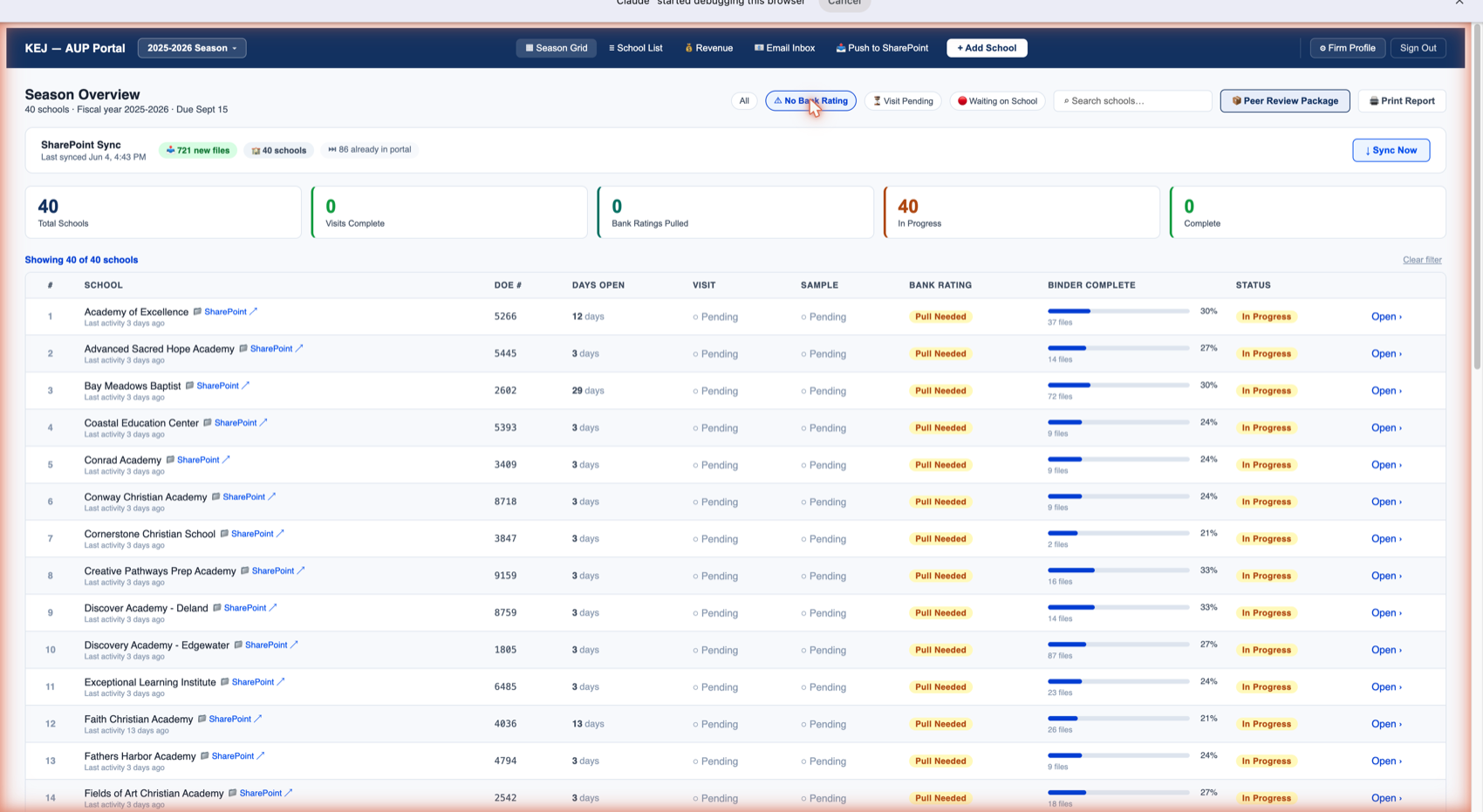
Above the school table on the right side are three quick-filter chips for the most common situations you need to act on:
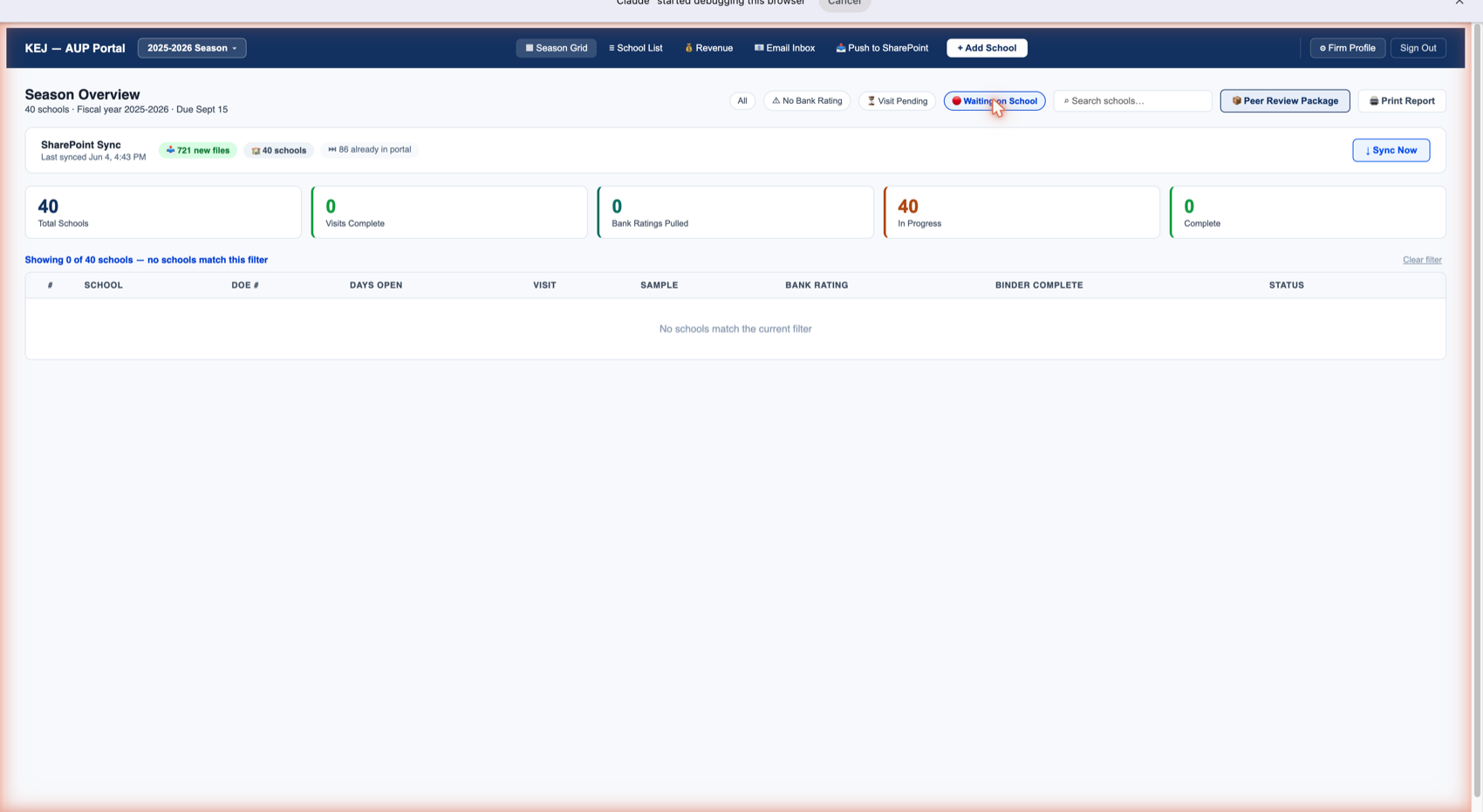
| Filter Chip | What It Shows | When to Use |
|---|---|---|
| All | All 40 schools — clears any active filter. | Start of day, or after reviewing a subset. |
| ⚠ No Bank Rating | Schools where no bank rating has been pulled yet via the Bank Rating button. | Use during bank rating season to work through the list systematically. |
| 👤 Visit Pending | Schools where the student verification visit has not been marked done. | Use from April through May 15 to track which schools still need a visit before kids leave for summer. |
| 🔴 Waiting on School | Schools manually tagged as waiting on the school to send documents. | Use to isolate schools you are actively chasing vs. schools where you're waiting internally. |
You can also type in the Search schools… box to filter by school name in real time. This is the fastest way to jump to a specific school when you know its name.
School Table Columns
Each row in the table represents one school engagement. The columns tell you everything you need to know at a glance without opening the school:
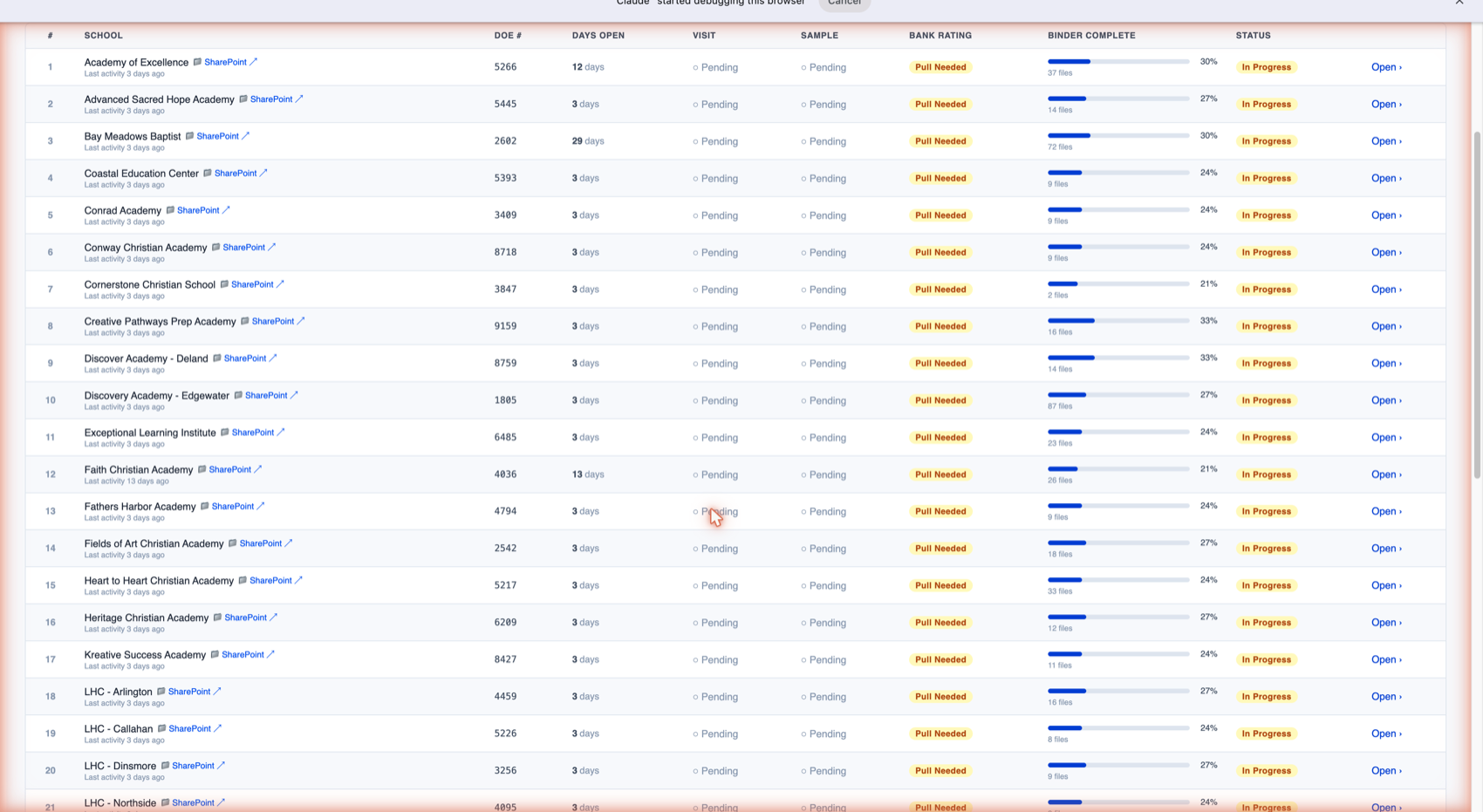
| Column | What It Shows |
|---|---|
| # | Row number — just for counting. Schools are sorted alphabetically. |
| School | School name. Below the name: "Last activity X days ago" tells you when any file was last added to this school's binder. Also shows SharePoint folder link (📁) and an edit pencil (✏️). |
| DOE # | The Florida Department of Education school number. This is the identifier Step Up uses — it appears on the engagement letter, the binder folders, and the final report. Zarephath is 4926, Academy of Excellence is 5266, etc. |
| Days Open | How many days since this engagement was opened in the portal. Helps you spot slow-moving engagements. Academy of Excellence shows 12 days; Zarephath shows 16 days. |
| Visit | Status of the student verification visit. Shows ○ Pending until you click the "Visit Done" button in the school header, then changes to ✓ Done. |
| Sample | Whether the student sample has been pulled. ○ Pending until you click "Sample Pulled" in the school header. Tracking this separately from the visit reminds you that samples must be pulled before visits. |
| Bank Rating | Shows Pull Needed until you use the Bank Rating button to confirm a Bauer Financial rating is on file. Then shows the star rating confirmed. |
| Binder Complete | A blue progress bar showing what percentage of required binder items have been received. The number to the right (e.g., 30%) is the percentage. Below the bar: total file count for this school (e.g., 37 files). Clicking the bar or percentage takes you directly to the Progress tool for that school. |
| Status | In Progress — active engagement. Changes to Complete when all items are done and you mark it complete. |
| Open › | Click to enter this school's binder and see all 15 document tabs, tools, and actions. |
Additional Season Grid Buttons
| Button | Location | What It Does |
|---|---|---|
| Peer Review Package | Top right of Season Grid | Generates a package of engagement documentation formatted for peer review submission. Used every 3 years when KEJ undergoes AICPA peer review. |
| Print Report | Top right of Season Grid | Opens a printable season-level status report showing all 40 schools, their binder completion percentages, and outstanding items. Keith's weekly review in one click. |
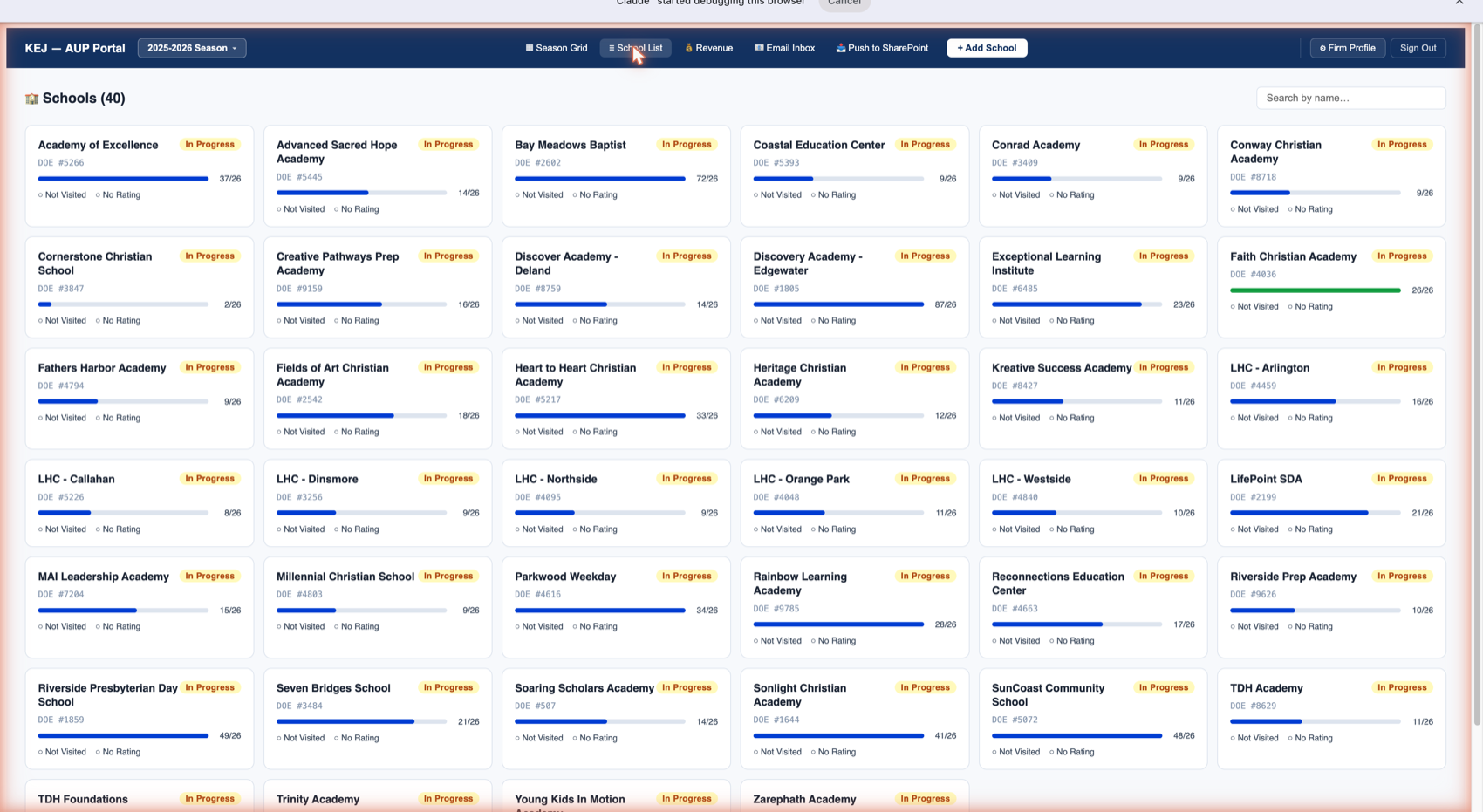
Click School List in the top nav to switch from the table view to the card view. Each card shows:
| Card Element | What It Means |
|---|---|
| School name + status badge | School name at top. In Progress badge indicates active engagement. |
| DOE #XXXX | The DOE school number. Each card displays this prominently for quick identification when multiple schools have similar names (e.g., the six LHC campuses). |
| Progress bar + X/26 | Blue bar showing binder completion. The fraction (e.g., 37/26, 14/26) shows files uploaded vs. the 26 required binder items. A school can have more files than required items because multiple files may satisfy one item. |
| ○ Not Visited | The student verification visit has not been marked complete. Changes to ✓ Visited after you click Visit Done. |
| ○ No Rating | Bank rating not yet pulled from Bauer Financial. Changes to the star rating once confirmed. |
There is a Search by name… box in the top right of this view. Type any part of a school name to filter the card grid instantly.
Click any school card to open that school's binder — same as clicking "Open ›" in the Season Grid.
Use School List for a visual scan — great for spotting which schools have low progress bars at a glance. Use Season Grid when you need to sort, filter by a specific column (like Days Open), or work through the list systematically.
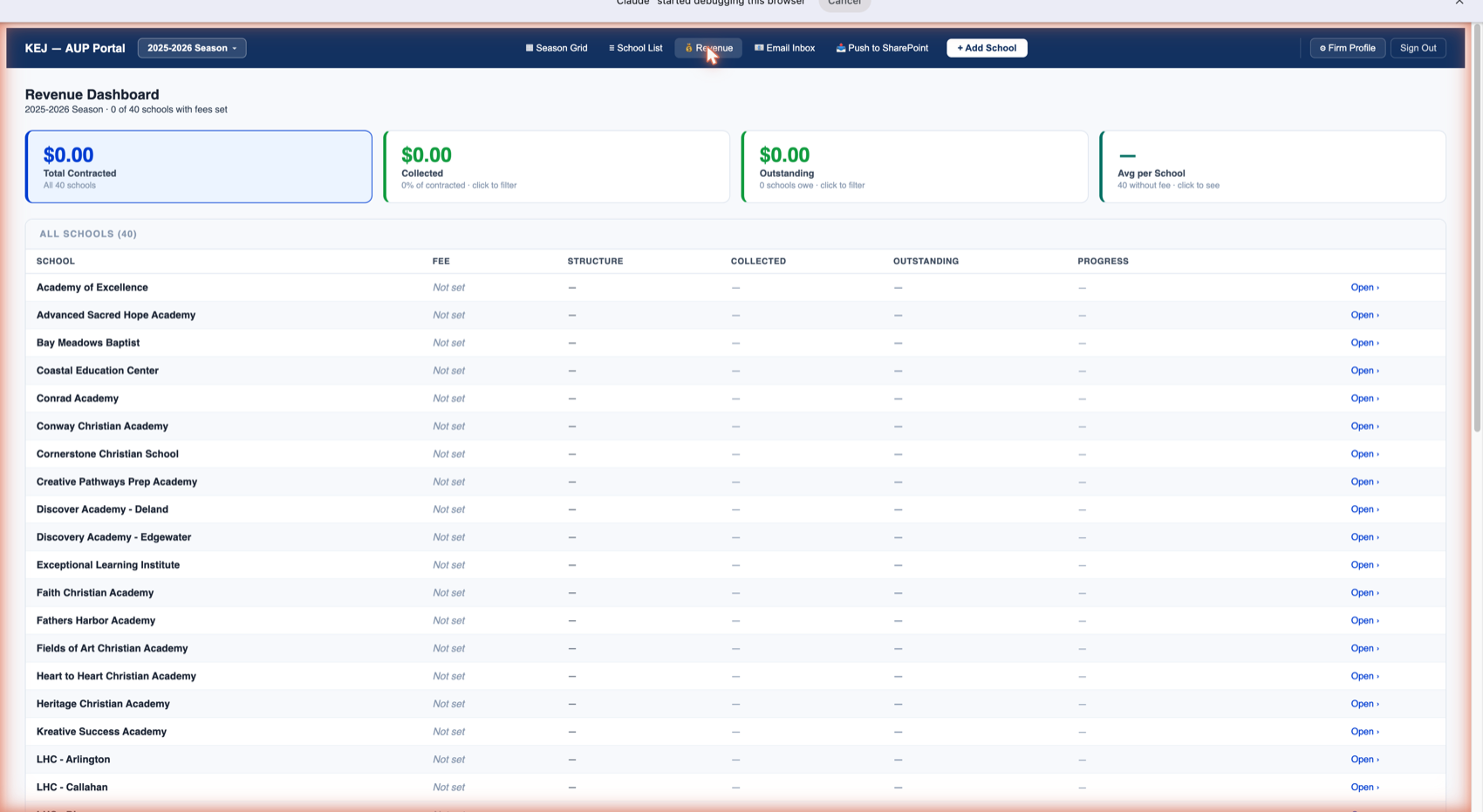
Summary Cards
| Card | What It Shows |
|---|---|
| Total Contracted | Sum of all engagement fees across all schools where a fee has been entered. Clicking this card filters the table below to all schools. Shows "All 40 schools" beneath the number. |
| Collected | Total payments received across all schools. Shows as a percentage of contracted (e.g., "0% of contracted"). Clicking filters to schools with payments recorded. |
| Outstanding | Total fees not yet collected (Contracted minus Collected). Shows how many schools still owe money. Clicking this filters the table to only schools with unpaid balances — your accounts receivable view. |
| Avg per School | Average fee across schools that have fees set. Shows how many schools are without a fee configured. Clicking filters to schools without fees so you can set them. |
School Table
Below the cards, every school is listed with columns: School name, Fee, Structure, Collected, Outstanding, and Progress (a mini bar). Each row has an "Open ›" link to jump directly into that school's binder and Billing tool.
Schools show "Not set" in the Fee column until you enter fees in the Billing tool inside each school (see Billing Tool). You can click "Open ›" from this view to go directly to that school.
Per AICPA rules, you cannot publish or advertise fee amounts. The Revenue Dashboard is for internal tracking only — never share a screenshot of this screen with clients or prospects.
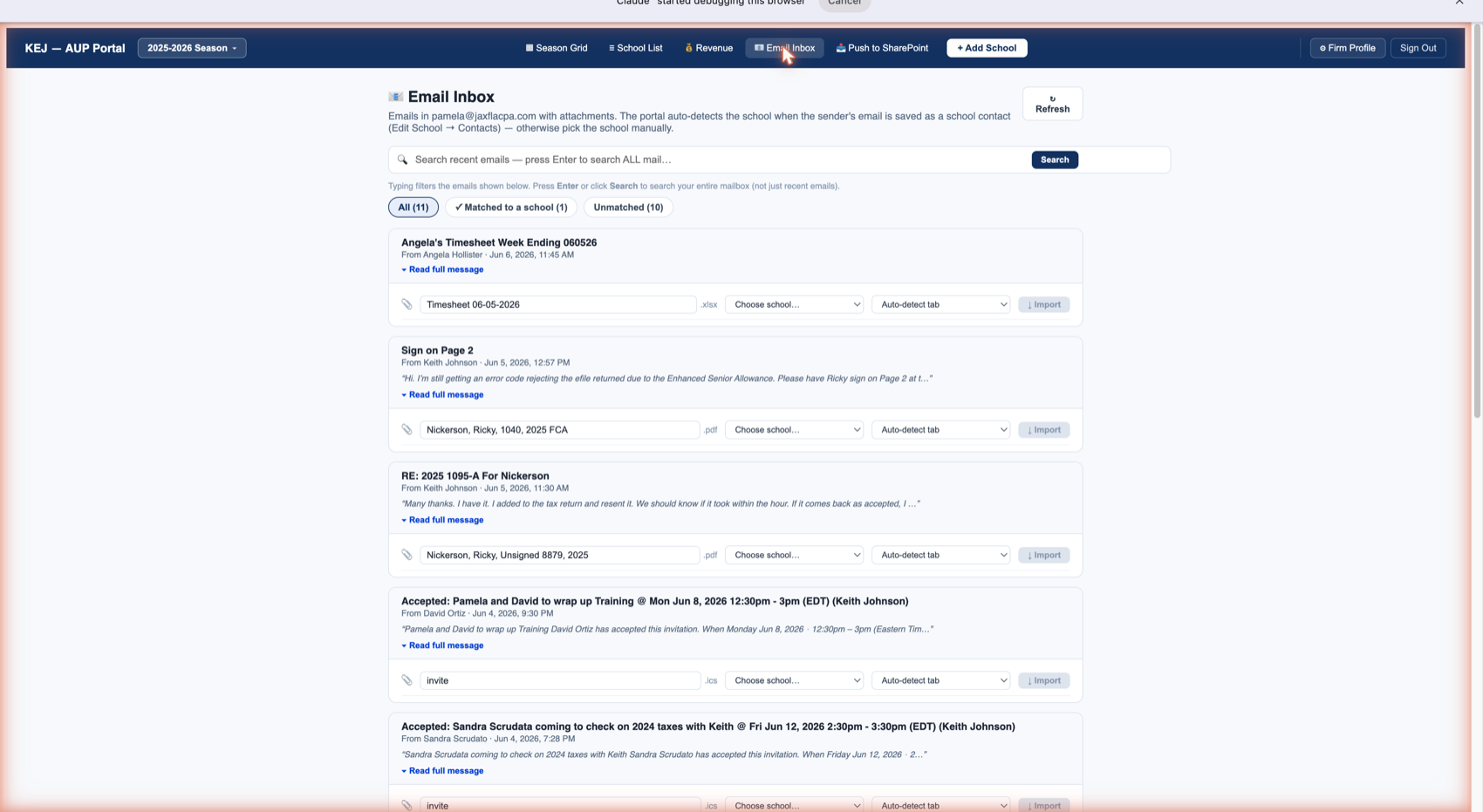
The Email Inbox reads all emails in pamela@jaxflacpa.com that have file attachments. It shows only emails with attachments — plain messages without files are not displayed. This is your document intake center: when a school emails a bank statement, a signed engagement letter, or any other file, it lands here.
How Auto-Matching Works
When an email arrives, the portal checks whether the sender's email address is saved as a contact for any school. If it finds a match, the email is automatically tagged as ✓ Matched: School Name. If no match is found, the email lands in Unmatched.
To improve auto-matching: go into a school's binder, click Edit School in the header, and add the school's contact email address. Future emails from that address will auto-match.
Filter Tabs
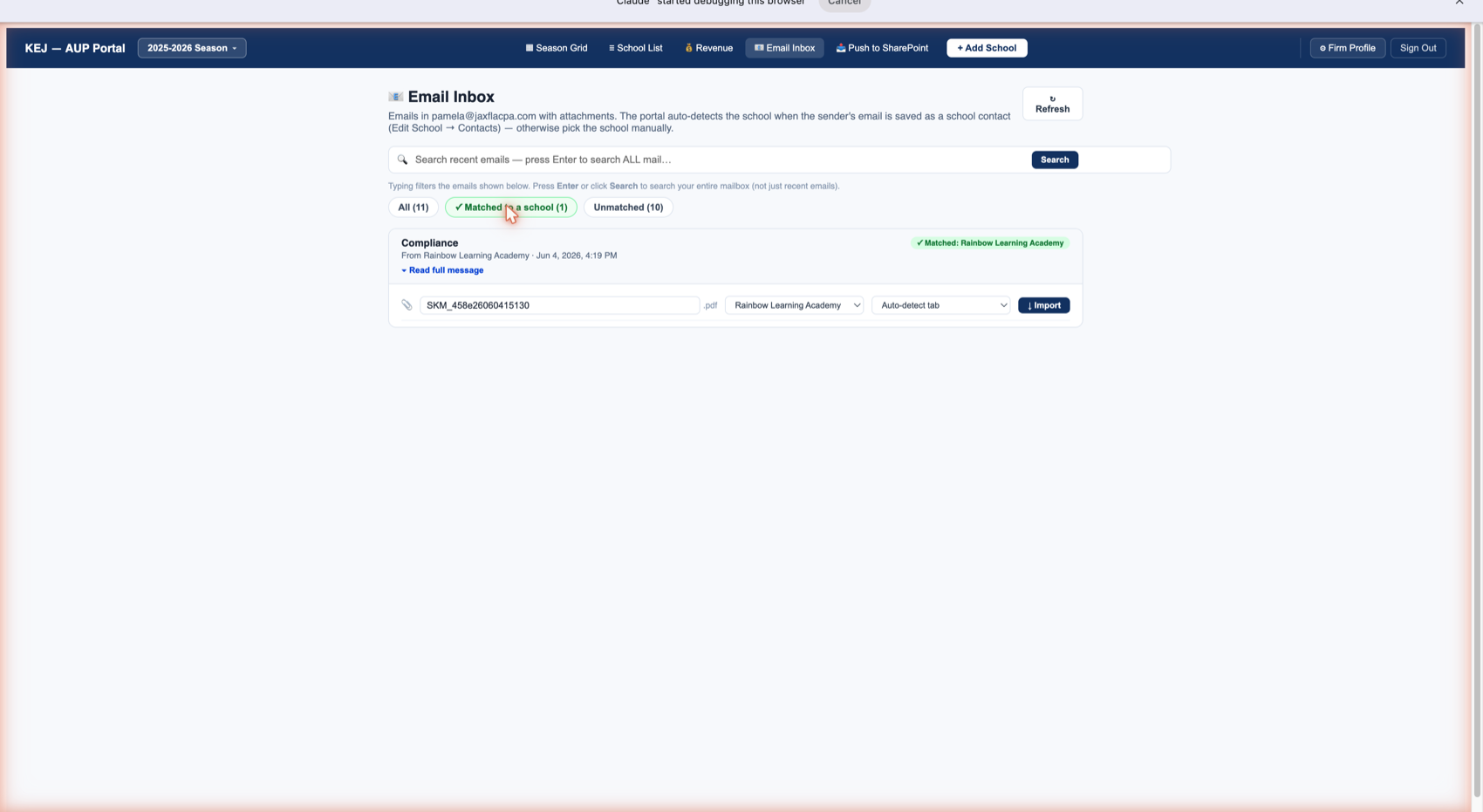
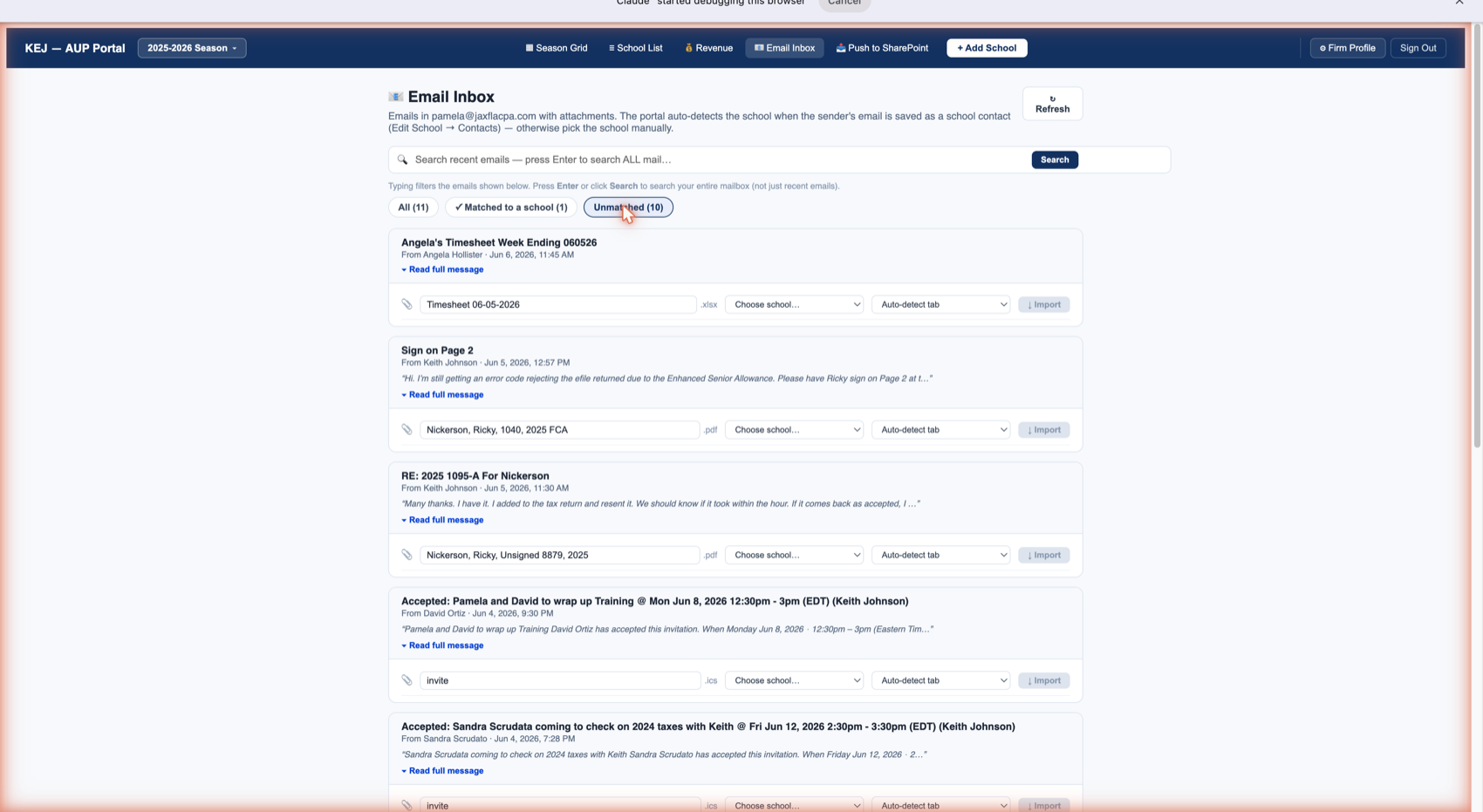
| Tab | What It Shows | What to Do |
|---|---|---|
| All (11) | Every email with an attachment in the inbox — both matched and unmatched. | Use for a full overview. Good for your first review of the day. |
| ✓ Matched to a school | Emails where the sender was recognized and auto-matched to a school. The Import button is immediately active — no manual selection needed. | Process these first. One click imports the file directly into the school's binder. |
| Unmatched | Emails the portal couldn't automatically match to a school. The "Choose school…" dropdown is empty and the "Auto-detect tab" tab dropdown is set to auto. | Select the correct school from the dropdown, confirm the binder tab, then click Import. |
Importing a Document
Each email row shows one or more attachments. For each attachment, there are three controls and one action:
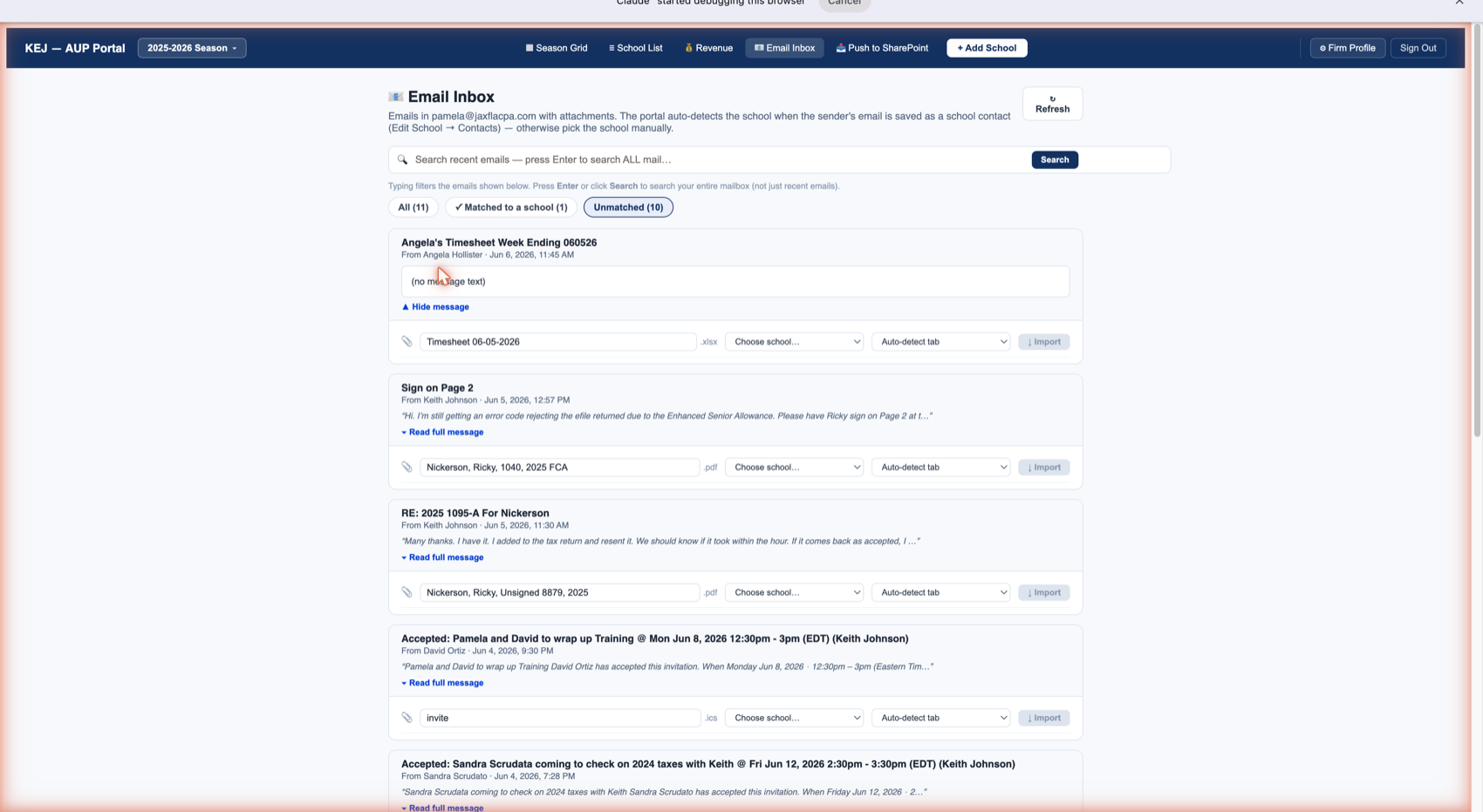
| Control | What It Does |
|---|---|
| Filename | The attachment filename as it was emailed. This becomes the stored filename in the portal — rename it first in the school's binder if you want a different name. |
| File type badge (.pdf, .xlsx, .docx) | Shows the format. The portal accepts any format a school might send. |
| Choose school… dropdown | For unmatched emails: select the school this file belongs to. For matched emails: already populated — don't change it unless the match is wrong. |
| Auto-detect tab dropdown | The portal reads the filename and tries to guess which binder tab the file belongs to. "Auto-detect tab" means it will choose automatically. You can override this — click the dropdown to pick a specific tab (3A Bank Statements, 4A Student Sample, etc.) if the auto-detection would be wrong. |
| ↓ Import button | Imports the file into the selected school's binder at the selected tab. The button is dark navy when ready, grayed out if no school is selected yet. After import, the email row shows a success state and the file appears in the school's binder. |
Search Bar
The search bar at the top of the Email Inbox has two modes:
- Typing in the box: Filters the emails currently loaded below — instant, no server call. Good for finding a specific email by subject or sender name.
- Pressing Enter or clicking Search: Searches your entire mailbox, not just recent emails. Use this when a school sent something weeks ago that isn't in the recent list.
Refresh Button
The Refresh button (top right of the inbox) pulls the latest emails from the mailbox right now. The inbox does not auto-refresh while you have it open — click Refresh after you know a school has sent something and it hasn't appeared yet.
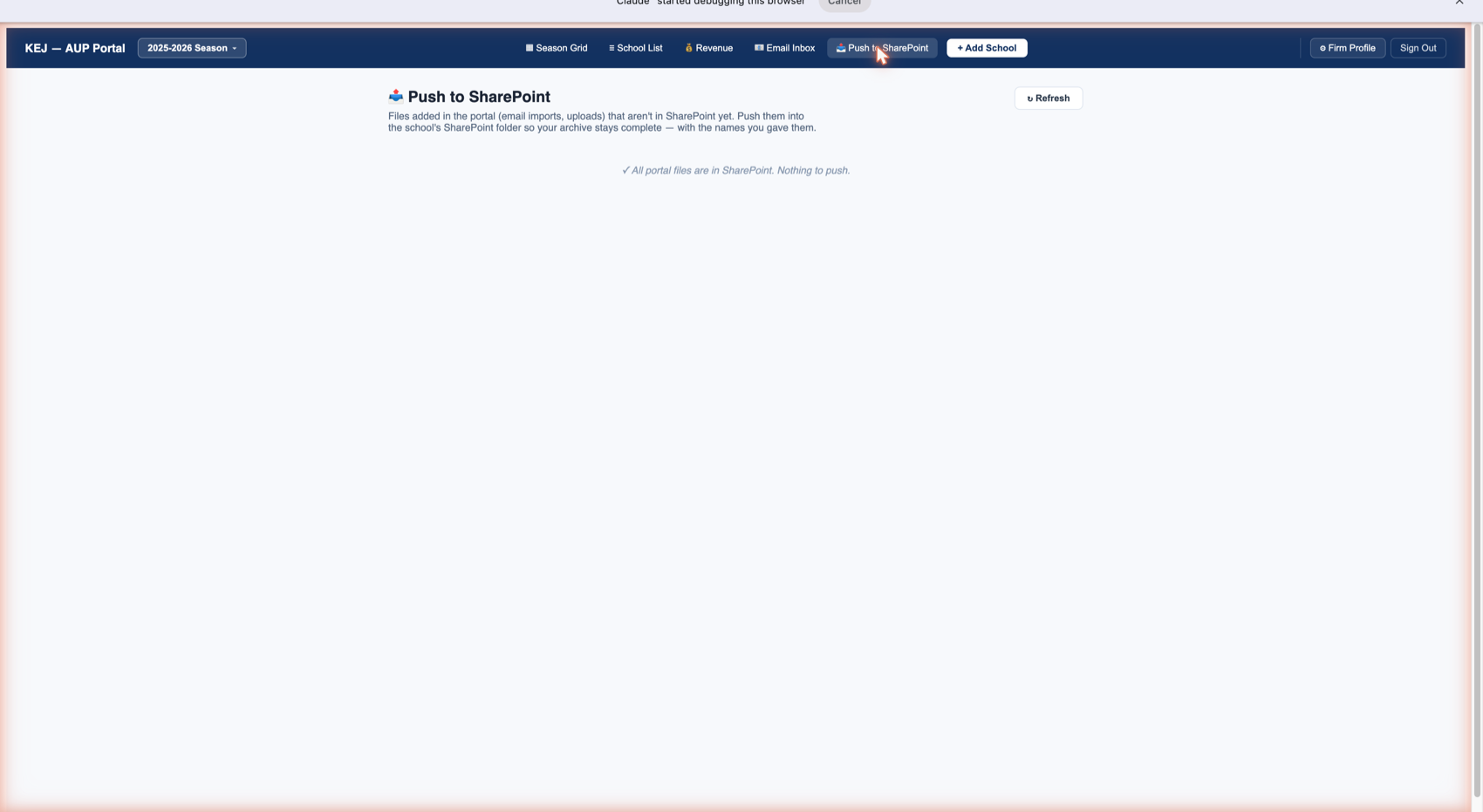
Your workflow has two ways files enter the portal: (1) synced automatically from SharePoint, and (2) imported directly into the portal via the Email Inbox or the Upload Files tool. Files from path (2) land in the portal but are not automatically written back to SharePoint.
Push to SharePoint closes that gap. It finds every file in the portal that does not exist in the corresponding SharePoint school folder and lets you push them all back in one operation, with the filenames as you've set them in the portal.
When to Use It
- After a session where you imported multiple email attachments
- After manually uploading a file through the Upload Files tool
- At the end of each week as a cleanup step to ensure SharePoint is the complete archive
- Before generating the AUP report — you want SharePoint to reflect the complete binder
Think of it as a one-way street that can be reversed: SharePoint → Portal happens automatically on sync. Portal → SharePoint requires you to use Push to SharePoint. Always push at end of day to keep both systems aligned.
The Refresh button (top right) re-checks the sync state. If the page shows files to push, a table of filenames and school names appears with a Push All button. Individual files can also be selected and pushed one at a time.
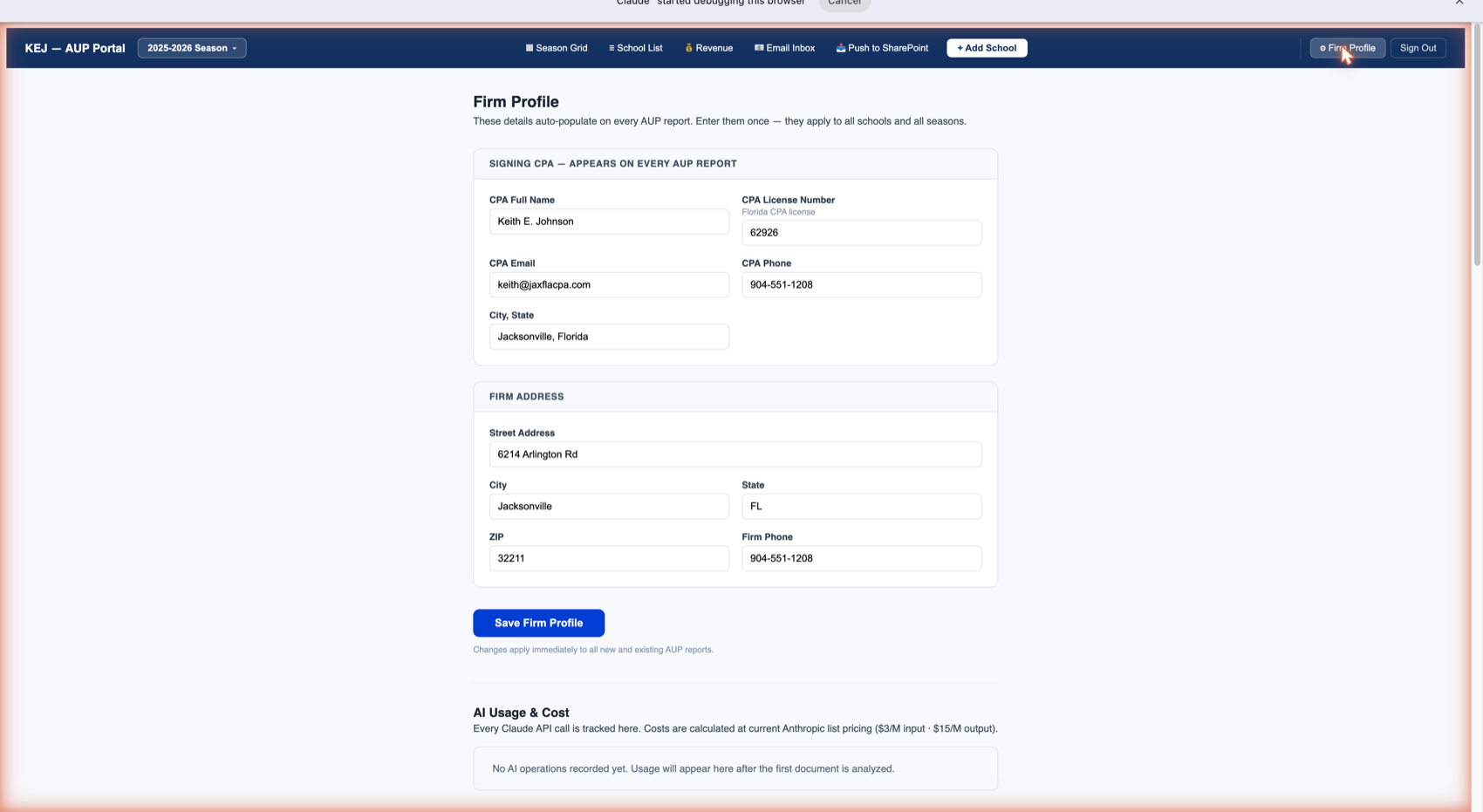
Signing CPA Section
This section populates the "Certified Public Accountant" signature block on every generated AUP report. Keep it accurate — any change here applies immediately to all new and existing reports for this season.
| Field | Current Value | Notes |
|---|---|---|
| CPA Full Name | Keith E. Johnson | Appears on the report signature line exactly as entered. |
| CPA License Number | 62926 | Florida CPA license number. Required on the report. |
| CPA Email | keith@jaxflacpa.com | Contact email shown on the report. |
| CPA Phone | 904-551-1208 | Phone number shown on the report. |
| City, State | Jacksonville, Florida | Appears in the report header as the firm location. |
Firm Address Section
| Field | Current Value |
|---|---|
| Street Address | 6214 Arlington Rd |
| City | Jacksonville |
| State | FL |
| ZIP | 32211 |
| Firm Phone | 904-551-1208 |
Click Save Firm Profile after any change. The save note below the button reads: "Changes apply immediately to all new and existing AUP reports."
AI Usage & Cost
Below the address section is an AI Usage & Cost panel. Every time the portal uses Claude AI — to read a bank statement, analyze a school calendar PDF, or answer a question in Ask AI — the operation is logged here with its token cost (calculated at Anthropic list pricing: $3/M input tokens · $15/M output tokens). This lets you track what AI operations are costing and verify the system is working.
Email & Cloud Integration
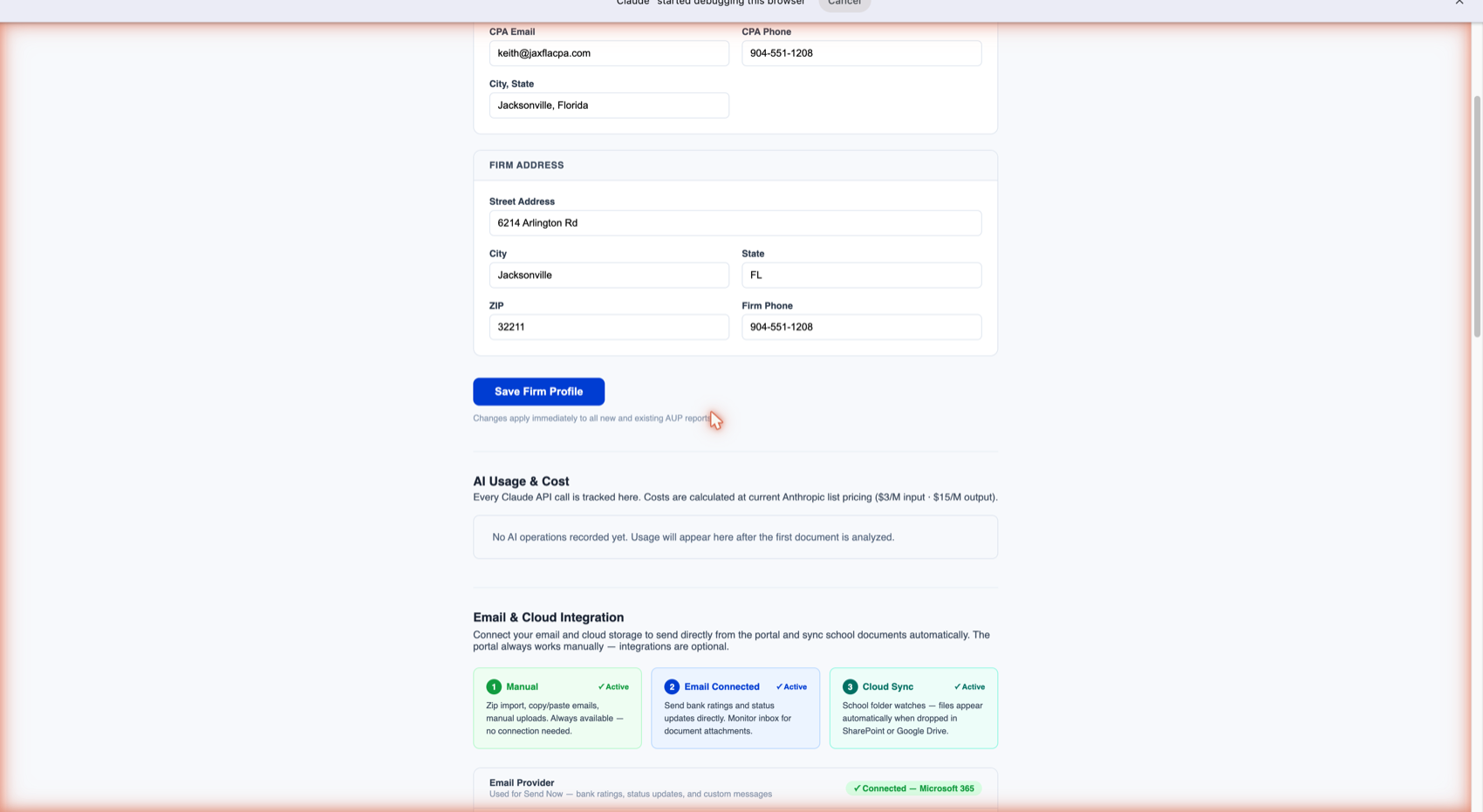
| Integration | Status | What It Does |
|---|---|---|
| ① Manual | ✓ Active | Always available. Zip import, copy/paste emails, and manual file uploads work regardless of any other connection. This is the fallback that always works. |
| ② Email Connected | ✓ Active | Microsoft 365 is connected. Enables the Email Inbox to read pamela@jaxflacpa.com, send bank ratings directly from the portal, and send status update emails via the Draft Status Email → Send Now button. |
| ③ Cloud Sync | ✓ Active | SharePoint is connected. Files dropped into SharePoint folders appear in the portal automatically on the next sync. Powers the SharePoint Sync bar and Push to SharePoint. |
Below the three tiles, the Email Provider row confirms "Connected — Microsoft 365." The Cloud Storage row shows the connected SharePoint site URL. If either shows as Disconnected, the portal falls back to Manual mode — everything still works, you just need to upload files manually instead of them auto-appearing.
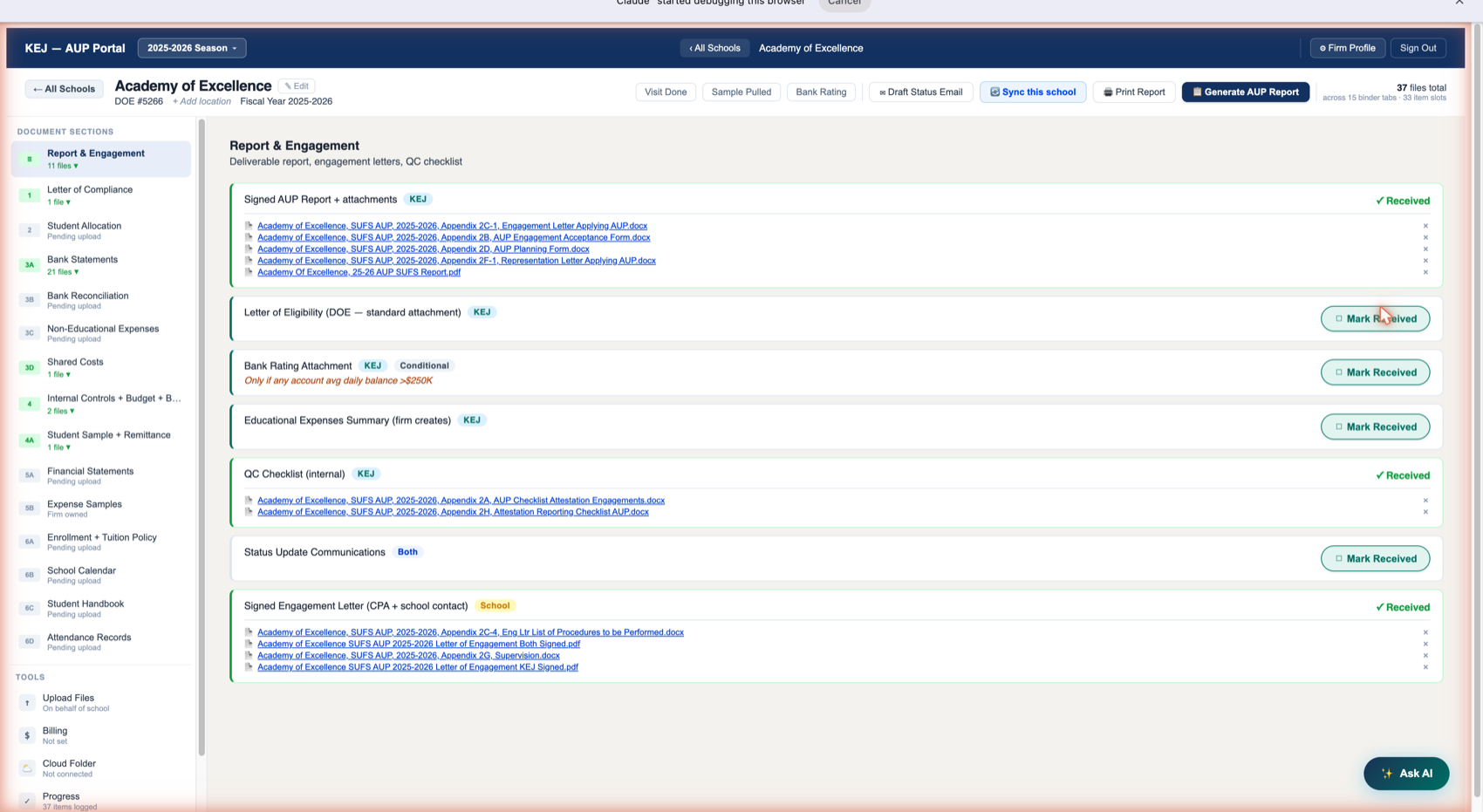
School Identity Bar
| Element | What It Shows |
|---|---|
| ← All Schools | Breadcrumb back to the Season Grid. Click to exit this school's binder and return to the main dashboard. |
| School Name | The full school name (e.g., Academy of Excellence). Displayed prominently below the breadcrumb. |
| ✎ Edit | Opens the school edit form — lets you update the school name, DOE number, location, and add contact emails for auto-matching in the Email Inbox. |
| DOE #5266 | The Florida Department of Education school number for this engagement. Appears on all generated documents. |
| + Add location | Lets you add a city/state for this school. Once added, a Google Maps link appears so you can pull up directions for school visits. |
| Fiscal Year 2025-2026 | The engagement year. Step Up fiscal year runs July 1 – June 30. This label confirms you are looking at the correct season's binder. |
| 37 files total | Top-right counter showing total files currently stored in this school's portal binder. "Across 15 binder tabs · 33 item slots" breaks it down — 15 tabs are active, 33 discrete binder items are being tracked. A school can have more files than items because multiple documents can satisfy one item. |
Header Action Buttons
Six action buttons run across the header. Each is covered in full detail in the Header Actions section — brief descriptions here:
| Button | One-Line Description |
|---|---|
| Visit Done | Marks the student verification visit as complete for this school. Updates the Season Grid VISIT column from ○ Pending to ✓ Done. |
| Sample Pulled | Marks the student sample as pulled. Updates the Season Grid SAMPLE column. |
| Bank Rating | Opens the Bauer Financial bank rating entry — lets you confirm the star rating for this school's bank accounts. |
| ✉ Draft Status Email | Generates a two-column status email (Documents Still Needed / Documents Received) ready to send to the school. See Draft Status Email. |
| ↺ Sync this school | Forces an immediate SharePoint sync for this school only — pulls any new files from this school's SharePoint folder right now without waiting for the full-portal sync. |
| 🖨 Print Report | Opens a printable AUP Engagement Status Report for this school — every binder tab, every item, Received or Missing, with actual filenames listed. |
| Generate AUP Report | Opens the full Independent Accountant's Report on Applying Agreed-Upon Procedures, pre-filled with Keith's credentials and this school's data. Keith fills in the Yes/No compliance questions and signs. See Generate AUP Report. |
The floating ✨ Ask AI button appears in the bottom-right corner of every school view. It is always accessible — you do not need to navigate to a specific tab to use it. See Ask AI for full details.
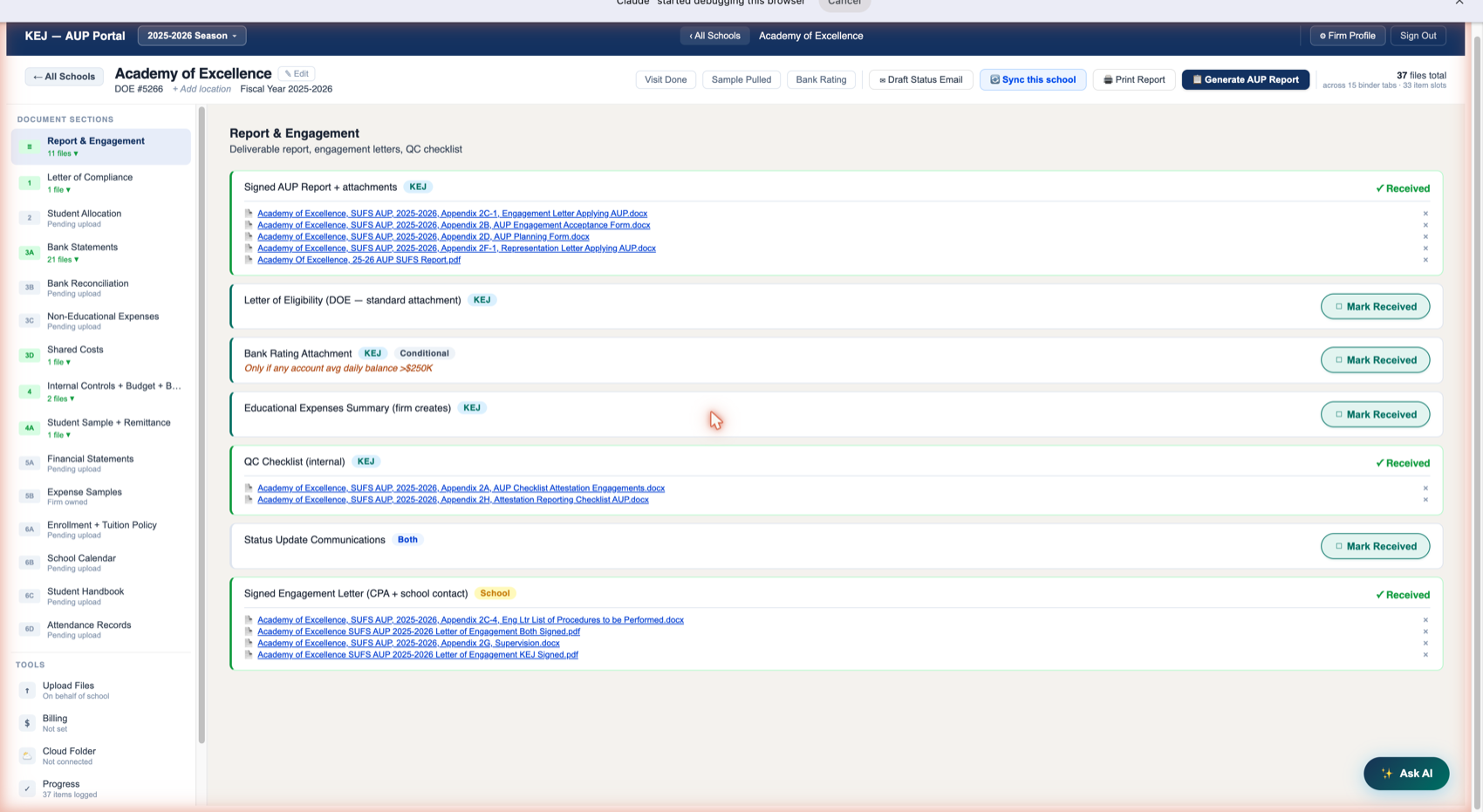
Tab 0 is the final assembly point for everything that goes with the signed AUP report when it leaves your office. It should be the last tab to complete because several items here depend on work done in other tabs first.
Items in Tab 0
| Binder Item | Owner | Description & Notes |
|---|---|---|
| Signed AUP Report + attachments | KEJ | The final 10-page Independent Accountant's Report signed by Keith. Attachments include the engagement letter appendices (2B, 2C-1, 2D, 2F-1) and the SUFS report form. Generated by the portal via Generate AUP Report button, then Keith signs and the PDF is uploaded here. Academy of Excellence shows 5 files currently in this item — all the appendix forms are present. |
| Letter of Eligibility (DOE — standard attachment) | KEJ | The DOE letter confirming this school is eligible to participate in the Step Up scholarship program. This is a standard attachment obtained from the Department of Education — not supplied by the school. Currently showing "Mark Received" (not yet in the binder) for Academy of Excellence. |
| Bank Rating Attachment Conditional | KEJ | Only required if any account avg daily balance >$250K. The warning text in amber reads: "Only if any account avg daily balance >$250K." For Academy of Excellence, the AI-analyzed bank statements show no accounts exceeded $250K — so this attachment is not required and stays "Mark Received" (which in this context means you acknowledge it's conditionally not required). If an account had exceeded $250K, you would pull the Bauer Financial PDF and upload it here. |
| Educational Expenses Summary (firm creates) | KEJ | A summary document the firm creates listing all Step Up-related educational expenses. This is produced by the firm from GL data — not a school-submitted document. It becomes one of the attachments to the final report. |
| QC Checklist (internal) | KEJ | The firm's internal quality control checklist — two documents currently: the AUP Checklist Attestation Engagements and the Attestation Reporting Checklist. These are completed by the engagement team before Keith signs the report to confirm all procedures were performed correctly. ✓ Received for Academy of Excellence. |
| Status Update Communications | Both | A record of status emails sent to and received from the school during the engagement. The Draft Status Email action generates these — upload a copy of each status email sent to maintain this record. Currently showing "Mark Received" (none filed yet). |
| Signed Engagement Letter (CPA + school contact) | School | The AICPA template engagement letter signed by both Keith and the school's authorized contact. Academy of Excellence has 4 documents here: the List of Procedures (2C-4), the Letter of Engagement (both parties signed), the Supervision appendix (2G), and the KEJ-signed version. ✓ Received. |
How Items Are Marked Received
Each binder item has either a ✓ Received status or a ○ Mark Received button. When a file is uploaded or imported that matches this item, the portal auto-detects it and marks it Received. You can also click "Mark Received" manually — for example, for the DOE Letter of Eligibility which you may obtain separately and want to note without uploading a digital file.
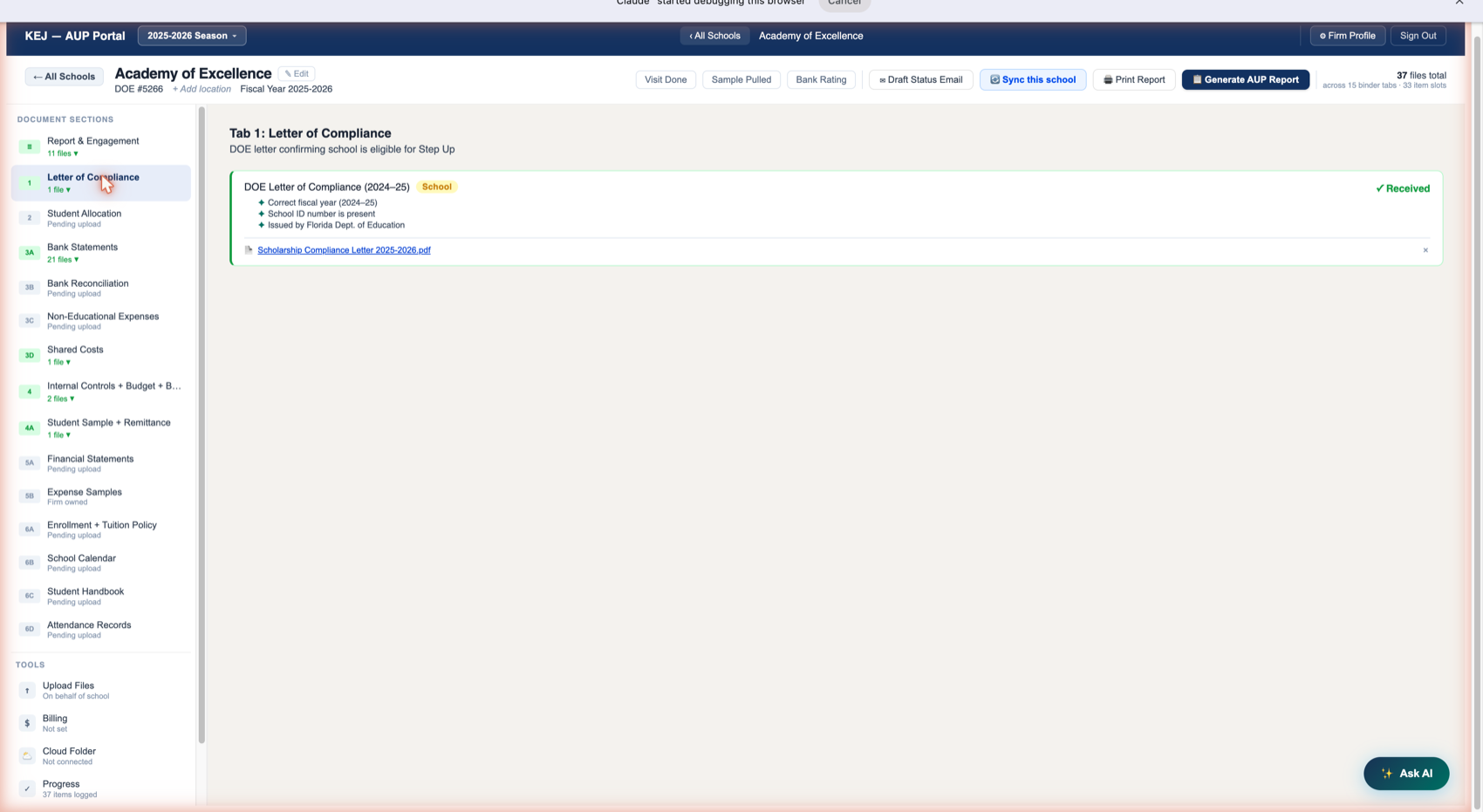
Tab 1 contains a single item: the DOE Letter of Compliance (2024–25) issued by the Florida Department of Education. This letter confirms the school is eligible to participate in the Step Up program for the current fiscal year.
| Binder Item | Owner | Description |
|---|---|---|
| DOE Letter of Compliance (2024–25) | School | The school obtains this letter directly from the Florida Department of Education and provides it to KEJ. The portal shows three verify checks in blue: ✦ Correct fiscal year (2024–25), ✦ School ID number is present, ✦ Issued by Florida Dept. of Education. When you upload the letter, the portal checks the filename and marks it Received. Academy of Excellence has the "Scholarship Compliance Letter 2025-2026.pdf" on file — ✓ Received. |
The blue bullet points under each binder item are verify checks — reminders of what to confirm when you review the document. They don't auto-verify; they're checklists for the engagement team. Confirm each point when you review the document before marking it complete.
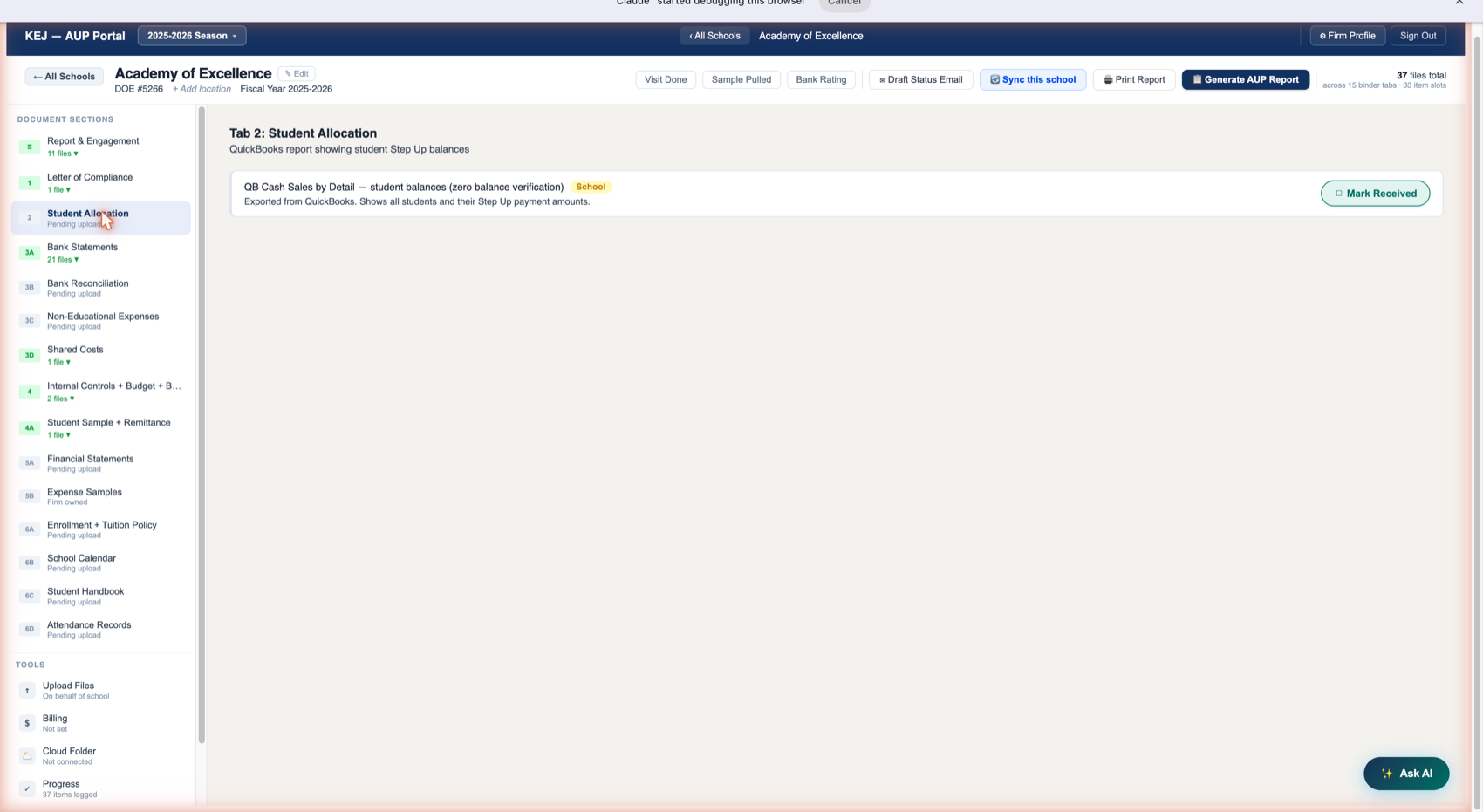
| Binder Item | Owner | Description |
|---|---|---|
| QB Cash Sales by Detail — student balances (zero balance verification) | School | A QuickBooks "Cash Sales by Detail" report exported by the school showing every student who received a Step Up scholarship payment during the fiscal year and the amounts paid. KEJ uses this to cross-reference against bank deposits: Step Up money received by the bank should match what QuickBooks shows was applied to student accounts. Schools that use a different accounting system than QuickBooks provide the equivalent report from their system. The description below the item reads: "Exported from QuickBooks. Shows all students and their Step Up payment amounts." |
Only Step Up funds are included in this report. VPK payments, parent tuition payments, and other revenue sources are not in scope and should not appear in this document.
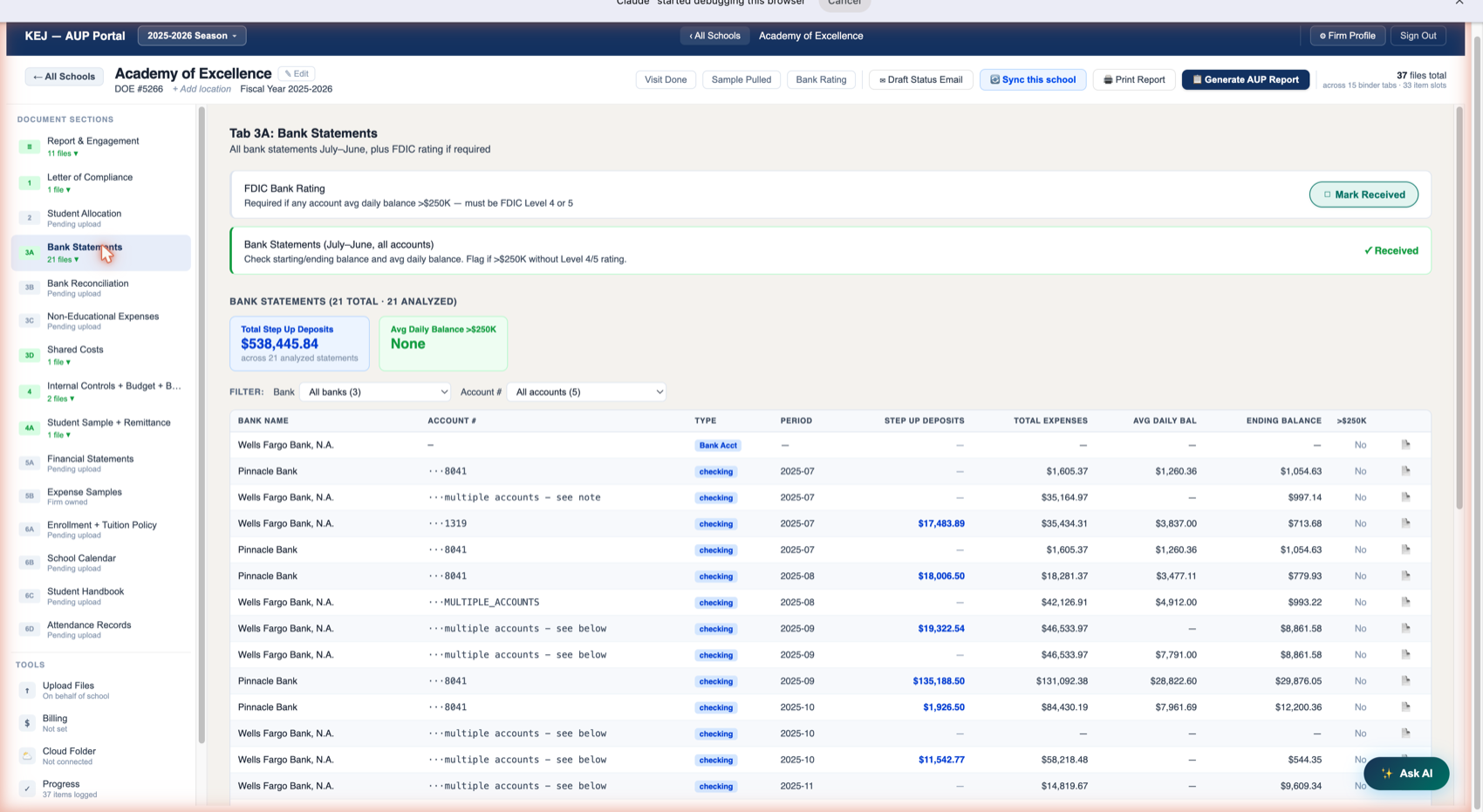
Tab 3A is the most data-rich tab in the portal. It holds bank statements for every account the school holds for the full fiscal year (July 1 – June 30), and the AI automatically analyzes each uploaded statement to extract key figures.
Binder Items
| Binder Item | Owner | Description |
|---|---|---|
| FDIC Bank Rating | School | Required for ALL schools — you pull the Bauer Financial rating for every school regardless of balance. The rating must be Level 4 or 5 stars. However, you only attach it as a report exhibit if any account's average daily balance exceeds $250K. For accounts under $250K, you still confirm the rating but don't include it in the final report. Currently showing "Mark Received" — use the Bank Rating header button to record this. |
| Bank Statements (July–June, all accounts) | School | Monthly statements for every bank account the school operates for Step Up funds — checking, savings, money market. Must cover July 1 through June 30. The verify check reads: "Check starting/ending balance and avg daily balance. Flag if >$250K without Level 4/5 rating." Academy of Excellence has 21 statements uploaded — ✓ Received. The AI has analyzed all 21. |
AI Analysis Table
Below the binder items, a section headed BANK STATEMENTS (21 TOTAL · 21 ANALYZED) shows the AI-extracted data from every uploaded statement. Two summary cards appear first:
| Summary Card | Value (Academy of Excellence) | What It Means |
|---|---|---|
| Total Step Up Deposits | $538,445.84 | Sum of all Step Up scholarship deposits identified across all analyzed statements for the full fiscal year. This is the number that flows into the AUP report's educational expenses verification. |
| Avg Daily Balance >$250K | None | Whether any account's average daily balance exceeded the $250K FDIC threshold. "None" means no accounts exceeded it — bank rating attachment is NOT required in the report. If this showed any account numbers, you would need to attach the bank rating PDF to the final report. |
Analysis Table Columns
| Column | What It Contains |
|---|---|
| Bank Name | The bank that issued the statement (Wells Fargo Bank N.A., Pinnacle Bank, Pinnacle Bank - Nashville TN, etc.). The AI reads this from the statement header. |
| Account # | The last 4 digits of the account number (e.g., ···8041, ···1319). Some statements covering multiple accounts show "multiple accounts – see below." Two rows show "Bank Acct" type with no account number — these are bank account setup rows the AI detected. |
| Type | Account type — checking or Bank Acct. Most Step Up accounts are checking accounts. |
| Period | The month this statement covers (e.g., 2025-07 for July 2025). Allows you to confirm full July–June coverage. |
| Step Up Deposits | Total Step Up scholarship deposits the AI identified for this statement period. Shown in blue when non-zero. Pinnacle Bank ···8041 for 2025-11 shows $287,890.25 — the largest single-month deposit. |
| Total Expenses | Total expenses the AI extracted from this statement. Used to cross-reference against the GL expense report. |
| Avg Daily Bal | Average daily balance for this account for this month, extracted by the AI. This is the figure used to determine whether the $250K threshold was exceeded. |
| Ending Balance | The closing balance at the end of the statement period. |
| >$250K | A Yes/No flag: did the average daily balance exceed $250K for this account in this period? "No" across all rows for Academy of Excellence — confirming the bank rating attachment is not required. |
| 📄 icon | A file icon on the right of each row. Click it to open the source statement PDF directly in the browser for manual review. |
Filter Controls
Above the analysis table: FILTER: Bank [All banks (3)] ▾ and Account # [All accounts (5)] ▾. Use these dropdowns to narrow the table:
- Filter by Bank: Select Wells Fargo, Pinnacle Bank, or Pinnacle Bank - Nashville TN to see only that institution's statements.
- Filter by Account: Select a specific account ending (e.g., ···8041) to see only that account's statements across all months. Useful when verifying month-by-month continuity for a specific account.
Bauer Financial Bank Rating Lookup
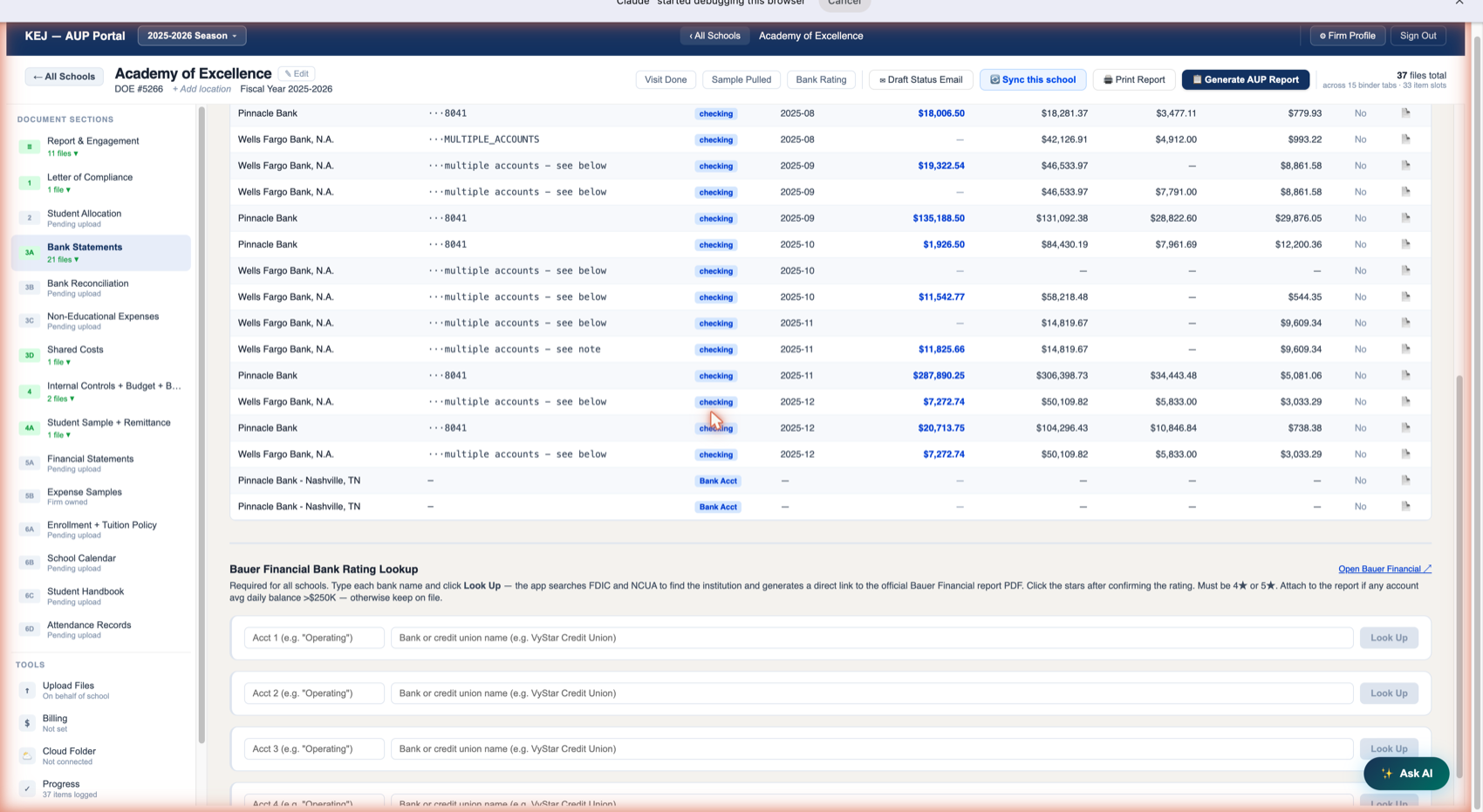
Below the analysis table is the Bauer Financial Bank Rating Lookup section. This is where you formally pull and record the bank rating for each bank holding the school's accounts. There is an input row for each account (Acct 1, Acct 2, Acct 3, Acct 4, etc.).
For each row:
The "Open Bauer Financial ↗" link in the section header opens bauerfinancial.com directly if you want to search manually. The portal's lookup tool automates the same search.
Pull a bank rating for EVERY school — even if no account exceeded $250K. You only attach the rating PDF to the final report when an account exceeded $250K, but you must confirm the rating for every engagement. A 2-star rating found for one school in a previous season was flagged as a significant finding.
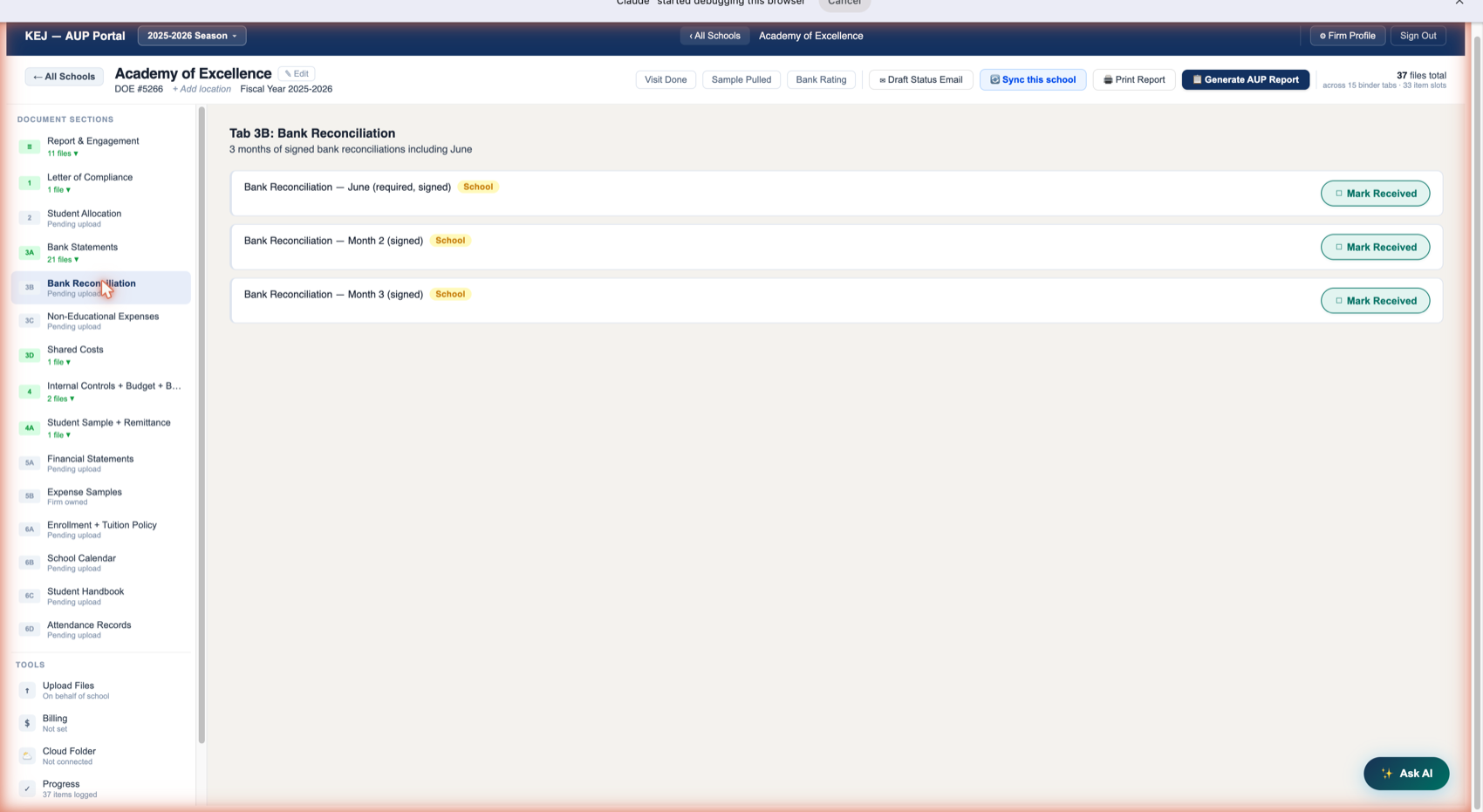
| Binder Item | Owner | Description |
|---|---|---|
| Bank Reconciliation — June (required, signed) | School | June is the mandatory month. The reconciliation must be signed by school management — not by KEJ staff. This distinction is critical: KEJ cannot perform the reconciliation because we cannot audit our own client's work. |
| Bank Reconciliation — Month 2 (signed) | School | A second month of reconciliation — any month from the fiscal year. Non-consecutive months are acceptable (e.g., September and March). The school chooses which months to submit, with June always being one of them. |
| Bank Reconciliation — Month 3 (signed) | School | A third month. Same rules as Month 2 — any month, must be signed by school management. |
Bank reconciliations must be prepared and signed by the school's own management, not by KEJ. KEJ cannot reconcile accounts for a client it is performing AUP procedures on — doing so would violate AICPA independence standards. If a school asks KEJ to prepare their reconciliation, decline and advise them to have their own staff do it.
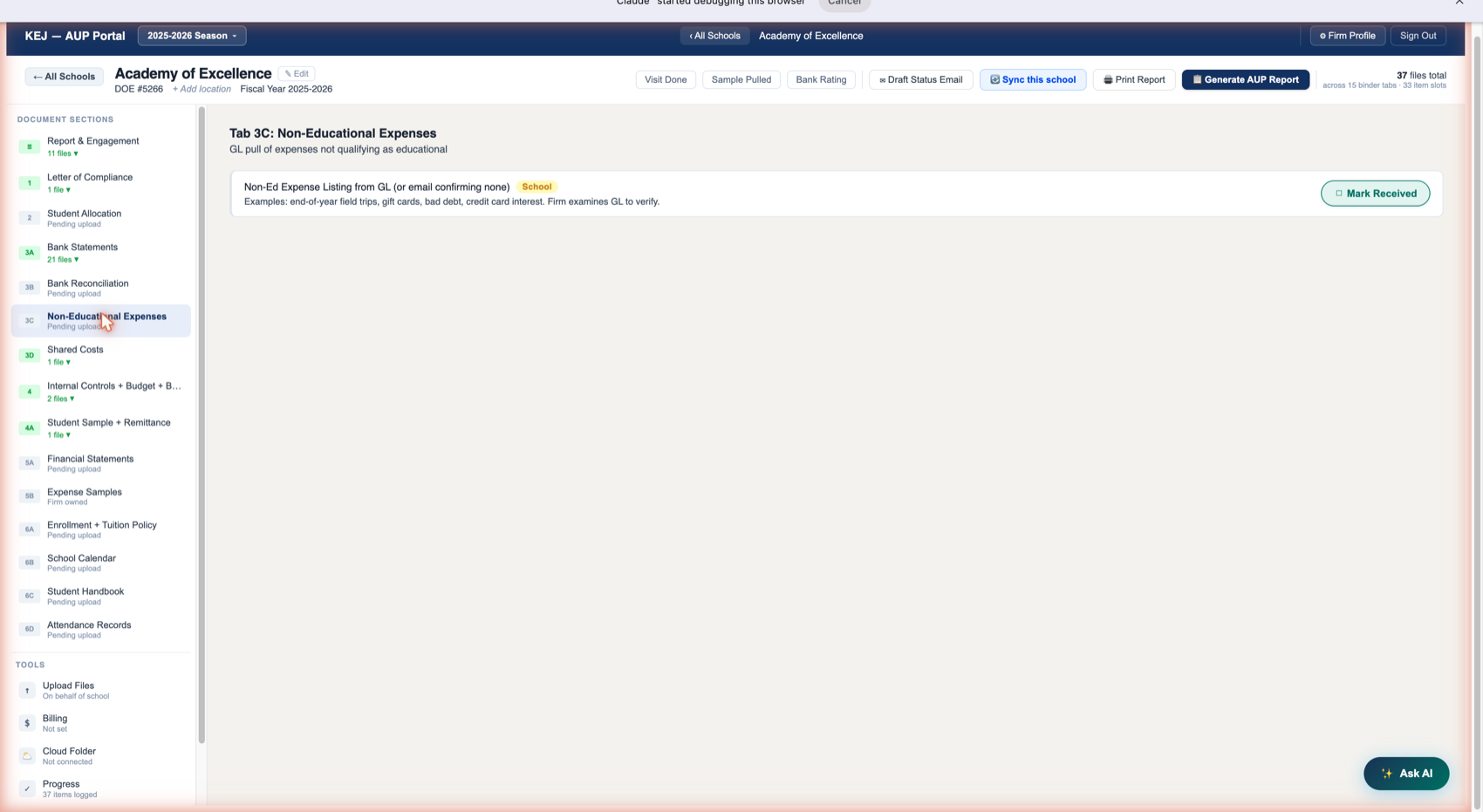
| Binder Item | Owner | Description |
|---|---|---|
| Non-Ed Expense Listing from GL (or email confirming none) | School | The school provides either (a) an export from their GL showing all non-educational expenses, or (b) an email from school management confirming there are no non-educational expenses for the year. The verify note gives examples of what counts as non-educational: "end-of-year field trips, gift cards, bad debt, credit card interest." KEJ examines the GL to verify. If the school confirms none exist, an email with that statement is sufficient. |
Step Up scholarship funds must be spent on educational expenses. Anything that doesn't qualify — end-of-year parties, gift cards for teachers, interest charges on credit card debt, late fees — is non-educational and must be identified and reported. The threshold for documenting is any amount spent on these categories, regardless of size.
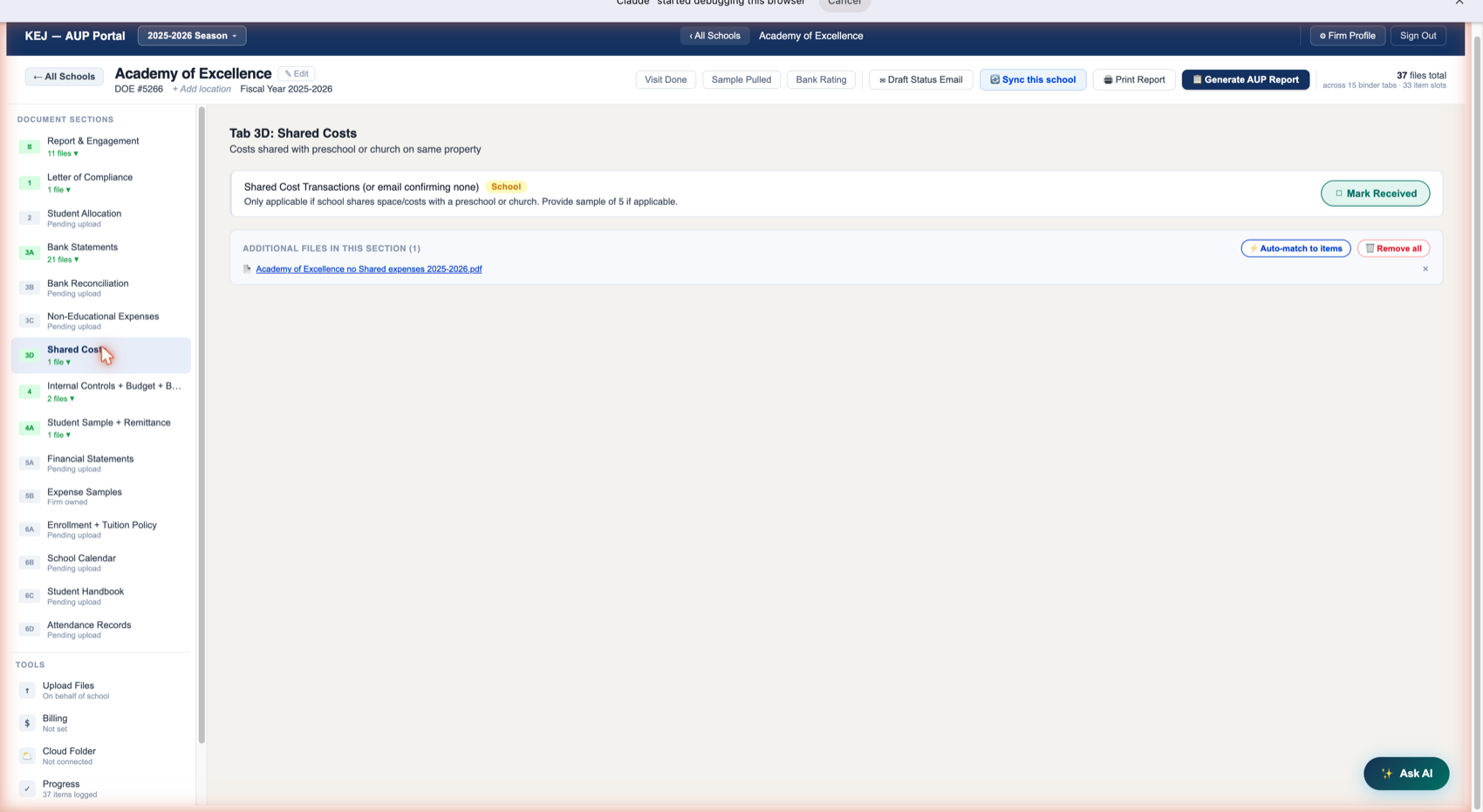
| Binder Item | Owner | Description |
|---|---|---|
| Shared Cost Transactions (or email confirming none) | School | If the school shares a building, utilities, or other costs with a preschool or church on the same property, they must provide documentation of how shared costs are allocated. The Step Up procedures require verification that the school's share is reasonable. If there are no shared costs, an email or letter from school management confirming this is sufficient. The verify note: "Only applicable if school shares space/costs with a preschool or church. Provide sample of 5 if applicable." |
Additional Files in This Section
You can see that Academy of Excellence has a file called "Academy of Excellence no Shared expenses 2025-2026.pdf" in the "Additional Files" area but it's not yet matched to the binder item above. This is a common state — a file was uploaded or synced from SharePoint but the portal didn't automatically match it to the right item.
Two buttons appear in this situation:
- ⚡ Auto-match to items — The portal reads the filename and attempts to route it to the correct binder item. Click this first — it works in most cases and routes the file with one click.
- 🗑 Remove all — Removes all unmatched files from this section. Use with caution — this does not delete the files from the portal, just removes them from this section's additional files area.
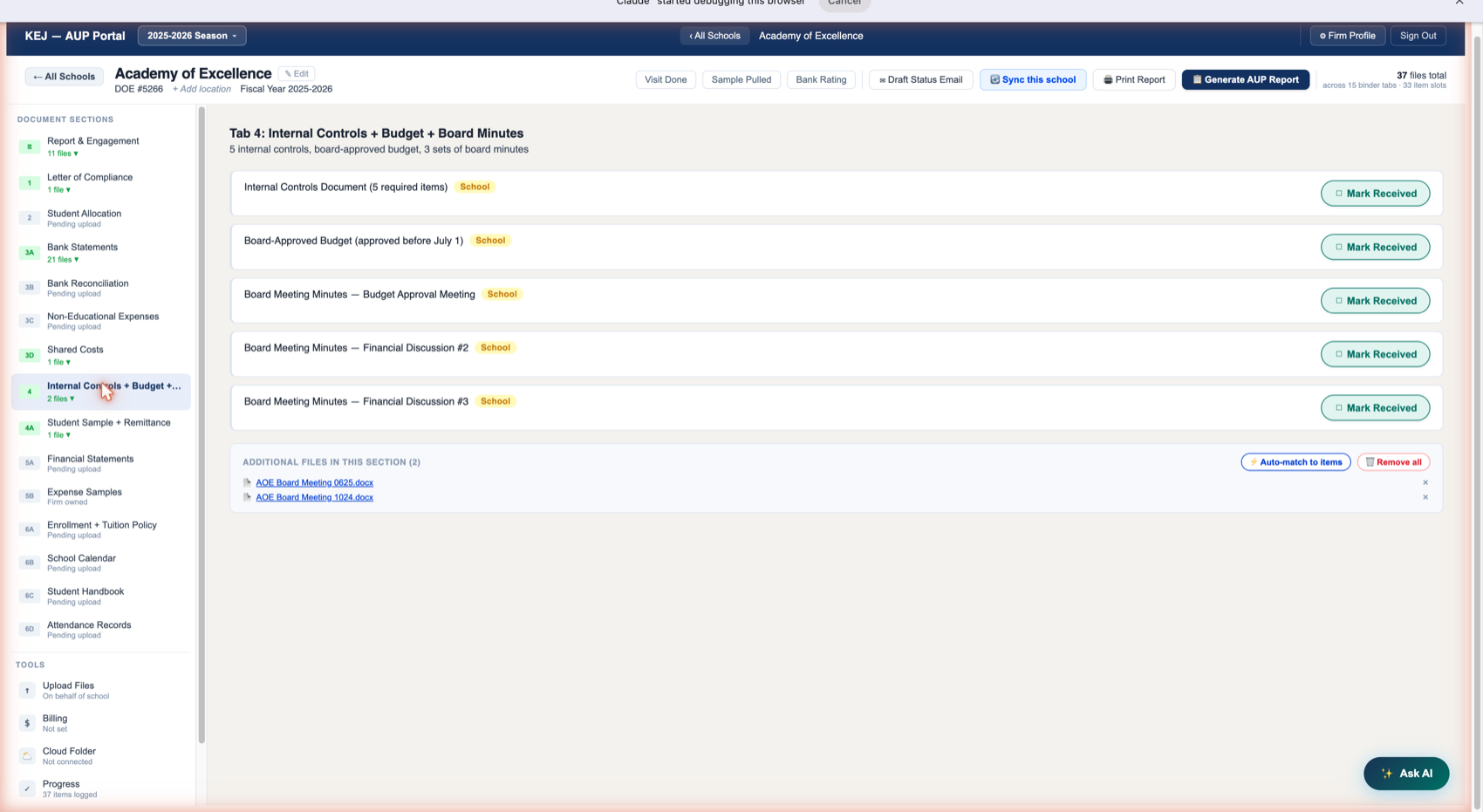
| Binder Item | Owner | Description |
|---|---|---|
| Internal Controls Document (5 required items) | School | Documentation of the school's internal control policies. The AUP requires confirmation that the school has controls in place for: cash receipts, payroll, capital expenditures, operating expenditures, and shared expenses. Schools typically provide a written policy document, board resolution, or policy manual that covers these five areas. The "5 required items" note means all five must be addressed in the document — one document can cover all five. |
| Board-Approved Budget (approved before July 1) | School | The annual operating budget approved by the school's board of directors before the start of the fiscal year (July 1). The key verify check: it must be approved before July 1, not after. A budget approved in August is a finding. The Step Up procedures require verification that the school has a board-approved budget at the start of the year. |
| Board Meeting Minutes — Budget Approval Meeting | School | The minutes from the board meeting at which the annual budget was approved. Must be the same meeting that produced the Board-Approved Budget. These minutes confirm board oversight and that a quorum was present for the approval. |
| Board Meeting Minutes — Financial Discussion #2 | School | Minutes from a second board meeting where financial matters were discussed. The AUP requires evidence that the board reviewed financial results at least twice during the fiscal year beyond just the budget approval. These minutes must show discussion of financial performance, bank balances, or similar financial matters. |
| Board Meeting Minutes — Financial Discussion #3 | School | A third set of board meeting minutes with financial discussion. Same requirements as #2 — must show genuine financial oversight by the board. Some schools hold monthly board meetings making this easy; others may struggle to provide three sets. |
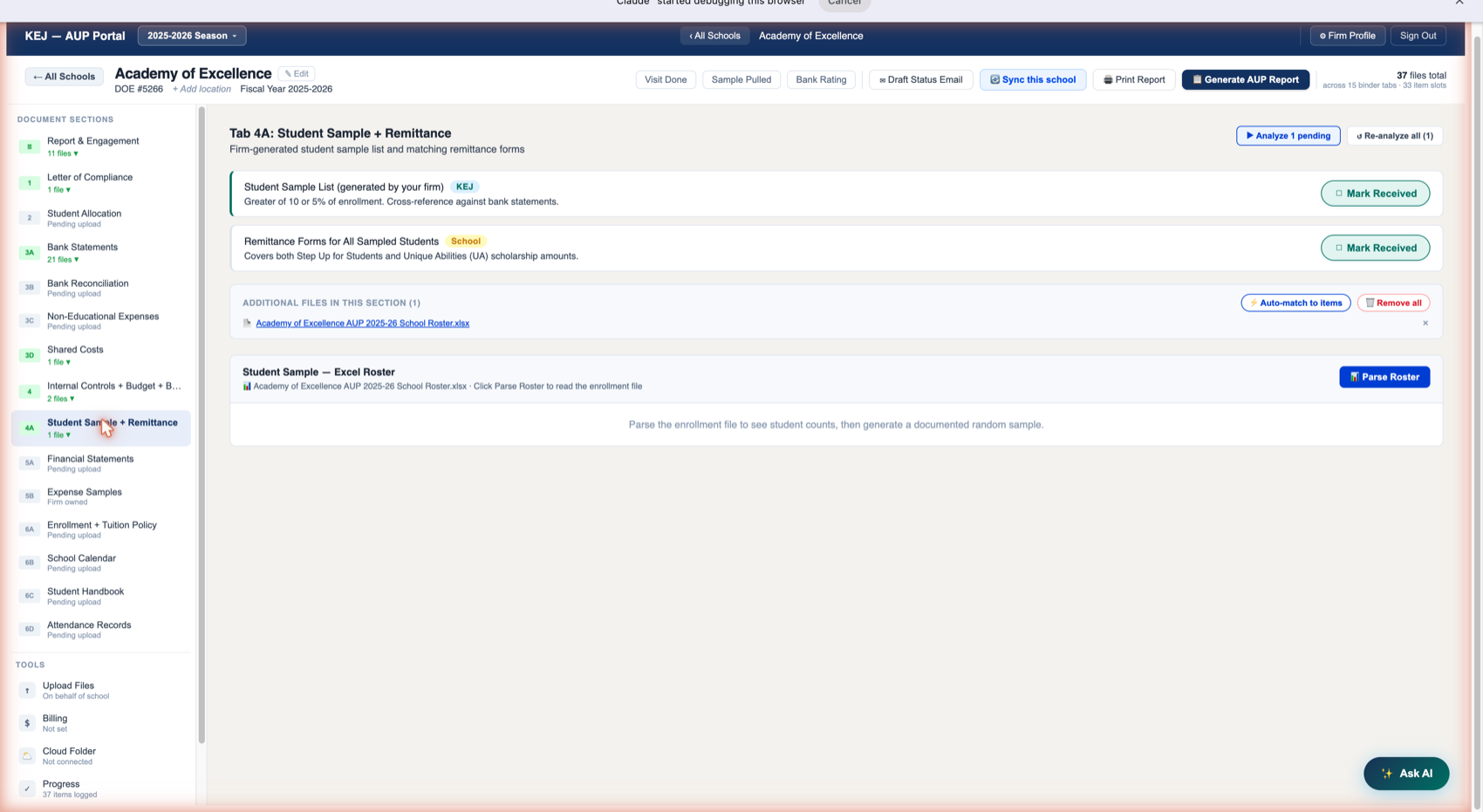
| Binder Item | Owner | Description |
|---|---|---|
| Student Sample List (generated by your firm) | KEJ | The list of students KEJ randomly selects for verification. Sampling rules: fewer than 200 students enrolled → sample exactly 10; 200 or more students → sample 5% of enrollment. Minimum 2 students per scholarship type (FES-EO and FES-UA). KEJ generates this list — the school does not choose the students. The portal generates a documented, timestamped random sample once you parse the roster. "Cross-reference against bank statements" — the sampled students' scholarship amounts should appear in the Step Up deposit records. |
| Remittance Forms for All Sampled Students | School | The school provides remittance forms for every student in the sample — both FES-EO (Equal Opportunities / low-income) and FES-UA (Unique Abilities / spectrum disabilities) scholarship types. These forms document what Step Up paid to the school for each sampled student and when. |
Parse Roster — Automated Random Sampling
Academy of Excellence has uploaded their enrollment roster as an Excel file ("Academy of Excellence AUP 2025-26 School Roster.xlsx"). The portal displays this in the "Student Sample — Excel Roster" section with a Parse Roster button.
Clicking Parse Roster reads the Excel file and:
- Counts total enrollment
- Identifies scholarship type for each student (FES-EO vs FES-UA)
- Calculates the required sample size based on the enrollment rules
- Generates a documented random sample with timestamp and methodology note
- Produces a sample report stored as the Student Sample List in the binder
The portal text below the Parse Roster button reads: "Parse the enrollment file to see student counts, then generate a documented random sample."
Sampling Rules Reference
| Enrollment Count | Required Sample Size | Additional Rule |
|---|---|---|
| Under 200 students | Exactly 10 students | Minimum 2 per scholarship type (FES-EO and FES-UA) |
| 200 or more students | 5% of enrollment (rounded up) | Minimum 2 per scholarship type |
480 students × 5% = 24 students. But minimum 2 per type. If Conrad has 460 FES-EO and 20 FES-UA, the sample is: at minimum 2 FES-UA and 22 FES-EO = 24 total. This sample was historically done by hand — the Parse Roster feature automates it with a defensible documented methodology.
Analyze Pending Button
The ▶ Analyze 1 pending button at top right of Tab 4A triggers the AI to analyze any unanalyzed files in this section — typically remittance forms. The AI reads them and flags if the amounts match what the bank statements show for those students. ↺ Re-analyze all (1) re-runs the AI on all files, including previously analyzed ones — use if you replaced a file with a corrected version.
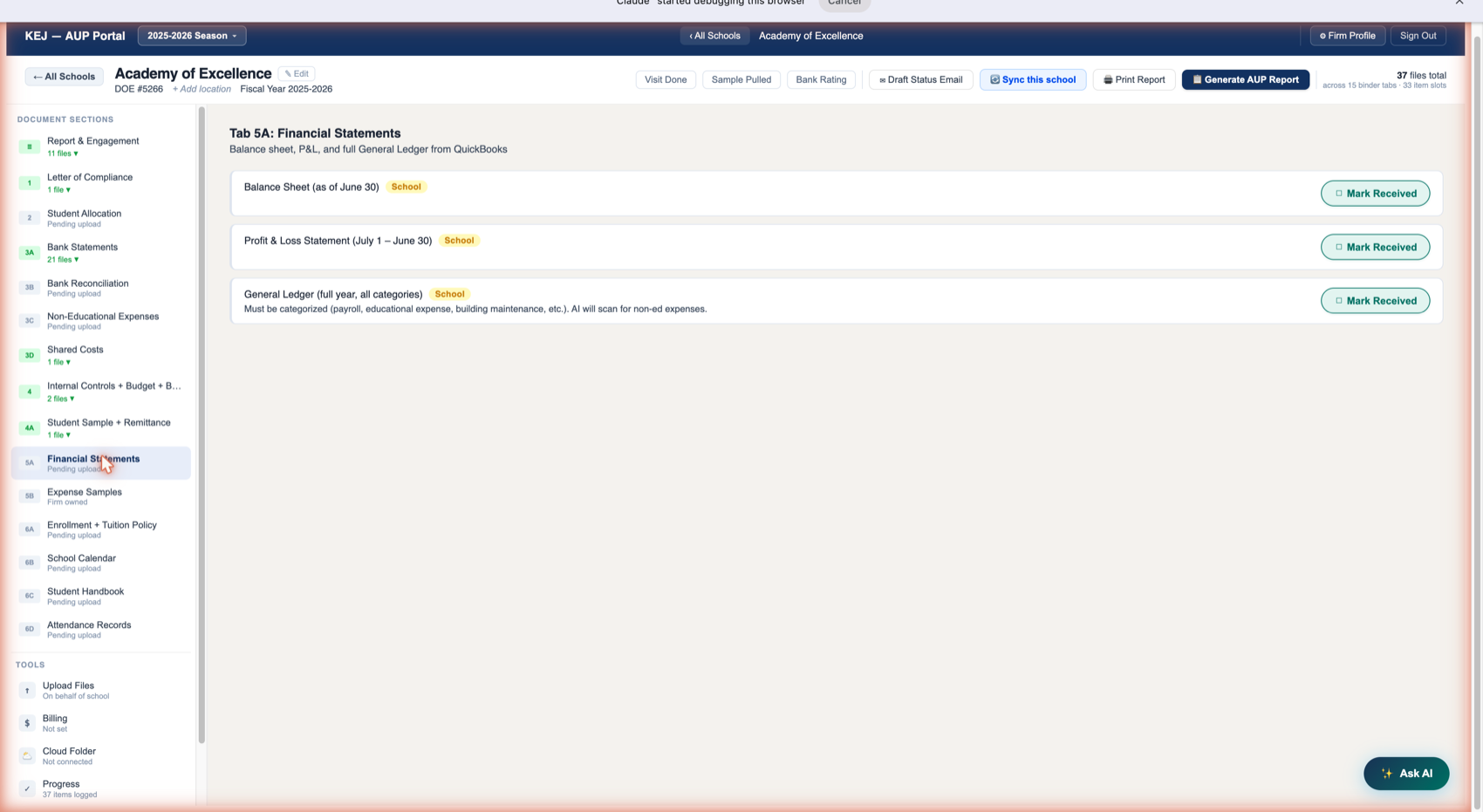
| Binder Item | Owner | Description |
|---|---|---|
| Balance Sheet (as of June 30) | School | The school's balance sheet as of June 30 (fiscal year-end). Must show assets, liabilities, and net assets as of that date. This is a QuickBooks report or equivalent from the school's accounting system. KEJ uses it to verify the school's overall financial health and to identify any unusual asset or liability positions. |
| Profit & Loss Statement (July 1 – June 30) | School | The income and expense statement for the full fiscal year. Must cover July 1 through June 30 exactly. KEJ uses this to understand revenue sources and expense categories at a summary level before drilling into the General Ledger. |
| General Ledger (full year, all categories) | School | The complete transaction-level detail for all accounts for the full fiscal year. The portal note reads: "Must be categorized (payroll, educational expense, building maintenance, etc.). AI will scan for non-ed expenses." When you upload the GL here, the AI analyzes it to: (1) identify total Step Up funds received (cross-references with bank deposits), (2) calculate the expense sample tier, and (3) flag any transactions that appear to be non-educational. This auto-populated data flows directly into Tab 3C and the Report Readiness calculations. |
When the GL is uploaded and analyzed, the AI extracts total Step Up expenses and determines which expense sample tier applies (30 samples for under $500K, 45 for $500K–$750K, 60 for over $750K). It also flags individual transactions that appear non-educational and surfaces them in the Report Readiness view. This replaces hours of manual GL review.
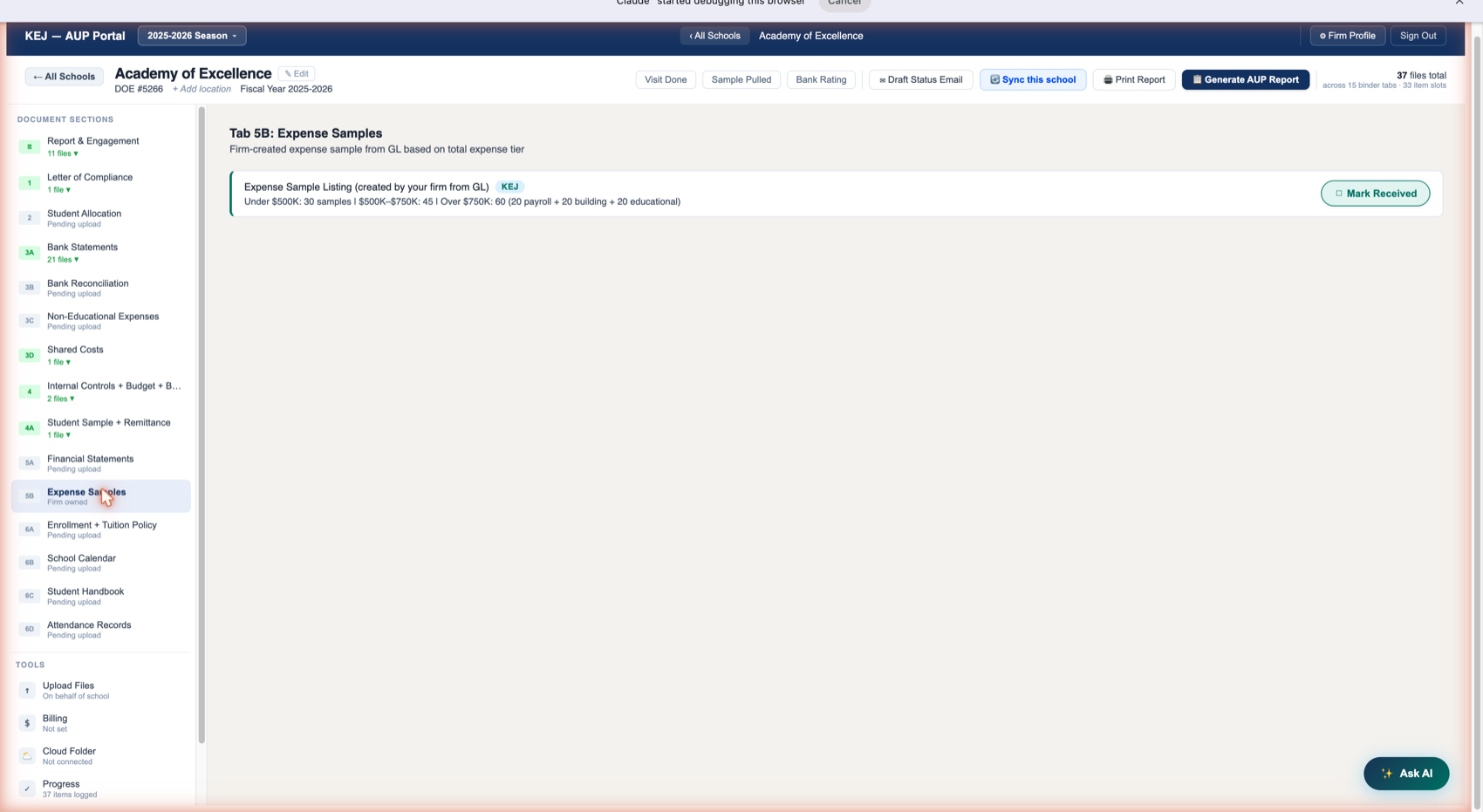
| Binder Item | Owner | Description |
|---|---|---|
| Expense Sample Listing (created by your firm from GL) | KEJ | KEJ selects a random sample of expense transactions from the school's GL and verifies each one: Was it education-related? Was it authorized by appropriate personnel? Was it classified correctly in the GL? Was it paid timely? The number of samples depends on total Step Up educational expenses for the year. This document is created by KEJ, not supplied by the school. |
Expense Sample Tiers
| Total Step Up Expenses | Required Samples | Split |
|---|---|---|
| Under $500,000 | 30 samples | Any mix of expense categories |
| $500,000 – $750,000 | 45 samples | Any mix of expense categories |
| Over $750,000 | 60 samples | 20 payroll + 20 building maintenance + 20 other educational |
The tier is determined by total Step Up educational expenses identified from the GL analysis. Once the GL is uploaded and analyzed in Tab 5A, the Report Readiness section will show the correct tier and required sample count for this school automatically.
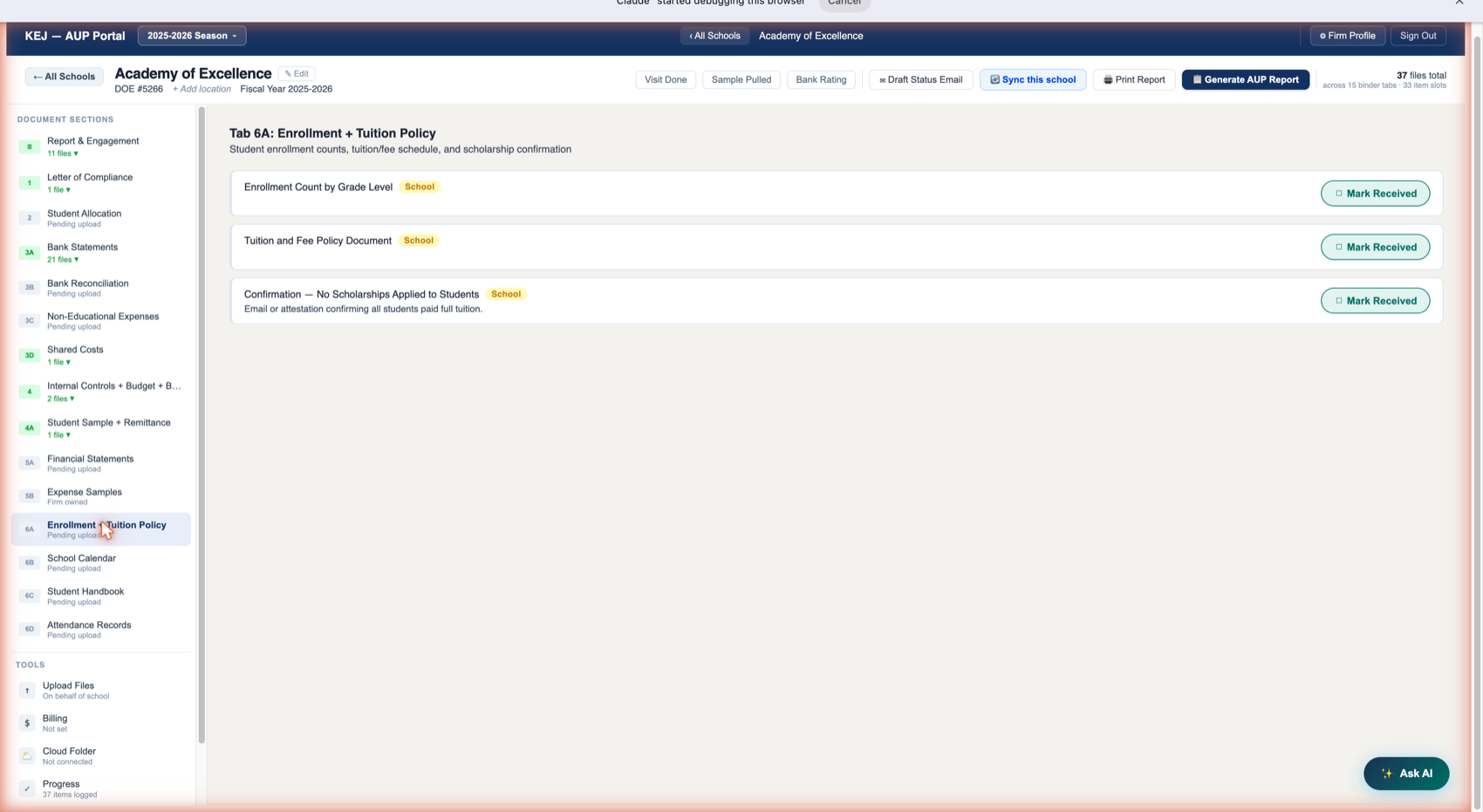
| Binder Item | Owner | Description |
|---|---|---|
| Enrollment Count by Grade Level | School | A count of students enrolled at the school, broken down by grade level, for the fiscal year. This is the enrollment figure used to calculate the student sample size. Must be the official enrollment count — not estimated, not an attendance roster. |
| Tuition and Fee Policy Document | School | The school's published tuition rates and fee schedule for the year. Must show the rates charged to all students — private-pay and scholarship students alike. KEJ uses this to verify the non-discrimination rule: Step Up students must be charged the same tuition as private-pay students. Discounts for military families, siblings, or low-income families are permitted only if they are in the written policy and apply equally to all students in that category. |
| Confirmation — No Scholarships Applied to Students | School | An email or attestation from school management confirming that no scholarship-type discounts were applied to Step Up students that were not available to private-pay students. The description reads: "Email or attestation confirming all students paid full tuition." This is separate from the tuition policy document — it's a positive affirmation rather than just a published schedule. |
Step Up For Students regulations require that schools charge scholarship students the same tuition as private-pay students. Discounts are permitted only for: military families, multi-child families, and low-income families — but the discount policy must be in writing and applied equally. A school that gives a "Step Up discount" to scholarship students and not to private-pay students is in violation.
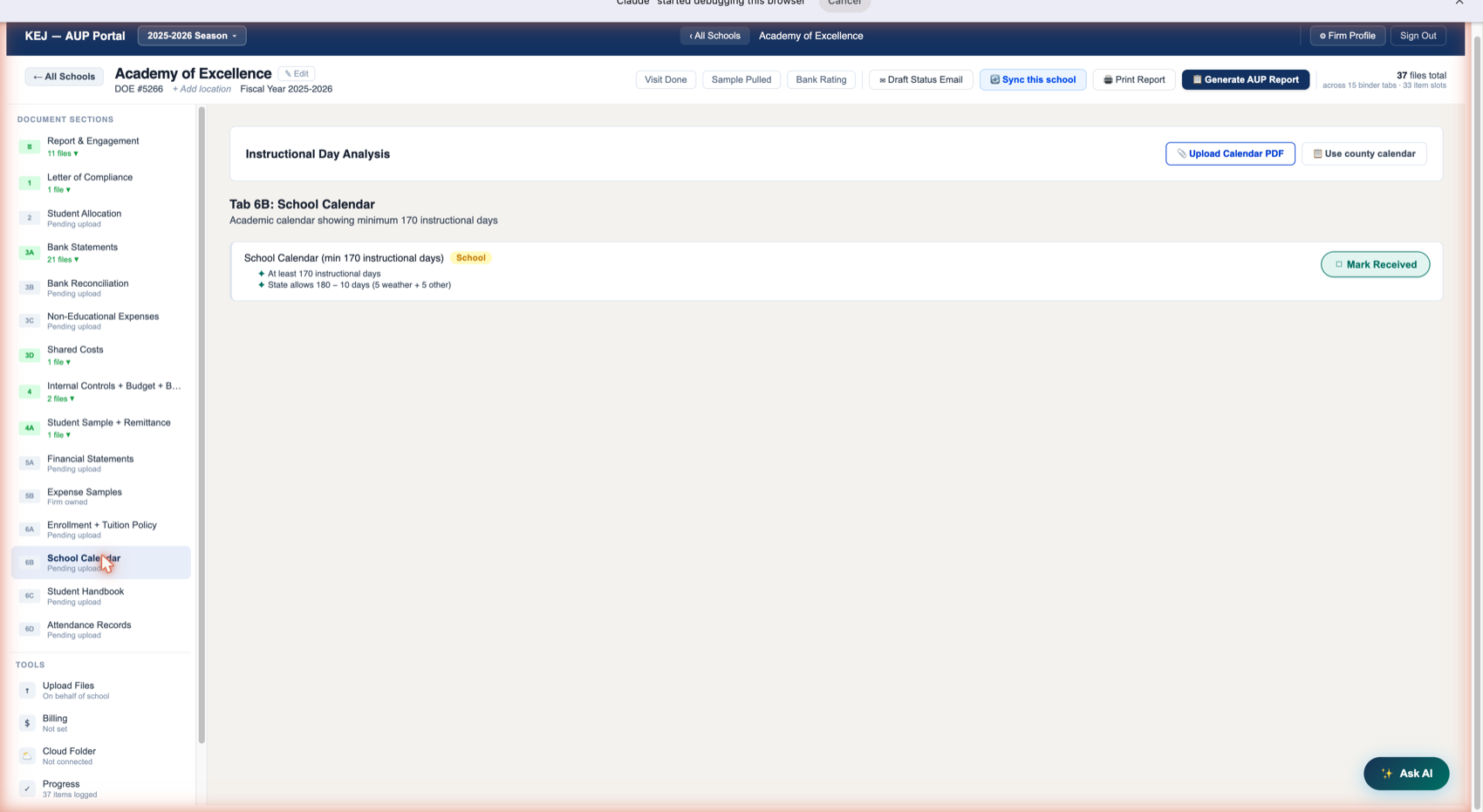
| Binder Item | Owner | Description |
|---|---|---|
| School Calendar (min 170 instructional days) | School | The school's academic calendar for the fiscal year showing at least 170 instructional days. The verify checks: ✦ At least 170 instructional days, ✦ State allows 180 – 10 days (5 weather + 5 other). Florida permits schools to use up to 5 weather days and 5 other emergency days without penalty, giving a floor of 170 days from a 180-day year. A school with fewer than 170 instructional days fails this requirement — a finding in the AUP report. |
Option 1: Upload Calendar PDF
Click ↑ Upload Calendar PDF to upload the school's calendar document. The AI reads the PDF and:
- Counts total instructional days by reading the calendar grid or day-count tables
- Identifies summer weekdays, holidays, teacher workdays, and weather days
- Returns a month-by-month breakdown of instructional day counts
- Shows a ✓ Pass / ✗ Fail badge against the 170-day minimum
The analysis appears in the "Instructional Day Analysis" area at the top of the tab — above the binder item card. Results include the total day count, the Pass/Fail verdict, and the detailed breakdown.
Option 2: Use County Calendar
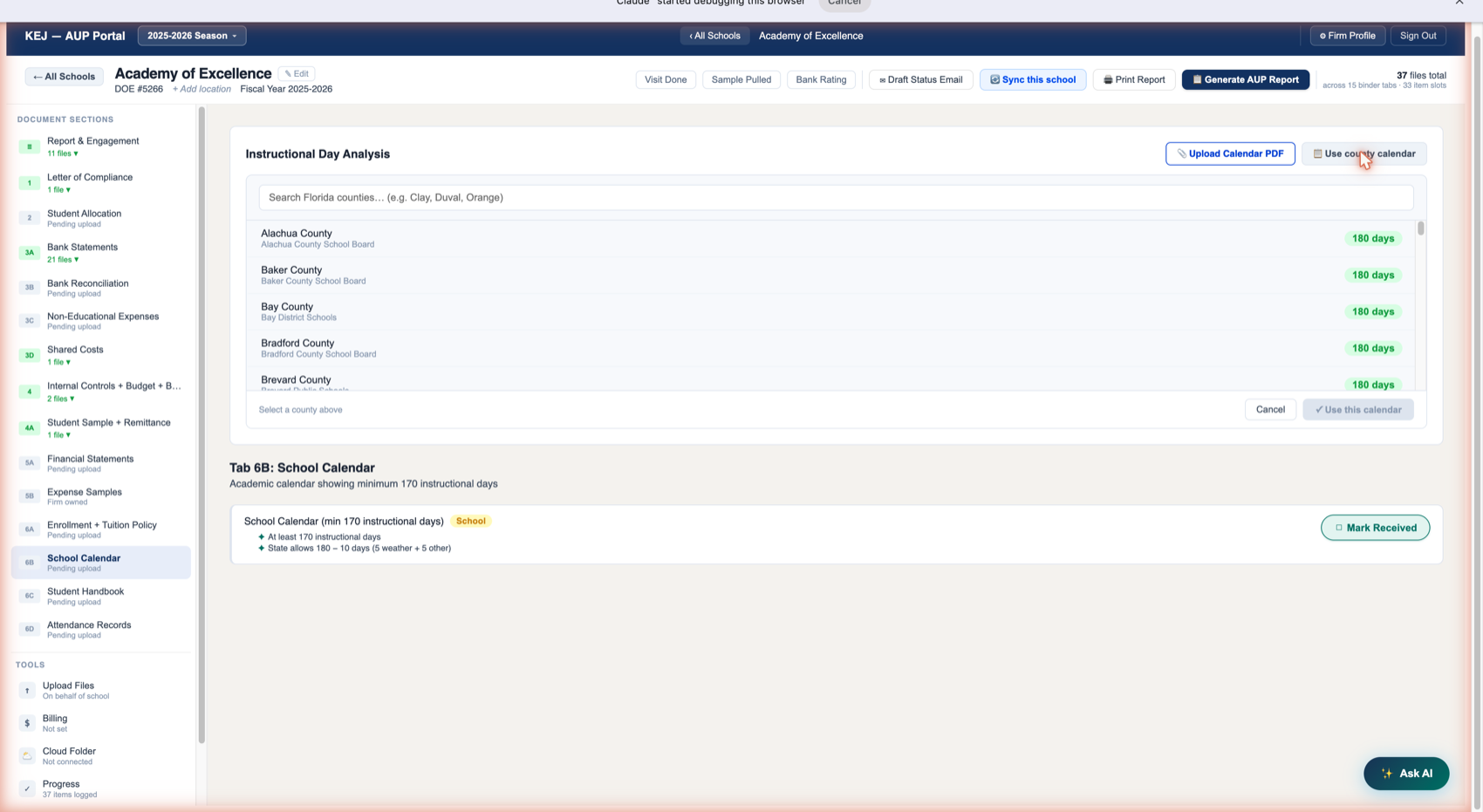
Click ☰ Use county calendar to open the county calendar picker. This is the fastest option for schools that follow a standard county school board calendar — no PDF needed, no AI analysis required.
The picker shows all 67 Florida counties, each with their county school board name and the confirmed instructional day count for the current year. Use it like this:
If the school follows the county school board calendar — many private schools use the same holiday schedule as public schools in their county — selecting the county calendar takes 15 seconds and requires no PDF upload or AI analysis. Ask the school whether they follow a county schedule; most do.
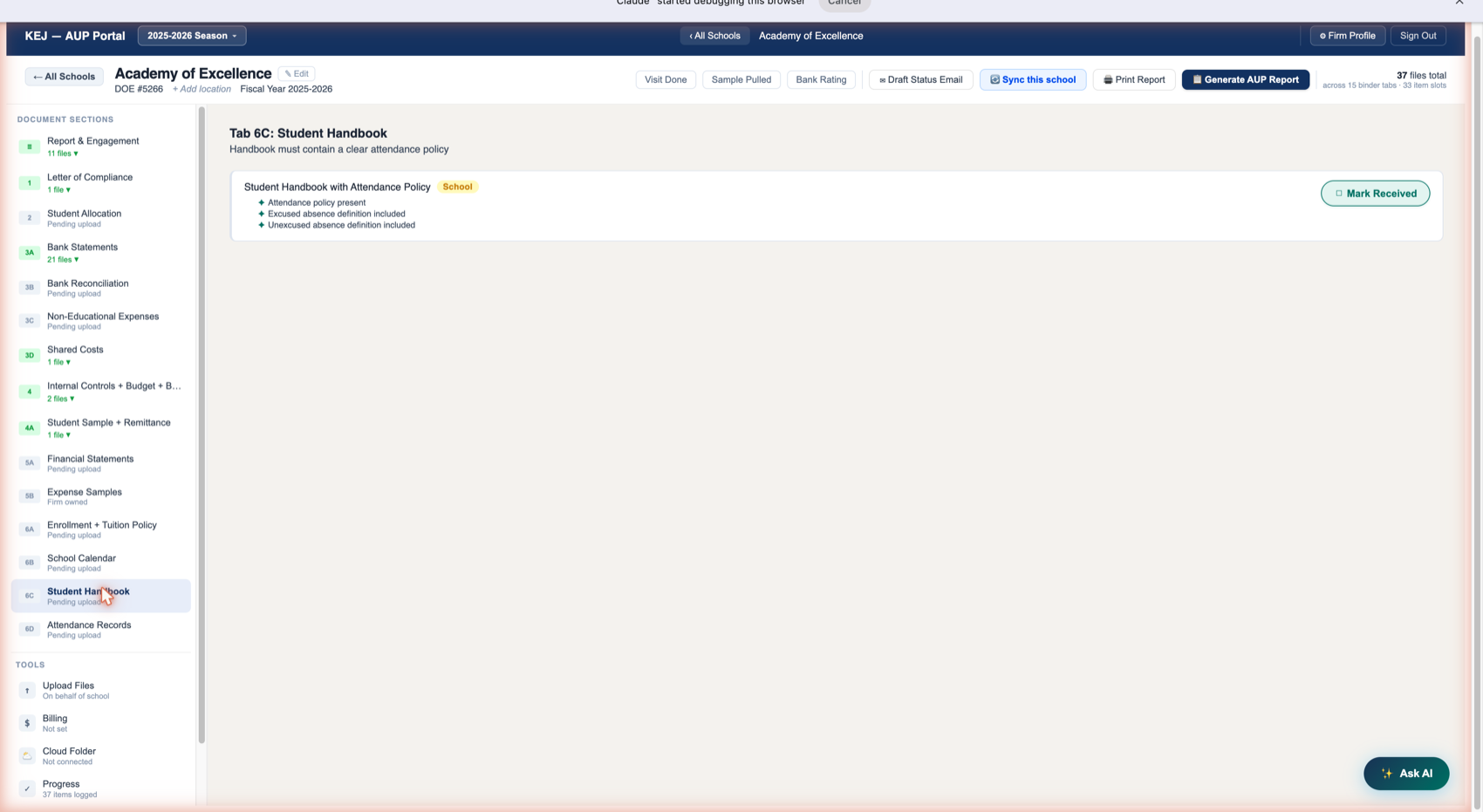
| Binder Item | Owner | Description |
|---|---|---|
| Student Handbook with Attendance Policy | School | The school's current student handbook. Three verify checks must be confirmed when you review it: (1) Attendance policy is present — there must be a written policy, not just verbal guidance. (2) Excused absence definition is included — what counts as excused (illness, family emergency, religious observance, etc.). (3) Unexcused absence definition is included — what counts as unexcused (skipping, non-approved absences). A handbook without all three elements is a finding. The handbook can be a PDF of the printed version or a digital handbook if the school distributes it electronically to families. |
| Binder Item | Owner | Description |
|---|---|---|
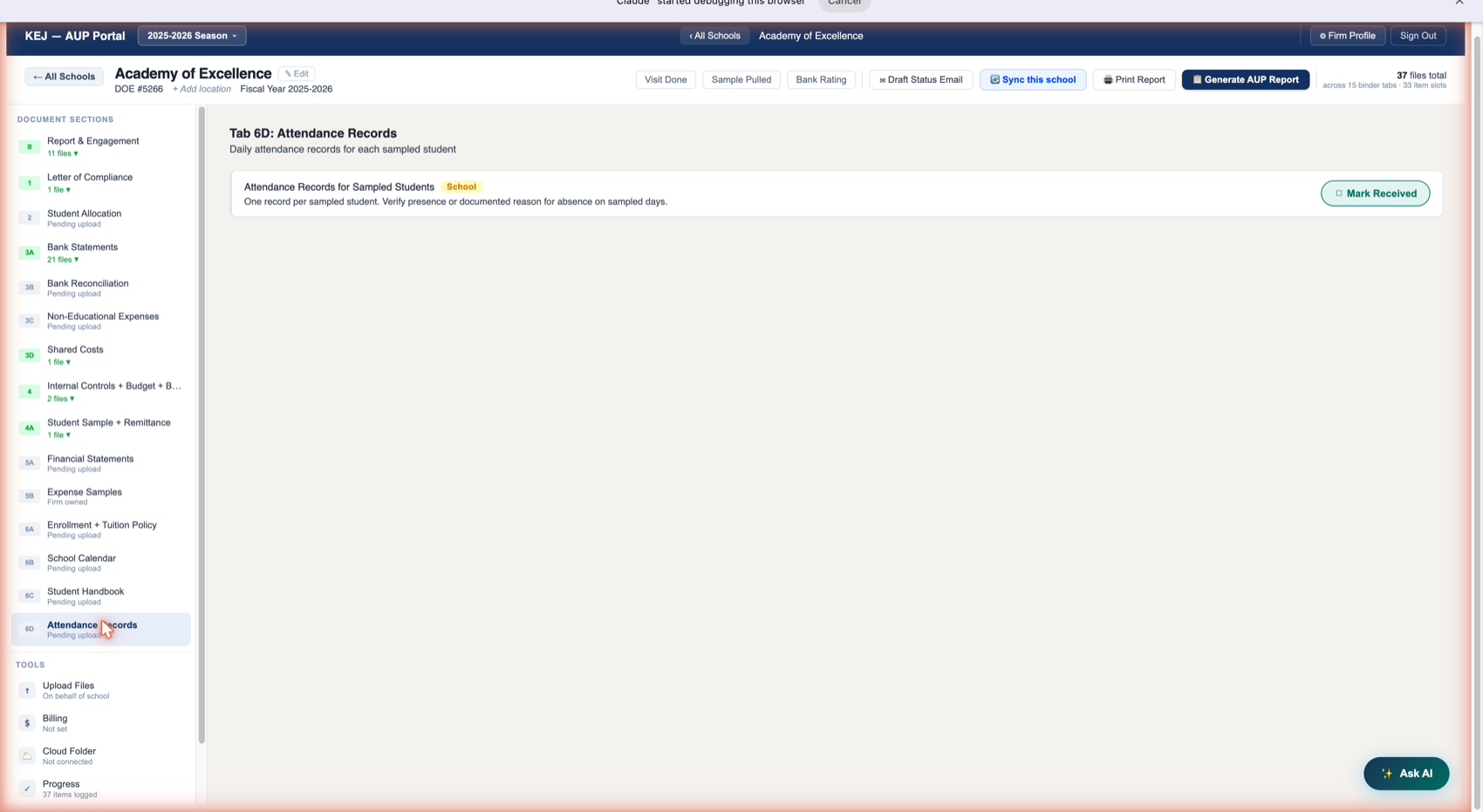
| Attendance Records for Sampled Students | School | For every student in the random sample (from Tab 4A), the school provides the daily attendance record. KEJ reviews these records during the student verification visit to confirm each sampled student was: (a) present on the days observed, or (b) has a documented, policy-consistent reason for any absence on those days. One attendance record per sampled student. These are typically extracted from the school's attendance system or the paper attendance binder the teacher maintains. The "sampled days" are the days KEJ observed during the verification visit. |
Tab 6D cannot be completed until: (1) the student sample is generated in Tab 4A, (2) the student verification visit is completed (mark it done with the Visit Done button), and (3) the school provides attendance records for the sampled students. This tab is typically one of the last to be completed each season.
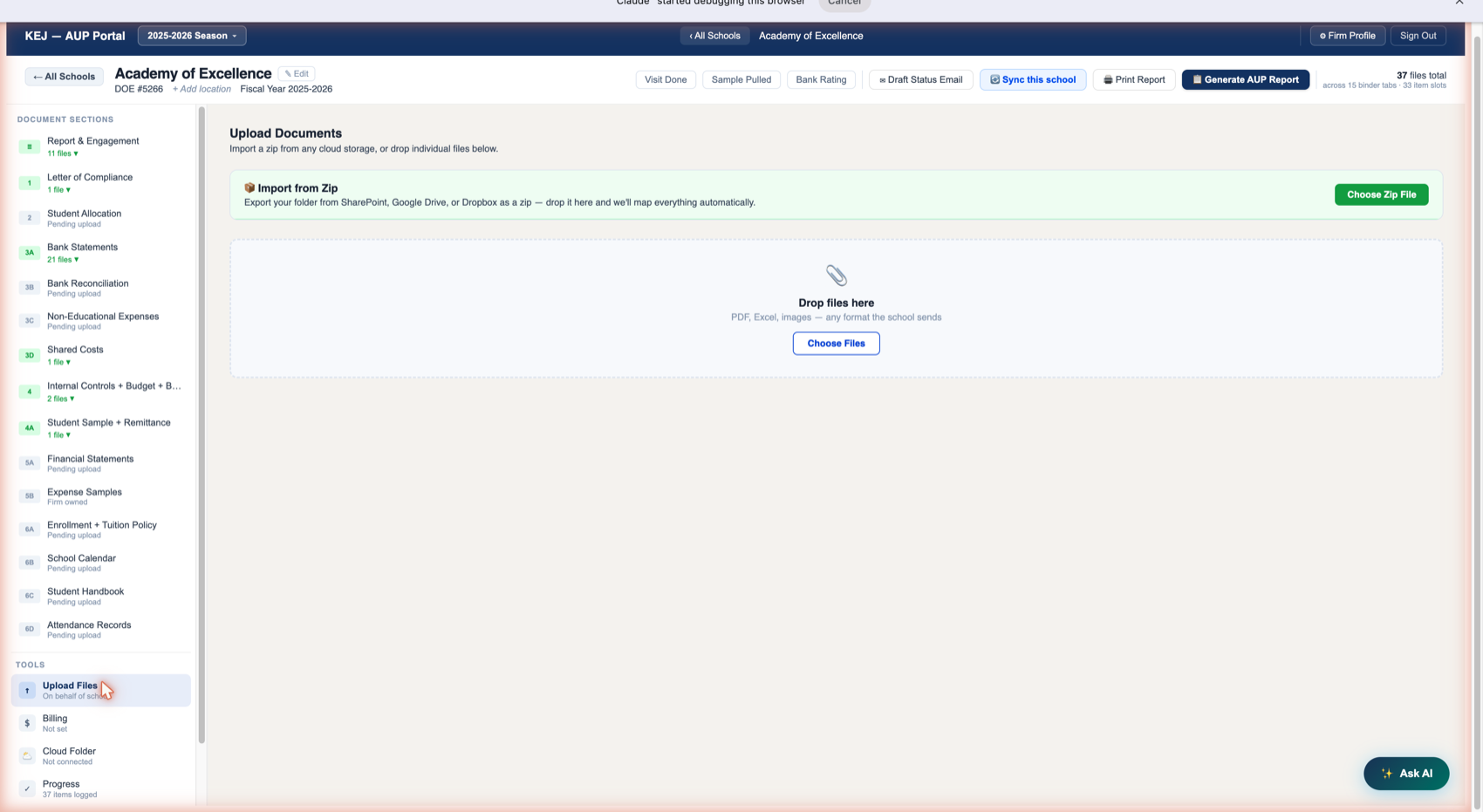
Method 1: Import from Zip
The green Import from Zip section at the top is the most powerful upload method. It is designed for the common workflow where a school provides their entire document folder via SharePoint, Google Drive, or Dropbox:
This replaces 30+ minutes of manually uploading individual files with a 2-minute process. A school with 72 files (like Bay Meadows Baptist) can be fully imported from one zip drop.
Method 2: Individual File Drop Zone
The lower section has a drag-and-drop zone labeled "Drop files here — PDF, Excel, images — any format the school sends" with a Choose Files button as an alternative to dragging.
After dropping a file, the portal shows a routing preview: it reads the filename and suggests which binder tab it belongs to. You can accept the suggestion or override it with the dropdown before confirming the upload.
The portal accepts any file format a school might send: PDF, Word (.docx, .doc), Excel (.xlsx, .xls), images (.jpg, .png, .tiff), and more. The AI analysis features work best with PDF and Excel formats — scanned documents may produce less accurate extraction results.
Re-Import with Tab Preview
When a school sends a corrected file (e.g., a corrected bank statement), drop just that single file. The portal detects the document type from the filename and shows a preview like "Bank Statement → Tab 3A" — confirming exactly where it will go before you click Import. No guessing, no manual routing for known document types.
Engagement Setup
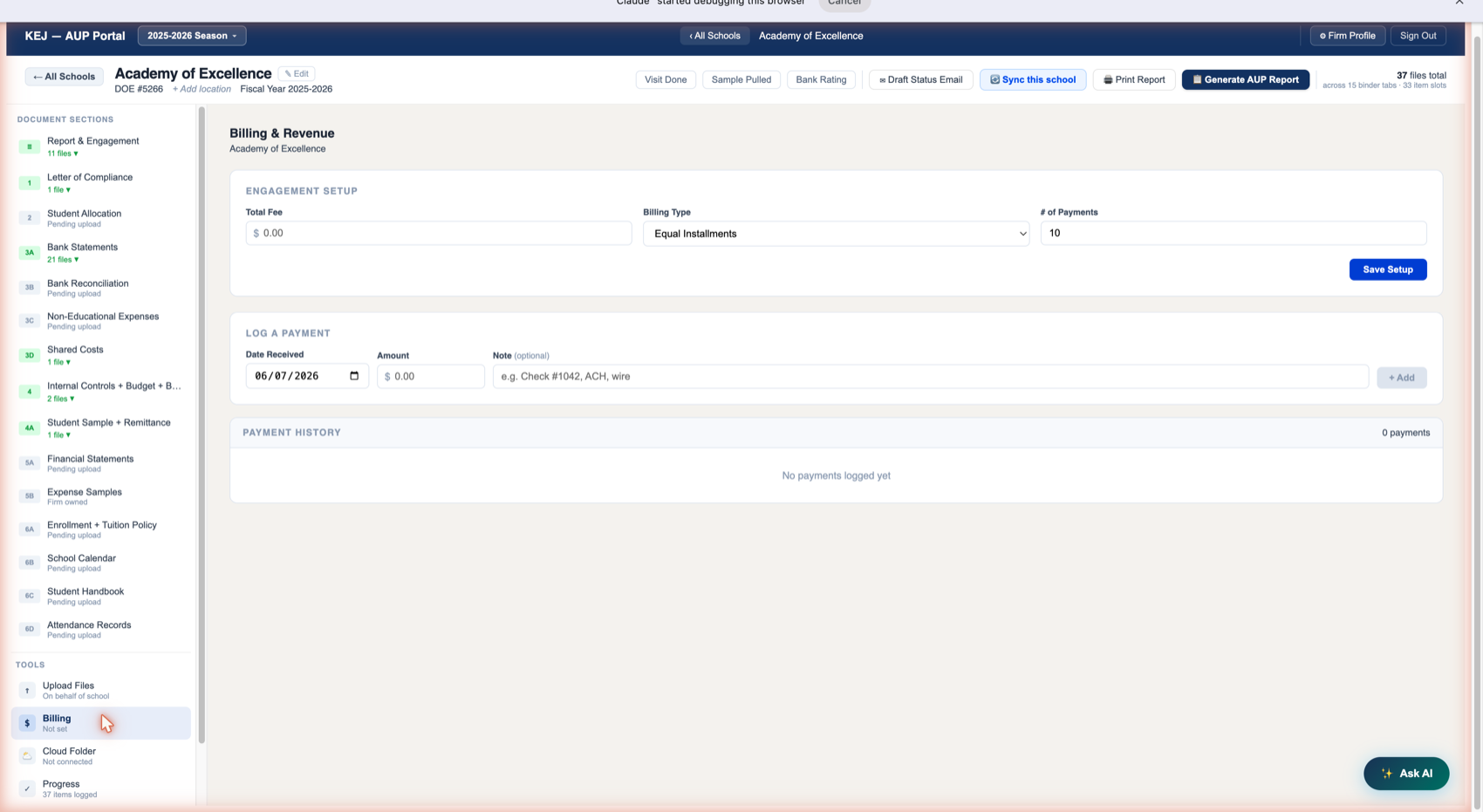
| Field | Options / Notes |
|---|---|
| Total Fee | The total agreed engagement fee for this school for the season. Enter the dollar amount (e.g., $3,500). Once entered, this feeds the Revenue Dashboard calculations. |
| Billing Type | Dropdown with options: Equal Installments (default) — fee divided evenly across the number of payments; Custom — you define the amount and timing of each payment separately. |
| # of Payments | How many installments the fee is split into (default: 10). With Equal Installments and a $3,500 fee over 10 payments: $350/payment. |
| Save Setup button | Saves the fee structure. Must click this before logging payments — the structure defines what "outstanding" means for the Revenue Dashboard. |
Log a Payment
| Field | Notes |
|---|---|
| Date Received | The date the payment was received (pre-filled with today's date — change it if logging a past payment). Uses a date picker — click to open the calendar. |
| Amount | The dollar amount of this payment. Can be any amount — doesn't need to match the installment amount exactly. |
| Note (optional) | Free-text note for your records: "Check #1042," "ACH wire," "Paid in full," etc. Appears in Payment History. |
| + Add button | Logs the payment and adds it to Payment History. Updates the Revenue Dashboard's Collected and Outstanding figures immediately. |
Payment History
Below the log form is a Payment History table showing every payment logged for this school, with columns for date, amount, and note. Currently shows "0 payments" and "No payments logged yet" for Academy of Excellence — fees haven't been configured this season.
The Billing tool is for internal tracking only. Do not share billing screenshots with schools or in client-facing communications. Per CPA antitrust rules, fee amounts cannot be disclosed publicly or used competitively.
SharePoint / OneDrive Folder
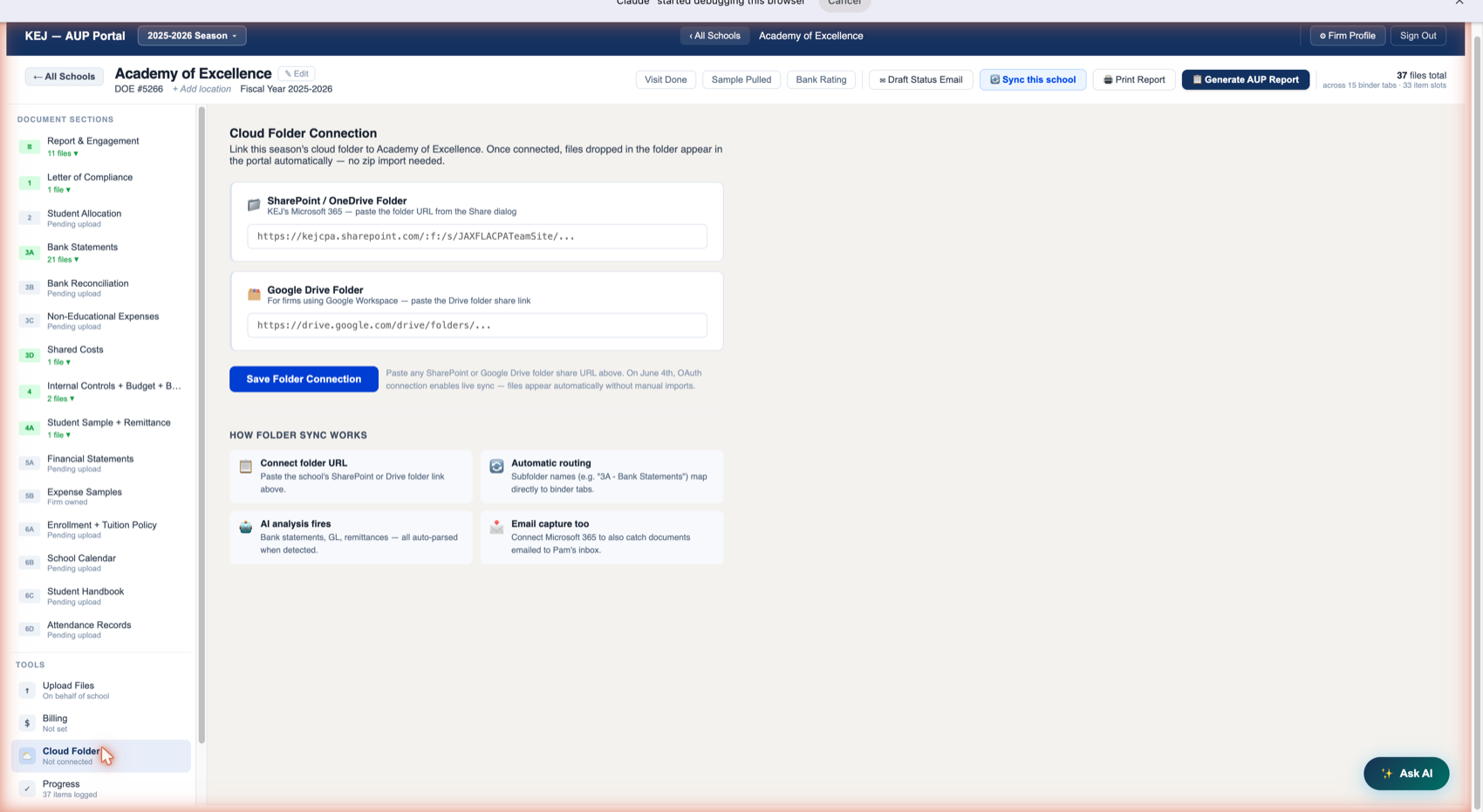
Paste the school's SharePoint folder URL into the first field. Get this URL by navigating to the school's folder in SharePoint, clicking Share, and copying the link. The portal then watches this specific folder — when KEJ staff or the school drops any file into it, the portal picks it up on the next sync cycle.
Google Drive Folder
For firms using Google Workspace instead of SharePoint: paste the Google Drive folder share link. Same workflow — the portal watches the folder and auto-imports new files.
Click Save Folder Connection after pasting either URL. A note below reads: "Paste any SharePoint or Google Drive folder share URL above. On June 4th, OAuth connection enables live sync — files appear automatically without manual imports."
How Folder Sync Works
| Step | What Happens |
|---|---|
| ① Connect folder URL | Paste the school's SharePoint or Drive folder link in the Cloud Folder tool and save. The portal registers this folder as the school's cloud sync source. |
| ② Automatic routing | Subfolder names in the cloud folder (e.g., "3A - Bank Statements") map directly to binder tabs. Files dropped into those subfolders route automatically — no manual tab selection. |
| ③ AI analysis fires | When bank statements, GL files, or remittance forms land in their binder tabs via sync, the AI analysis runs automatically. You come back to a school and the analysis is already done. |
| ④ Email capture too | With Microsoft 365 connected, the Email Inbox also watches for emailed documents. Cloud sync and email capture work together — files arrive through whichever channel the school uses. |
With Cloud Folder connected for every school: a school drops their bank statements into SharePoint → the portal picks them up → AI analyzes them → findings appear in Tab 3A. Staff never need to manually download files and re-upload them. The portal and SharePoint stay in sync automatically.
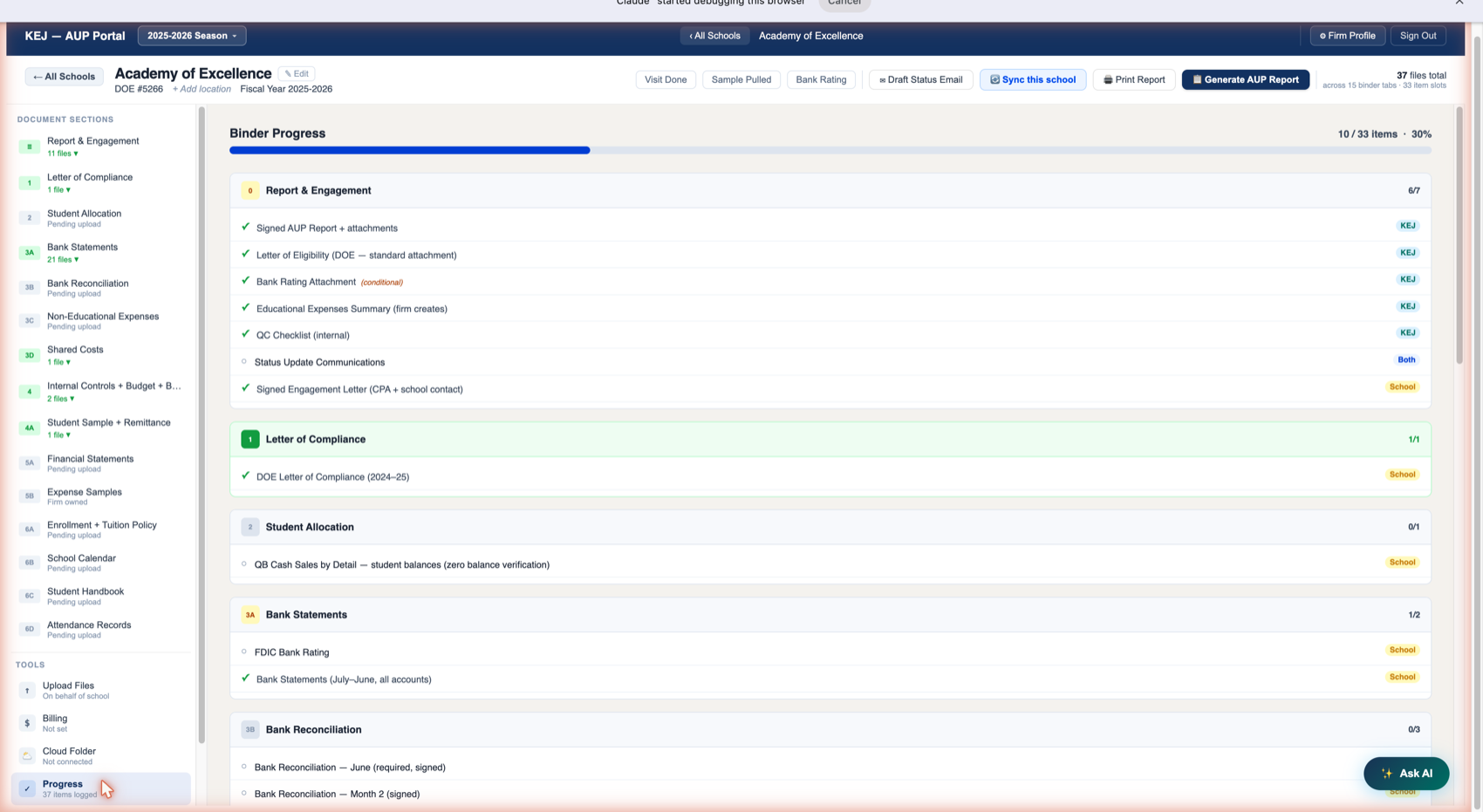
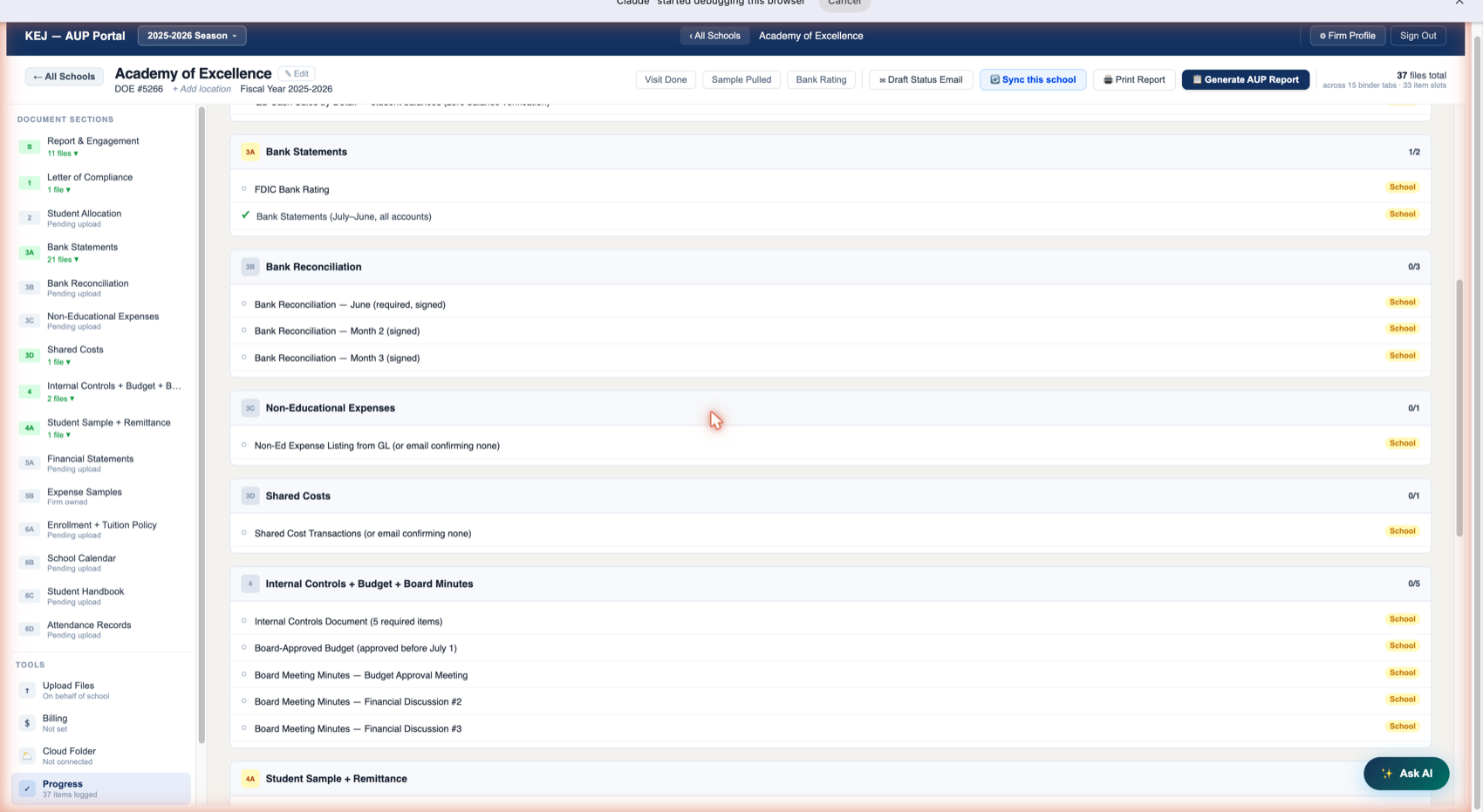
The Progress tool gives you a complete status snapshot without clicking through each tab individually. Use it to:
- Quickly identify which specific items are still missing
- Understand how many items KEJ owns vs. what the school must still provide
- Prepare for a status call with the school — you can read directly from this list
- Verify completeness before generating the AUP report
Reading the Progress View
| Element | What It Means |
|---|---|
| Progress bar + X/33 items · X% | Top of the view. Academy of Excellence: 10/33 items · 30%. The denominator (33) is the total number of required binder items across all 15 tabs. |
| Tab header with score (e.g., 6/7) | Each binder tab gets its own section with a colored badge (blue number), the tab name, and its individual item score. Green background = complete. White/gray = incomplete. |
| ✓ (green checkmark) | This item has been received — a file is matched to it, or it was manually marked received. |
| ○ (open circle) | This item is still pending — no file matched, not manually marked. |
| KEJ School Both | Owner tag on each item. Shows who is responsible for providing this document. Items tagged KEJ are your firm's responsibility — don't chase the school for them. Items tagged School are the school's responsibility — this is what goes into your status emails. |
Progress shows everything — KEJ and school items together. Draft Status Email (the header action button) only shows School items that are still missing — it's the version you send to the school. Use Progress for internal review; use Draft Status Email to generate the school-facing communication.
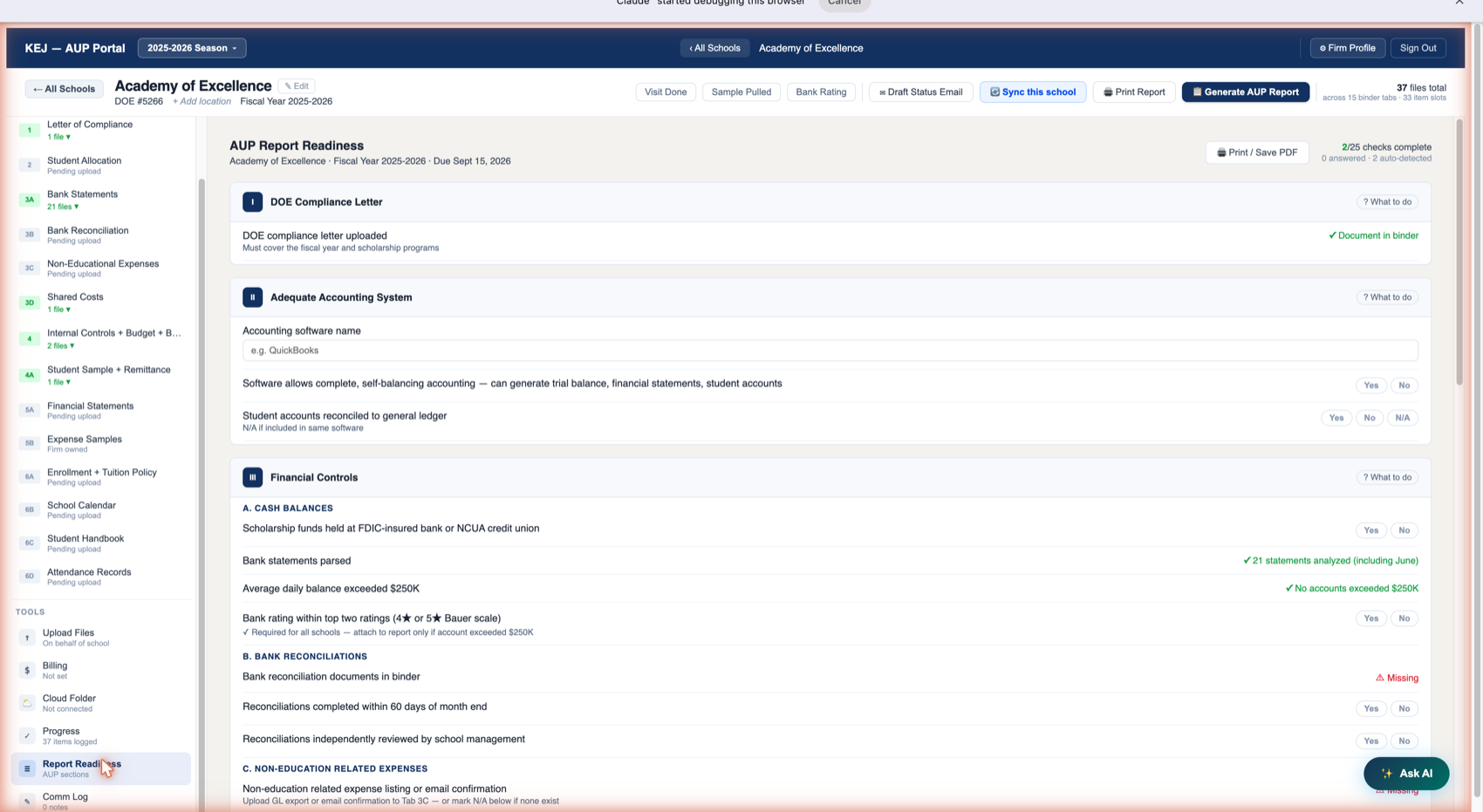
Report Readiness is where the AUP report is actually assembled before Keith signs it. Each section corresponds to a numbered section in the final 10-page Independent Accountant's Report. The portal auto-detects what it can from uploaded documents and analysis results; everything else requires Pam to answer Yes/No manually.
Report Sections
| Section | Topic | Key Items |
|---|---|---|
| I — DOE Compliance Letter | School eligibility | DOE compliance letter uploaded → auto-detected as "✓ Document in binder." The portal reads the file presence from Tab 1 and marks this automatically. |
| II — Adequate Accounting System | Accounting software | Accounting software name (text entry), whether it supports trial balance and financial statements (Yes/No), whether student accounts are reconciled to the GL (Yes/No/N/A). |
| III — Financial Controls (A through F) | Internal controls, bank, reconciliations, expenses | A. Cash Balances: Bank statements parsed (auto-detected from Tab 3A — shows "✓ 21 statements analyzed including June"), average daily balance >$250K (auto-detected — "✓ No accounts exceeded $250K"), bank rating within 4★/5★ (Yes/No). B. Bank Reconciliations: Reconciliation documents in binder (auto-detected from Tab 3B — shows "⚠ Missing" if not uploaded), reconciliations completed within 60 days (Yes/No), independently reviewed by school management (Yes/No). C. Non-Ed Expenses: Expense listing or email confirmation (auto-detected from Tab 3C), reported separately (Yes/No/N/A). D. Shared Expenses: Documentation in binder (auto-detected — shows "✓ Document in binder" from Tab 3D), school shares expenses (Yes/No). E. Internal Controls: Policy document in binder (auto-detected from Tab 4), controls documented and followed for all five categories (Yes/No). F. Budgets & Financial Statements: Budget and minutes in binder (auto-detected from Tab 4 — shows "⚠ Budget present, board minutes missing"), annual budget prepared and approved before July 1 (Yes/No), budget vs actual reviewed twice annually (Yes/No), board minutes reflect financial review (Yes/No). |
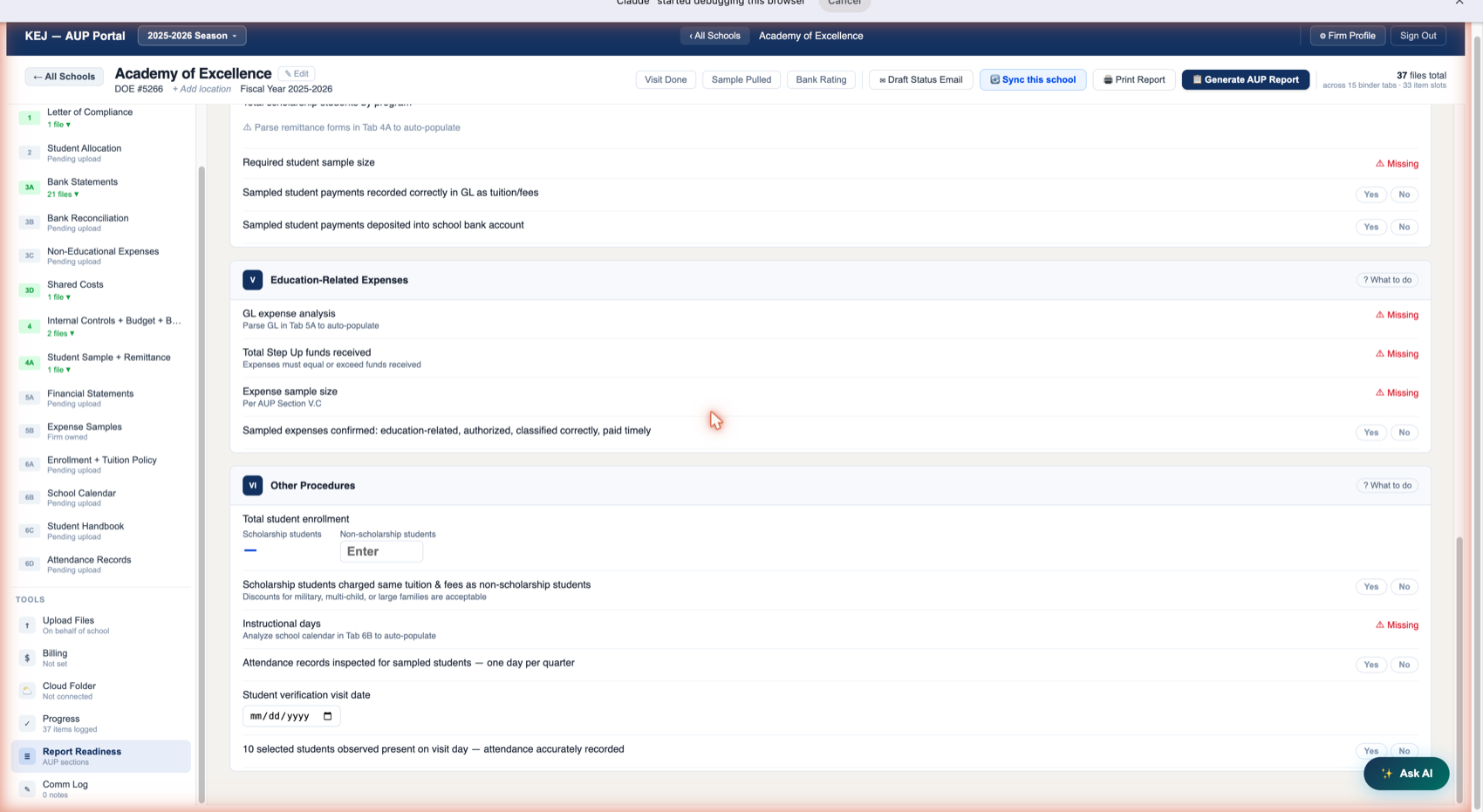
| IV — Scholarship Fund Deposits | Student sample and deposit verification | Total scholarship students by program (auto-populated after parsing remittance forms), required student sample size (auto-calculated — shows "⚠ Missing" until roster is parsed), sampled student payments recorded correctly in GL (Yes/No), sampled student payments deposited into bank account (Yes/No). |
| V — Education-Related Expenses | GL analysis and expense sampling | GL expense analysis (auto-detected from Tab 5A — shows "⚠ Missing" until GL is uploaded and analyzed), total Step Up funds received (auto-from bank analysis — shows "⚠ Missing"), expense sample size per tier (auto-from GL analysis — "⚠ Missing"), sampled expenses confirmed education-related, authorized, classified correctly, paid timely (Yes/No). |
| VI — Other Procedures | Enrollment, tuition, calendar, attendance, visits | Total student enrollment (enter scholarship students / non-scholarship students counts), scholarship students charged same tuition as non-scholarship (Yes/No with note about permitted discounts), instructional days (auto-populated from Tab 6B — "⚠ Missing" until calendar analyzed), attendance records inspected for sampled students (Yes/No), student verification visit date (date picker), 10 selected students observed present on visit day (Yes/No). |
What to Do Button
Each section header has a ? What to do link. Clicking it expands contextual help explaining exactly what is needed for that section — which tab to go to, what document to upload, or what question to ask the school. This guide-within-the-guide means Pam can work through Report Readiness without needing to reference external documentation.
Print / Save PDF
The 🖨 Print / Save PDF button (top right of Report Readiness) opens a print-ready version of the readiness checklist — showing all questions and your current answers. Use this for Keith's review before he signs the report. It captures the current state, not the final report — use Generate AUP Report for the signable document.
Completion Counter
Top right shows "2/25 checks complete" for Academy of Excellence. This counter increases each time you answer a Yes/No question or the AI auto-detects a document. You don't need to reach 25/25 before generating the report — but Keith should review every outstanding item before signing.
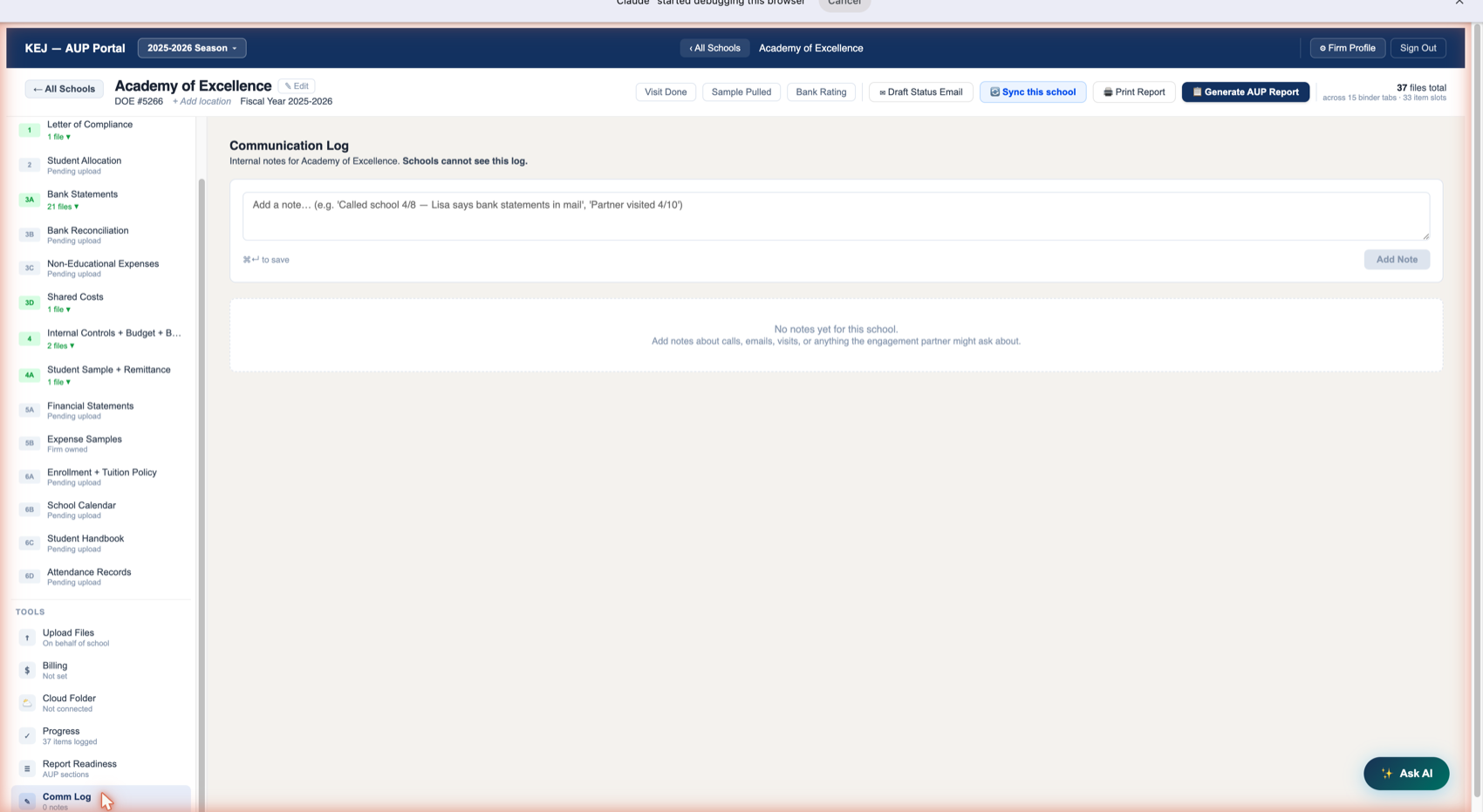
The Communication Log is a firm-internal running history for each school engagement. Schools never see it — the prominent subtitle reads "Schools cannot see this log." Use it to document:
- Phone calls with the school: date, who you spoke with, what was discussed, what they committed to sending
- Emails sent or received that aren't formal status updates
- Pam's notes from the student verification visit
- Keith's review observations before signing
- Any unusual findings or questions that came up mid-engagement
- Follow-up reminders: "School said GL would be ready by August 15 — follow up if not received"
Adding a Note
Click in the text area, type your note in free-form text, then either click Add Note or press ⌘↵ (Mac) / Ctrl+Enter (Windows). Notes are timestamped automatically and displayed in reverse-chronological order (newest at top) in the history below.
There is no edit function on saved notes — treat them as permanent log entries. If you made an error, add a new note clarifying or correcting the previous one.
Date + who you spoke with + what they said + what they committed to. Example: "2026-06-07 — Called Pam at Academy of Excellence. She confirmed bank statements are in the mail. Said GL will be ready by July 15. Will upload directly to SharePoint." This log becomes your defense if the school later disputes what was agreed.
The Visit Done button appears in the school header next to the school name. Clicking it marks this school's student verification visit as complete. The effect:
- The VISIT column in the Season Grid changes from ○ Pending to ✓ Done for this school
- The "Visits Complete" stat card on the Season Grid increments by 1
- The "Visit Pending" filter chip no longer includes this school
- The visit date is recorded and available in Report Readiness (Section VI)
All student verification visits must be completed by May 15 — this is when students leave for summer and access to attendance records and students themselves becomes impossible. Mark visits done immediately after completing each visit so the Season Grid reflects accurate status in real time.
The Sample Pulled button records that the student sample for this engagement has been finalized. This is separate from the Visit Done action because samples must be pulled before visits — you need to know which students to observe before you go to the school.
Clicking Sample Pulled:
- Updates the SAMPLE column in the Season Grid from ○ Pending to ✓ Done
- Signals to Pam that the sample list in Tab 4A is final and she should request remittance forms for those specific students
Parse Roster (Tab 4A) → confirm sample → click Sample Pulled → request remittance forms from school → complete visit → click Visit Done. Don't click Sample Pulled before the sample is actually generated and confirmed in Tab 4A.
The Bank Rating button in the school header opens a dialog to record the confirmed Bauer Financial rating for this school's banking institution(s).
The detailed Bauer Financial lookup workflow lives in Tab 3A — you do the actual research there (entering bank names, clicking Look Up, reading the rating PDF). The Bank Rating header button is the final step: clicking it after confirming the rating marks the school's bank rating as complete in the Season Grid, changing the BANK RATING column from Pull Needed to the confirmed star rating.
The Season Grid "Bank Ratings Pulled" stat card increments each time you click this for a school.
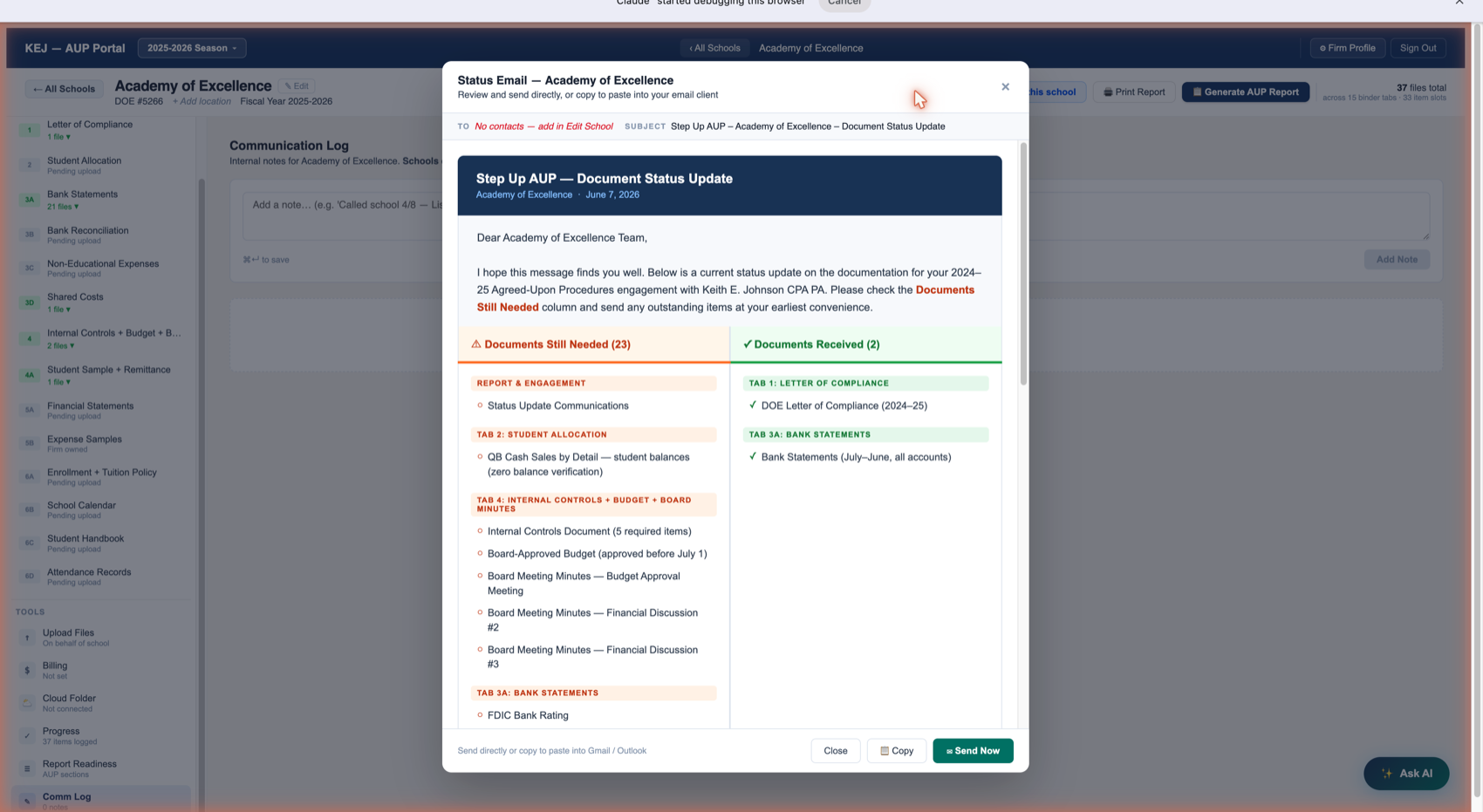
Click ✉ Draft Status Email in the school header. The portal instantly generates a professional email showing:
Email Content
| Section | What It Contains |
|---|---|
| Header | "Step Up AUP — Document Status Update" in dark navy. School name and current date below the title. |
| Greeting | "Dear [School Name] Team," followed by: "I hope this message finds you well. Below is a current status update on the documentation for your 2024–25 Agreed-Upon Procedures engagement with Keith E. Johnson CPA PA. Please check the Documents Still Needed column and send any outstanding items at your earliest convenience." |
| Documents Still Needed (red column) | Every binder item tagged School or Both that has not been received. Organized by tab section. For Academy of Excellence: 23 items still needed, listed under their tab headings (Report & Engagement, Tab 2: Student Allocation, Tab 4: Internal Controls + Budget + Board Minutes, Tab 3A: Bank Statements, etc.) |
| Documents Received (green column) | Every binder item tagged School or Both that has been received and confirmed. For Academy of Excellence: 2 items received (DOE Letter of Compliance and Bank Statements from Tab 3A). |
Sending Options
| Button | What It Does |
|---|---|
| » Send Now | Sends the email directly from pamela@jaxflacpa.com to the school contact(s) registered in the school's Edit form. Requires Microsoft 365 integration (currently active). The email is sent immediately — there is no draft stage. Only use this when the email is ready to go. |
| Copy | Copies the email HTML content to the clipboard. Paste it into Gmail, Outlook, or any email client to review and send manually. Use this if you want to add a personal note before sending, or if the Send Now integration is unavailable. |
| Close | Closes the modal without sending or copying. The email is generated fresh each time you click Draft Status Email — it always reflects the current binder state. |
The TO field shows "No contacts — add in Edit School" for Academy of Excellence because no contact email has been added yet. To fix this: close the modal, click ✎ Edit next to the school name in the header, and add the school's contact email. Future status emails will auto-populate the TO field.
Before the portal: Pam spent 15–20 minutes per school writing a status email — looking through the binder, listing what's received, listing what's still needed, formatting it, sending it. With Draft Status Email: the portal reads the binder state, generates the two-column email, and it's ready in under 5 seconds. Click Send Now to dispatch it. 40 schools × 20 minutes = 800 minutes of Pam's time saved per email cycle.
The ↺ Sync this school button triggers a SharePoint sync for this specific school's folder only. The full-portal sync (accessible via the "↓ Sync Now" button on the Season Grid) re-syncs all 40 schools — which can take time. When you know a specific school has just added files to SharePoint and you want them in the portal immediately, use this per-school sync instead.
After clicking, a progress indicator appears briefly while the portal checks the school's connected SharePoint folder, imports any new files, and updates the binder. The sidebar file counts update to reflect any newly imported files.
A sync result summary appears after completion: "X new files imported" and "X files already in portal." If the school hasn't added anything since the last sync, it shows "0 new files."
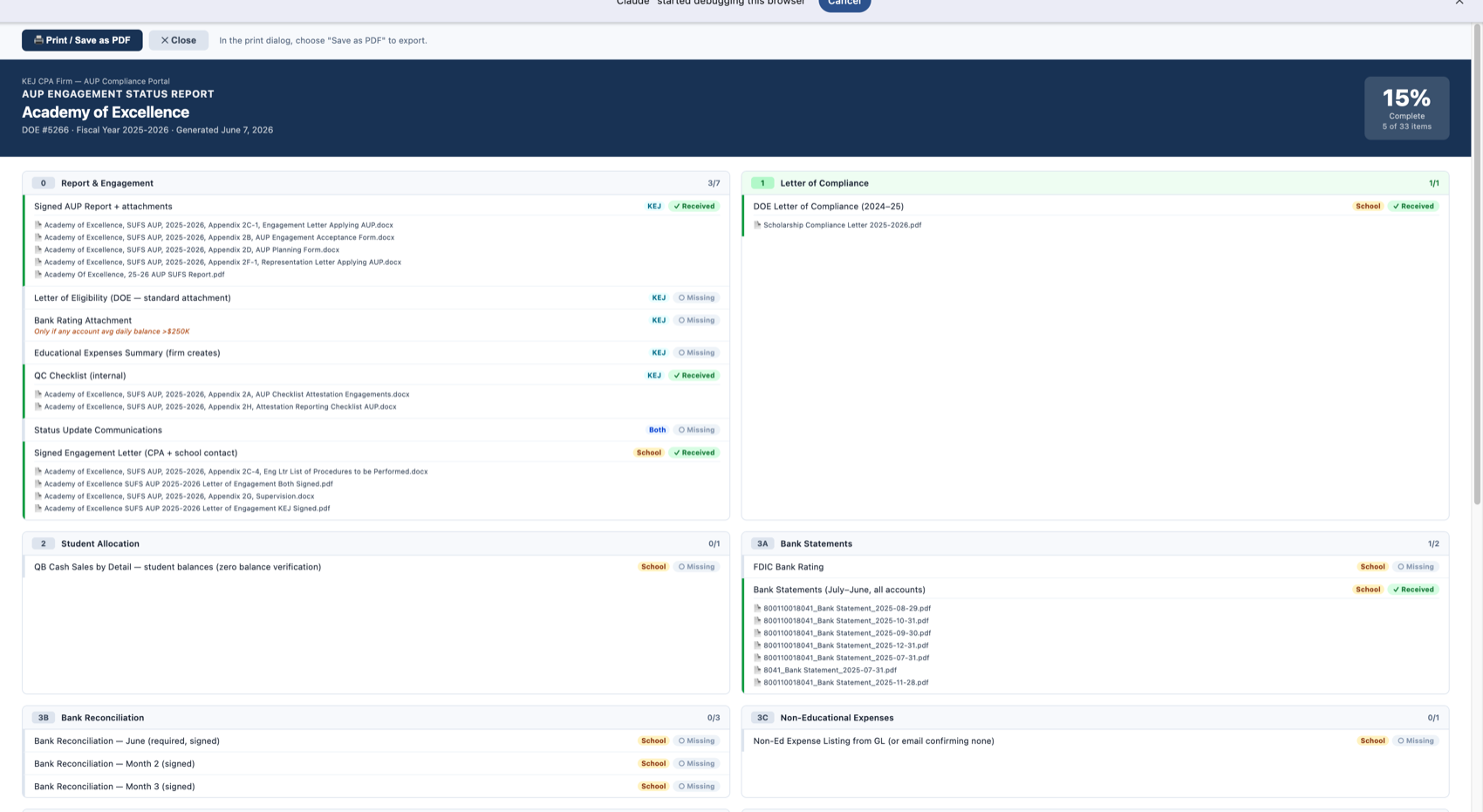
Click 🖨 Print Report in the school header. A new browser tab opens showing the full AUP Engagement Status Report formatted for printing or saving as PDF.
Report Contents
| Section | What It Shows |
|---|---|
| Header block | "KEJ CPA Firm — AUP Compliance Portal" and "AUP ENGAGEMENT STATUS REPORT" in dark navy. School name, DOE number, fiscal year, generation date and time, and a large completion percentage badge (e.g., 15% complete · 5 of 33 items). |
| Per-tab sections | Each of the 15 binder tabs is listed with its heading and score (e.g., "Tab 0: Report & Engagement — 3/7"). Each item in the tab shows: item name, owner tag (KEJ/School/Both), and Received or Missing status. For received items: the actual filenames on file are listed beneath the item name. |
| Print / Save as PDF button | Green button at top. Clicking it opens the browser's native print dialog — choose "Save as PDF" to export a dated PDF copy for your records or to email Keith for review. |
| × Close button | Closes the report tab and returns to the portal. |
Print this report for each school before Keith's weekly status review. He can see at a glance which schools are progressing, which are stuck, and what his team needs to chase. Much faster than opening each school individually and checking each tab.
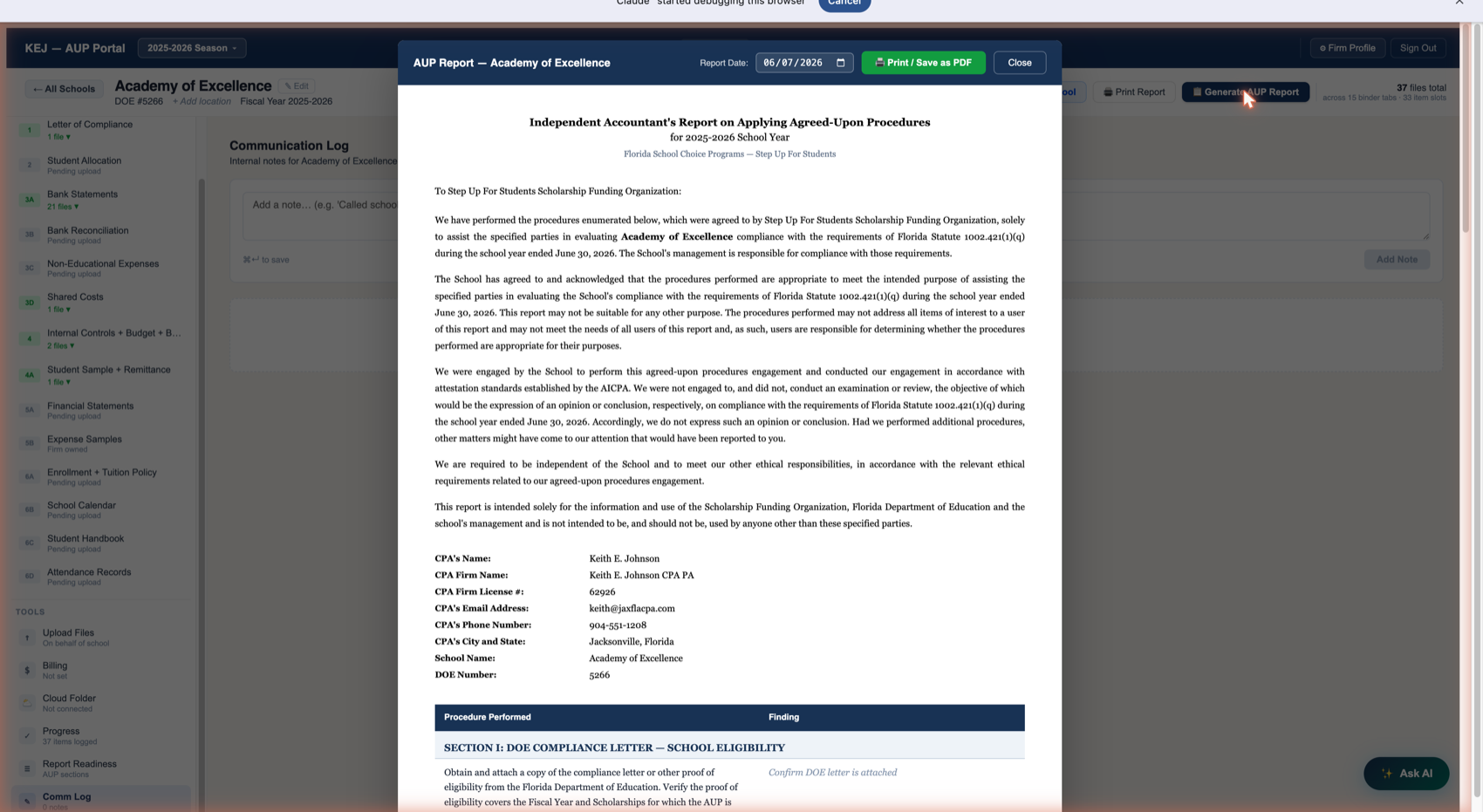
Click Generate AUP Report (dark navy button, top right of header) to open the report modal. This generates the actual deliverable document that Keith will sign.
What Auto-Populates
| Field in Report | Populated From |
|---|---|
| Report Date | Pre-filled with today's date. Edit the date field at the top of the modal to change it — for example, if Keith is signing on a different day. |
| CPA's Name | Firm Profile → CPA Full Name (Keith E. Johnson) |
| CPA Firm Name | Firm Profile → CPA Full Name + "CPA PA" (Keith E. Johnson CPA PA) |
| CPA Firm License # | Firm Profile → CPA License Number (62926) |
| CPA's Email Address | Firm Profile → CPA Email (keith@jaxflacpa.com) |
| CPA's Phone Number | Firm Profile → CPA Phone (904-551-1208) |
| CPA's City and State | Firm Profile → City, State (Jacksonville, Florida) |
| School Name | The school's name as stored in the portal (Academy of Excellence) |
| DOE Number | The school's DOE number (5266) |
| Procedure/Finding table | Populated from the Yes/No answers entered in Report Readiness. Each row corresponds to a numbered AUP procedure. Auto-detected items (bank analysis, GL analysis) pre-fill their rows; manually answered items use your Yes/No selections. |
Report Boilerplate
The standard AICPA report language appears verbatim in the body — this language is mandated by AICPA and cannot be modified:
"We have performed the procedures enumerated below, which were agreed to by Step Up For Students Scholarship Funding Organization, solely to assist the specified parties in evaluating [School Name]'s compliance with the requirements of Florida Statute 1002.421(1)(q) during the school year ended June 30, 2026..."
Print / Save as PDF
The green Print / Save as PDF button at the top of the modal opens the browser print dialog. Choose "Save as PDF." Keith prints, signs, and the signed version is scanned and uploaded to Tab 0 (Signed AUP Report + attachments).
The portal generates the report and auto-fills data, but it does not apply Keith's electronic signature. Keith must print, physically review, and sign each report. The signed PDF is then scanned and uploaded to Tab 0. Never send an unsigned report to Step Up For Students.
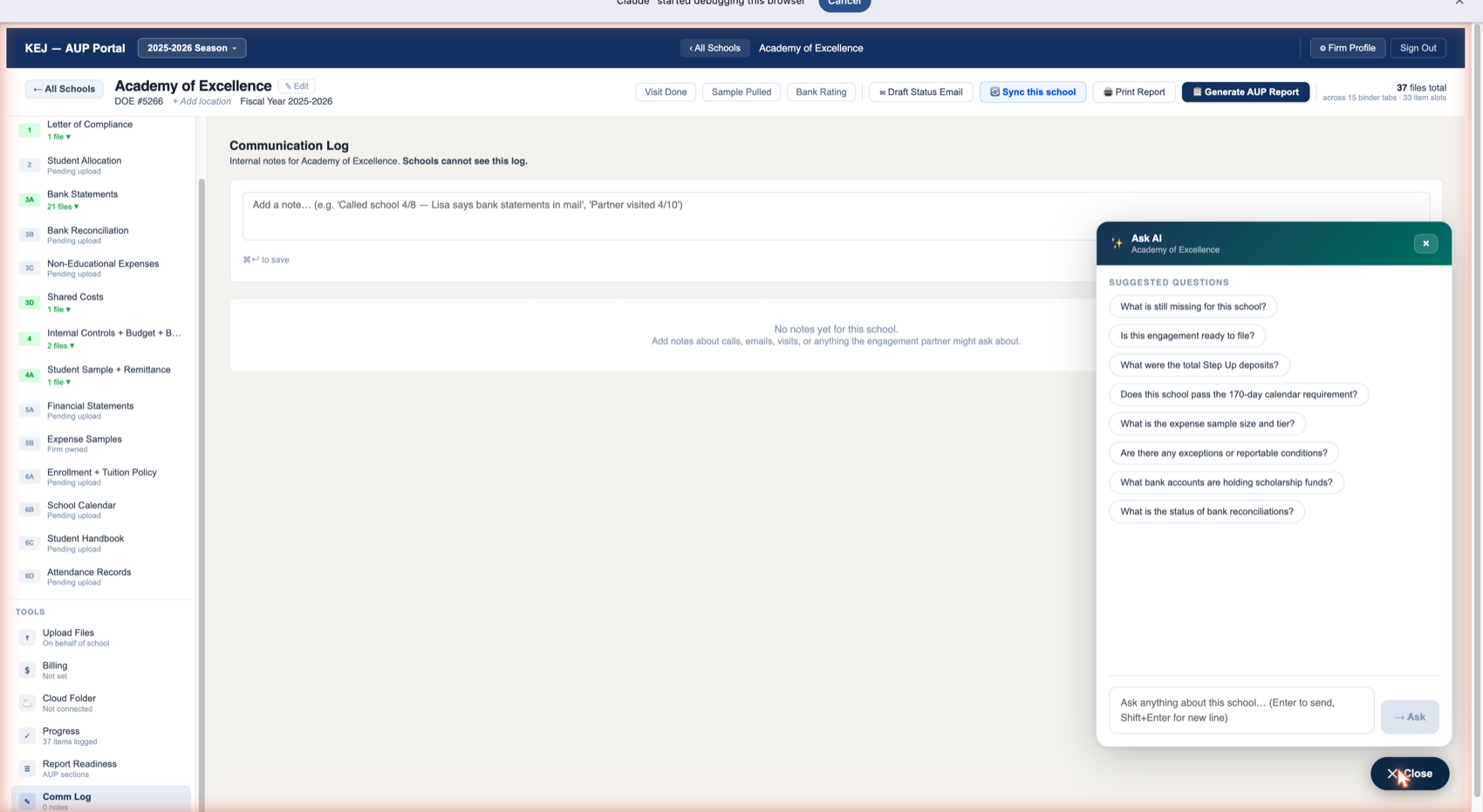
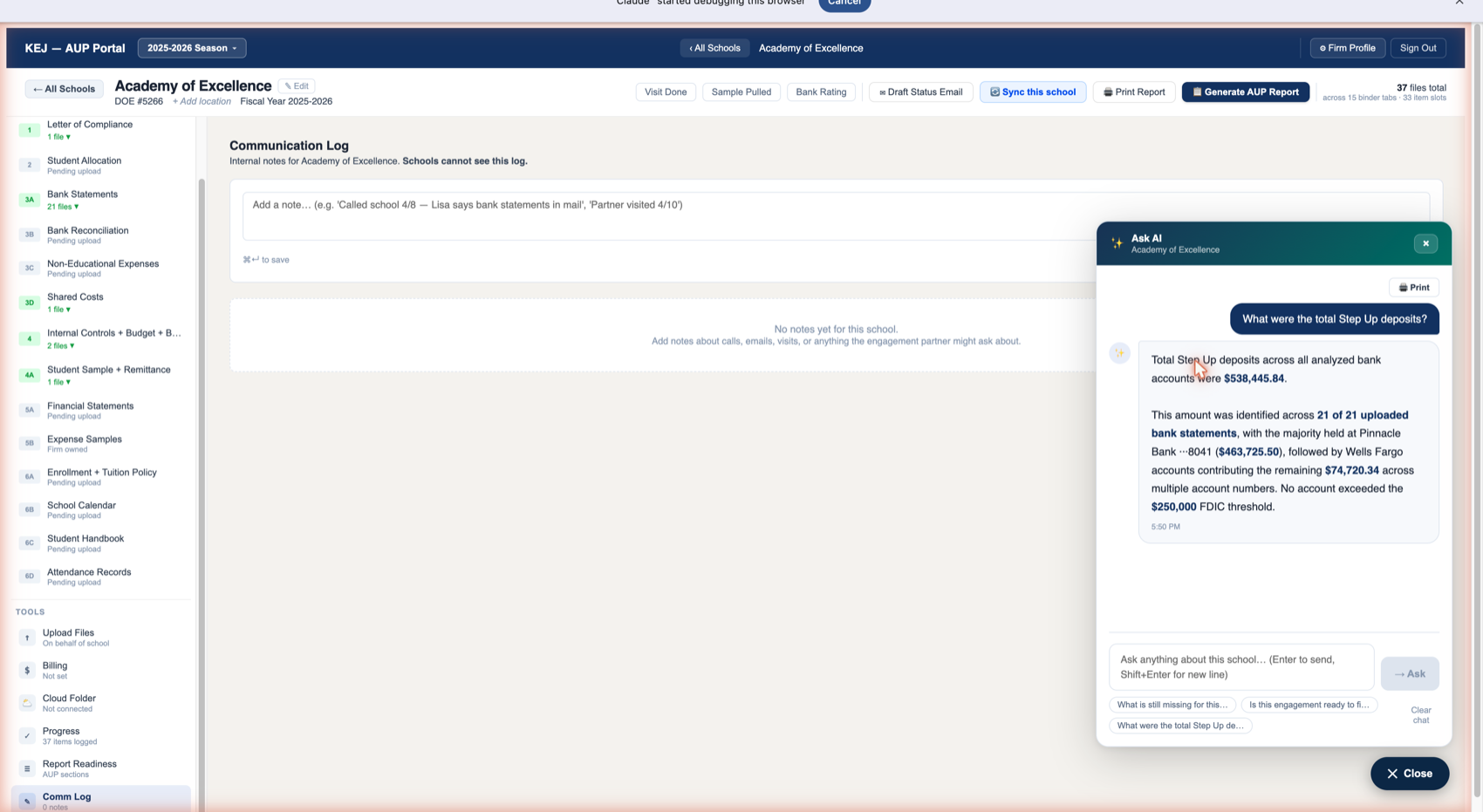
The floating ✨ Ask AI button appears in the bottom-right corner of every view inside a school. Click it to open the AI panel. The AI knows everything that has been uploaded and analyzed for this school — it answers from the actual data, not from guesses.
Suggested Questions
When you first open Ask AI, eight suggested questions appear as clickable chips. Click any of them to send the question instantly — no typing required:
| Suggested Question | What You'll Get |
|---|---|
| What is still missing for this school? | A summary of all unreceived binder items — which tabs have gaps, which items belong to the school vs. KEJ, and what to prioritize. |
| Is this engagement ready to file? | A candid assessment of readiness — what's complete, what's still open, and whether there are any blocking issues before Keith can sign. |
| What were the total Step Up deposits? | The exact dollar figure extracted from analyzed bank statements, broken down by bank and account, with the $250K threshold verdict. |
| Does this school pass the 170-day calendar requirement? | The instructional day count from the analyzed school calendar, the Pass/Fail verdict, and the month-by-month breakdown if available. |
| What is the expense sample size and tier? | The required number of expense samples (30, 45, or 60) based on total Step Up educational expenses extracted from the GL analysis. |
| Are there any exceptions or reportable conditions? | A review of all findings detected across the binder — bank ratings below 4★, accounts over $250K, internal controls gaps, tuition policy issues, calendar shortfalls. |
| What bank accounts are holding scholarship funds? | A list of all bank accounts and institutions identified from the analyzed bank statements, with account numbers and account types. |
| What is the status of bank reconciliations? | Whether the required reconciliation months have been uploaded and what months are still missing from Tab 3B. |
Free-Text Questions
The text input at the bottom of the panel lets you ask anything in your own words. Examples of useful free-text questions:
- "Which months of bank statements are we missing?"
- "What was the largest single Step Up deposit?"
- "Does the tuition policy mention military discounts?"
- "How many students are in the sample?"
- "What type of accounting software does this school use?"
Press Enter to send, or Shift+Enter for a new line within a message. The AI responds within a few seconds.
Print Button
A Print button appears in the top right of the AI panel after answers are generated. This prints the conversation — useful for including AI analysis summaries in the engagement workpapers.
Clear Chat
The Clear chat button resets the conversation. Useful when switching from one type of question to another, or when you want a fresh context without previous questions influencing the answers.
Ask AI answers from documents and data actually uploaded and analyzed for this school. If a bank statement hasn't been analyzed yet, the AI will say so rather than guessing. If a school calendar hasn't been uploaded, it won't fabricate a day count. The AI is confident when it has data and transparent when it doesn't.
📊 Student Sampling
<200 students → sample 10
>200 students → sample 5%
Minimum 2 per type (FES-EO and FES-UA)
KEJ generates the sample — schools don't choose
💰 Expense Sampling
Under $500K → 30 samples
$500K–$750K → 45 samples
Over $750K → 60 samples
(20 payroll + 20 building + 20 other)
🏦 Bank Rating Rules
Pull for ALL schools
Must be 4★ or 5★ (Bauer Financial)
Attach to report ONLY if any account avg daily balance >$250K
📅 Bank Reconciliation
3 months required
June is mandatory
Non-consecutive months OK
School prepares — KEJ cannot reconcile
📆 School Calendar
Minimum 170 instructional days
Florida allows 180 – 10 (5 weather + 5 other)
Upload PDF for AI count OR use county calendar picker
🎓 Tuition Rule
Scholarship students must pay same tuition as private-pay
Permitted discounts: military, siblings, low-income — must be in written policy and applied equally
📋 AUP Scope
Only Step Up funds are in scope
VPK, parent tuition, other revenue — NOT in scope
Step Up deposits: $7,200–$12,000+ per student
📆 Key Deadlines
May 15: All student visits done
June 30: Fiscal year end
Aug 15: Schools submit all paperwork
Sept 15: Soft submission deadline
Nov 1: Hard deadline (Step Up calls begin)
🚫 Language Rules
Never use "audit" or "review" in client communications
Never advertise fee amounts
Correct term: "Agreed-Upon Procedures" or "AUP"
KEJ AUP Compliance Portal — Internal User Guide
Prepared by Advisor AI Partners · David Ortiz · david@advisoraipartners.com
For internal use by Keith E. Johnson CPA PA only. Contains confidential firm information — do not distribute externally.
Portal: aup-portal-iota.vercel.app | Guide hosted: advisoraipartners-hub.netlify.app/kej-aup-portal-user-guide.html